Bonus configuration
Bonus Module overview
The Driver Bonus Module is designed to incentivize drivers based on the total kilometers (KM) traveled during a defined performance period. This module ensures fair and performance-driven compensation, encouraging consistent productivity and efficient driving practices.
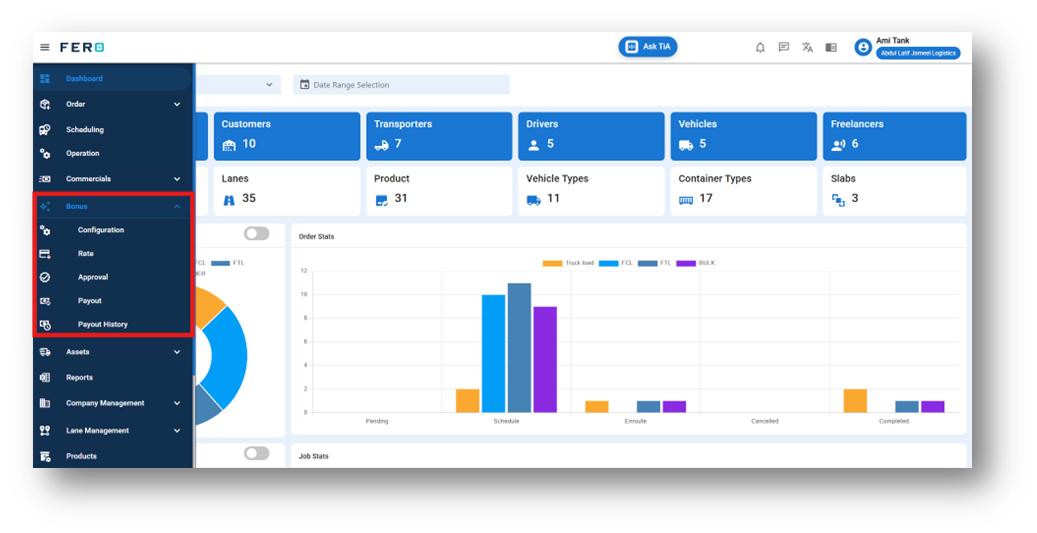
1. configuration overview:
The Lane-Based Bonus Incentive Module enables targeted performance rewards based on the efficiency and consistency of operations within predefined lanes. By linking bonus eligibility to specific routes, this system encourages drivers to meet performance benchmarks tailored to each lane's unique operational demands.
How do I setup the configuration module?
Step 1 :- Access the configuration module from the menu bar and select it to reveal a drop-down list of submodules.
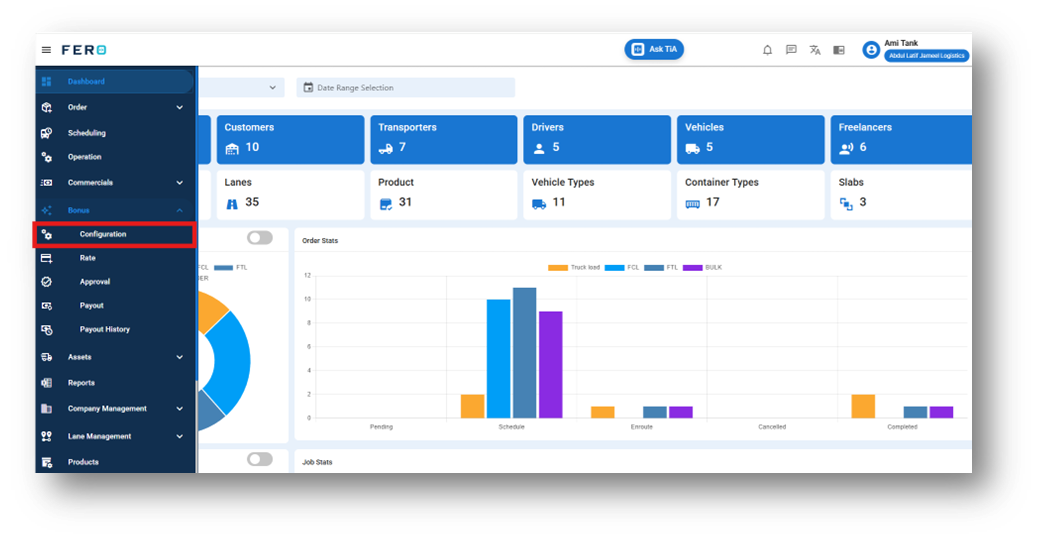
Step 2 :- Go to the configuration section and click to open the bonus configuration homepage.
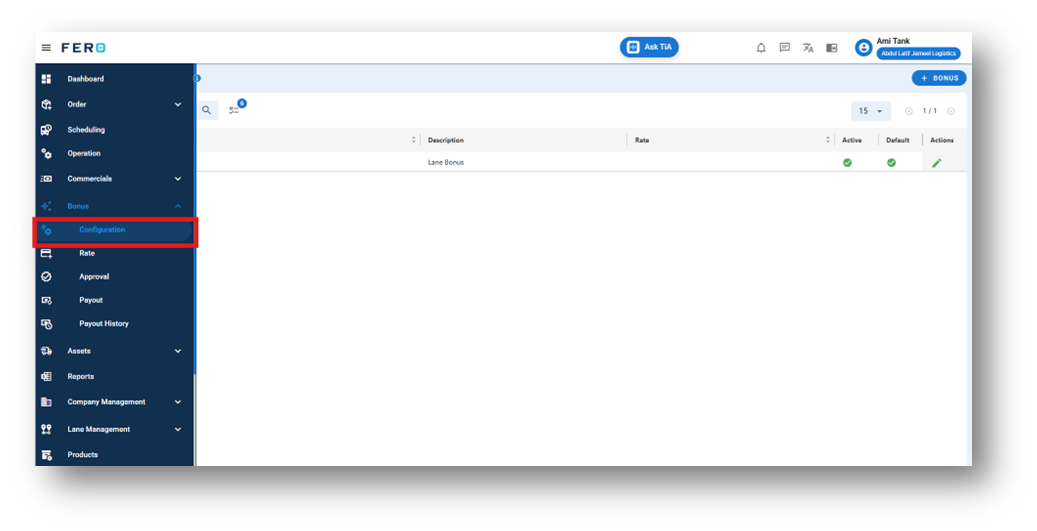
Step 3 :- Click on "Bonus'' to fill up the details.
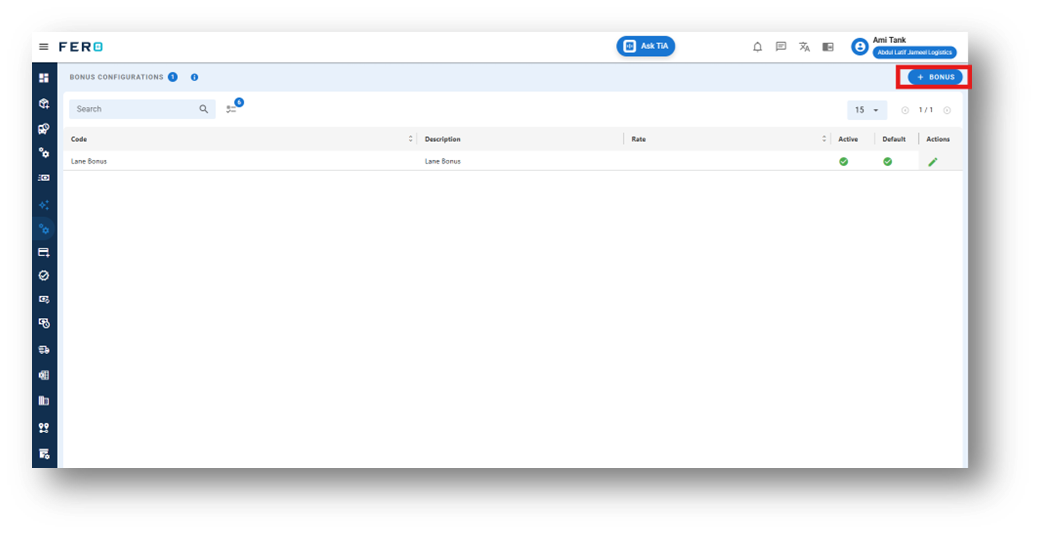
Step 4: fill-up the necessary details. Click on the button to activate and deactivate.
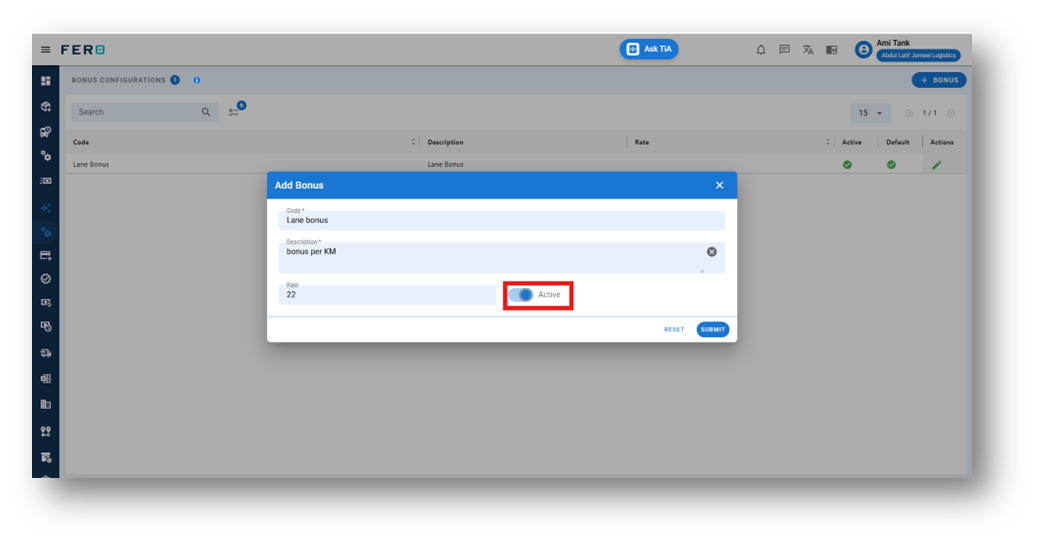
After filling out these fields, click the "Submit" button. allowing you to manage it effectively within your transportation operations.
FAQs
Q1.How to Edit the Bonus Configuration?
Yes, you can edit the Bonus Configuration. Navigate to the edit icon in the planning template home screen.
Rate overview
This module enables the creation of targeted bonus schemes that consider both the transportation lane and the product category being handled. By customizing reward rules according to these parameters, the system ensures that incentives are strategically aligned with business priorities, operational complexity, and performance expectations.
How to Set Up and Add Bonus Rate
Step 1 :- Access the Rate module from the menu bar and select it to reveal a drop-down list of submodules.
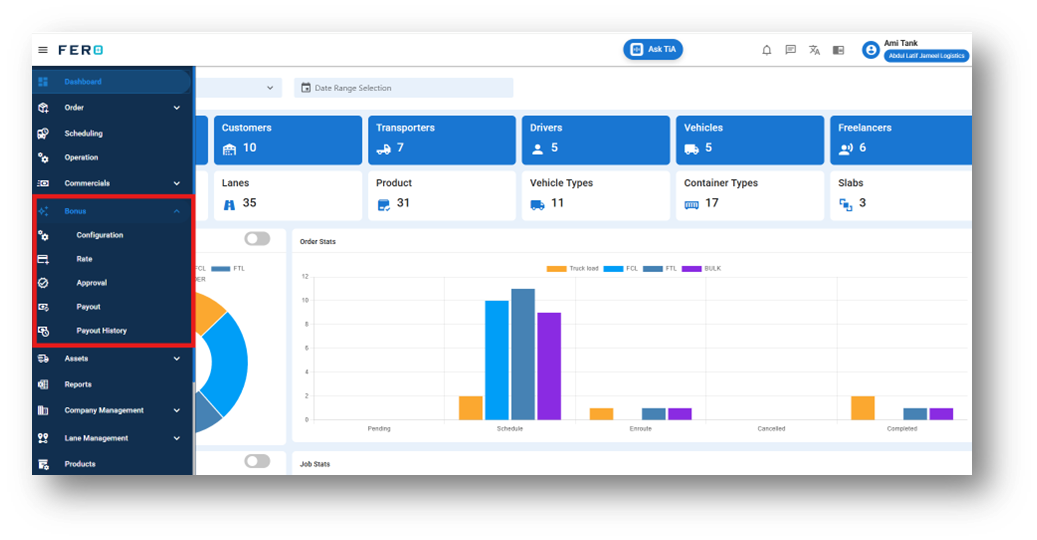
Step 2 :- Go to the Bonus section and click to open the Rate homepage.
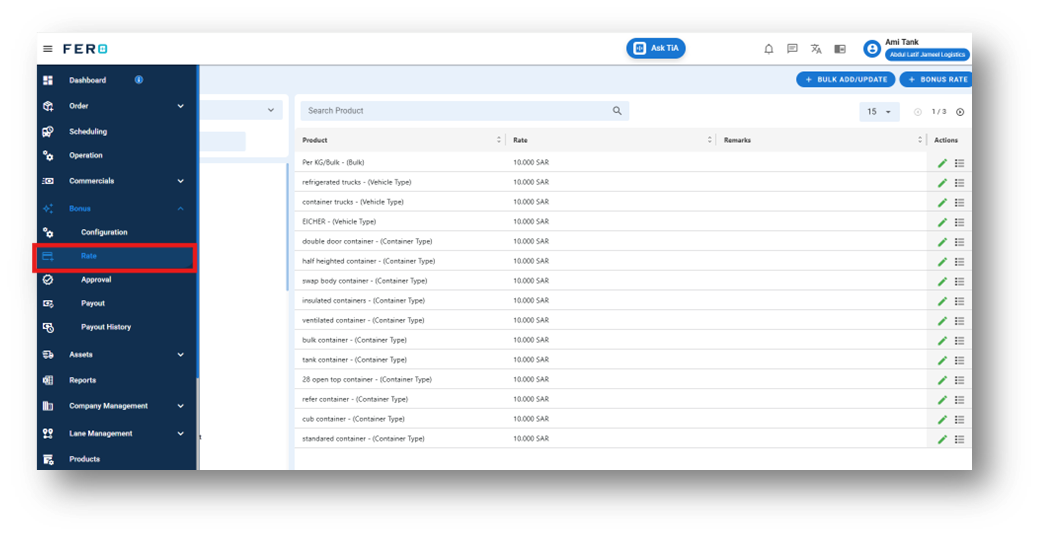
Step 3 :- Click on "Add Bonus Rate" to start creating the rate in the platform. create manually or can do bulk upload also.
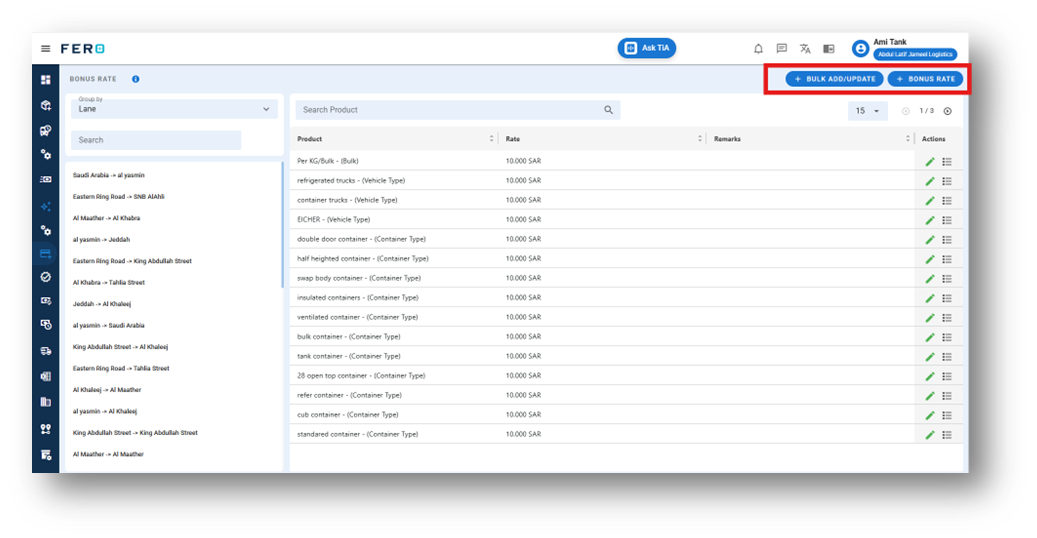
Step 4: Fill Out the 'Bonus Rate' Screen. And click on the submit button.
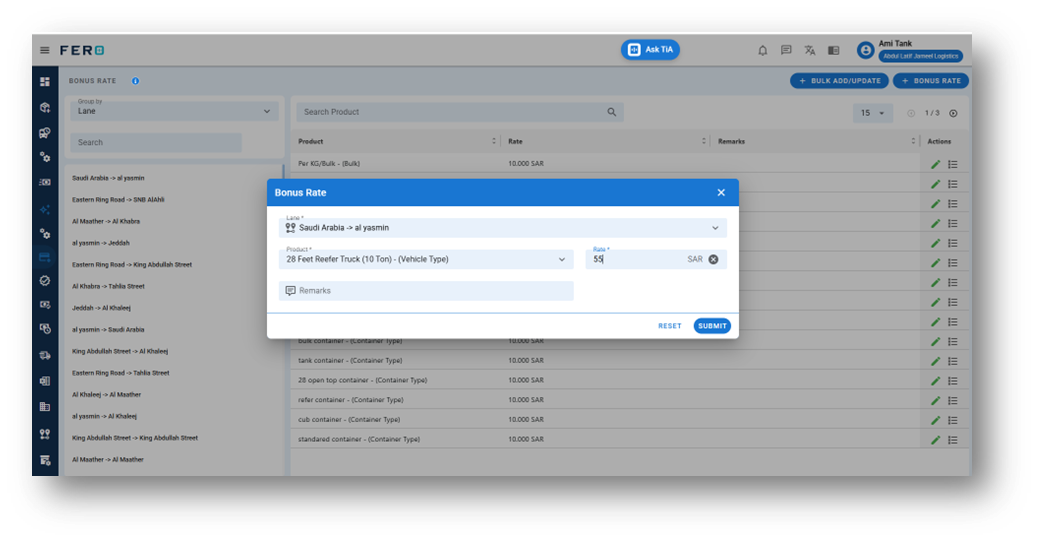
1.Lane:- select it from drop down list.
2.Product:- select it from drop down list.
click on the submit button.
Approval overview
Enables the validation and confirmation of bonus eligibility prior to the final payout.
How to Set Up approvals
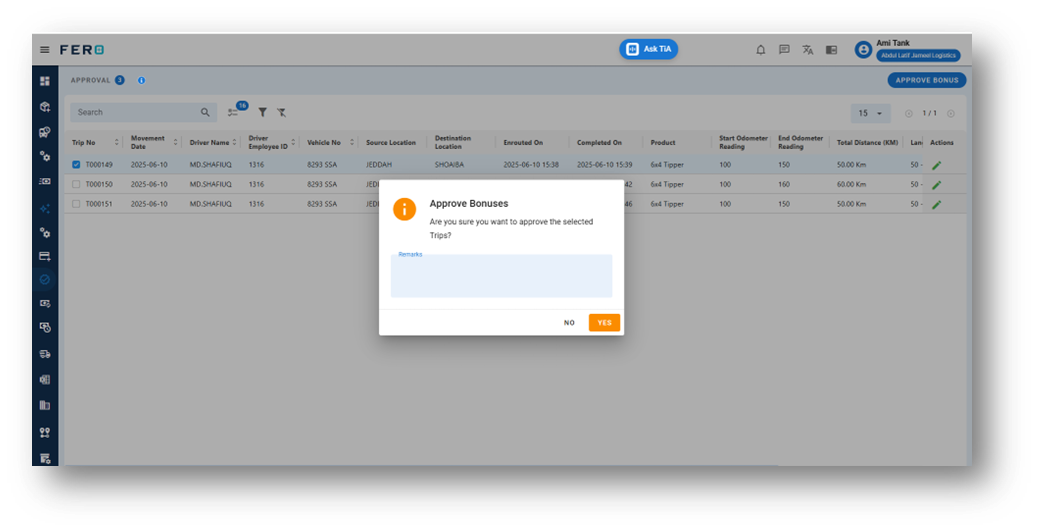
Step 1 :- Go to the Bonus section and click to open the Approval homepage.
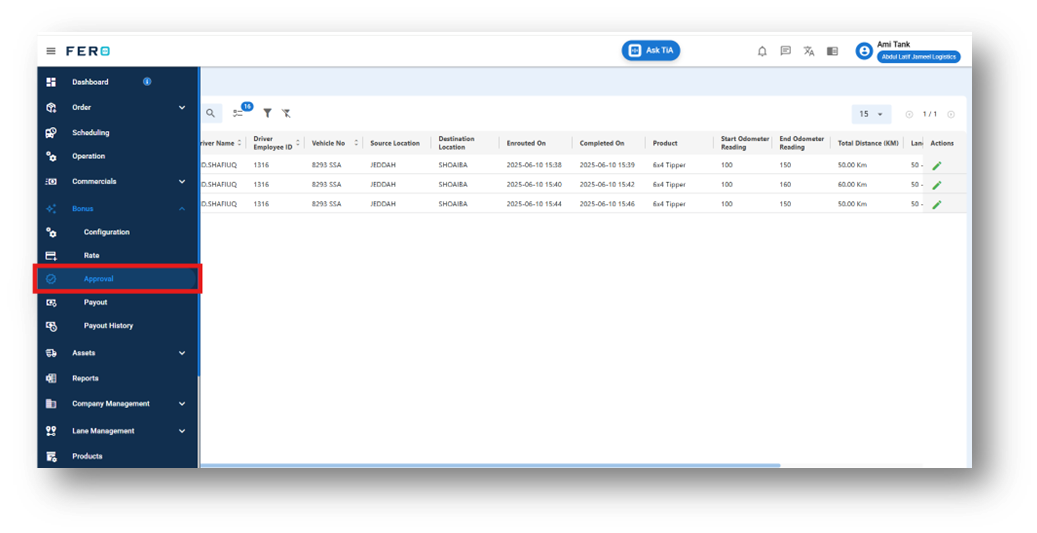
Step 2 :- Go to the Approval section and click to approve the bonus process.
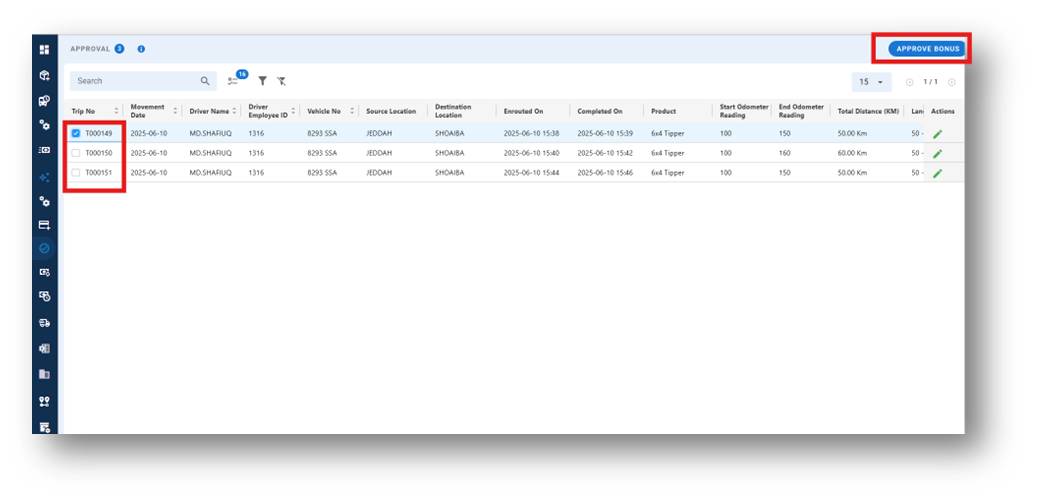
Step 3 :- click on the approve bonus define the remarks and than click on the submit button.
Bonus Payout overview
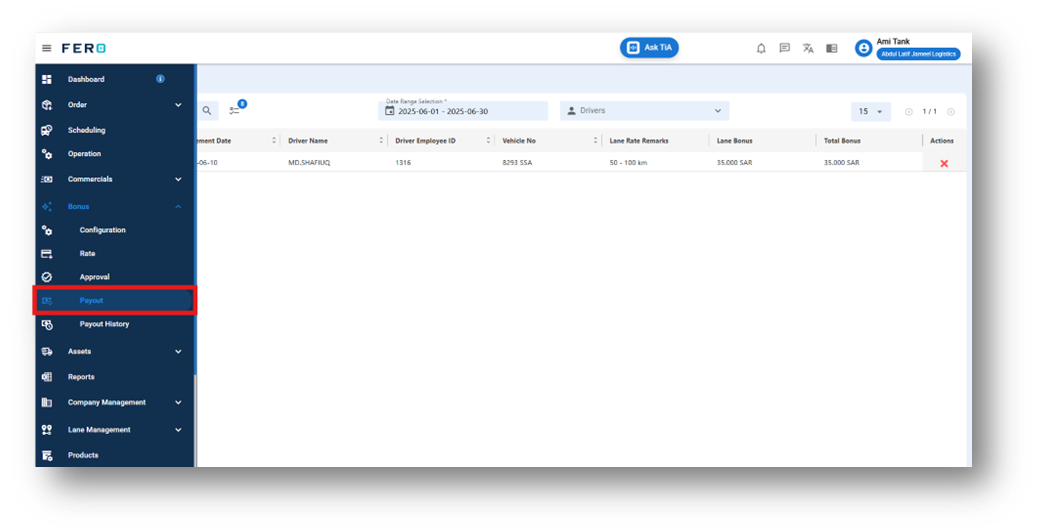
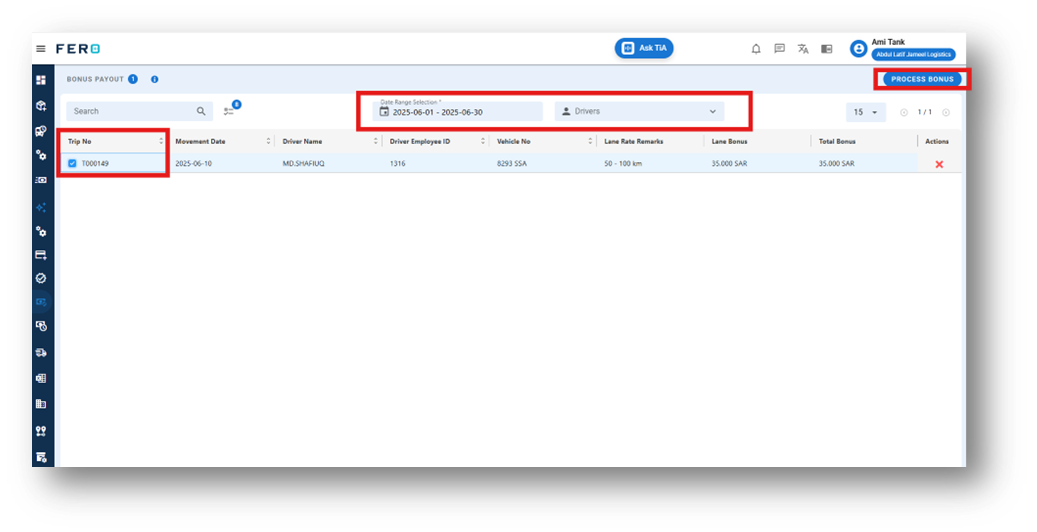
Facilitate the processing of final bonus payouts by selecting a defined date range and applying driver-specific filters. Ensure the accurate and timely disbursement of all approved bonuses.
How to do bonus payout
Step 1 :- Go to the Bonus section and click to open the payout homepage
Bonus payout history over view:
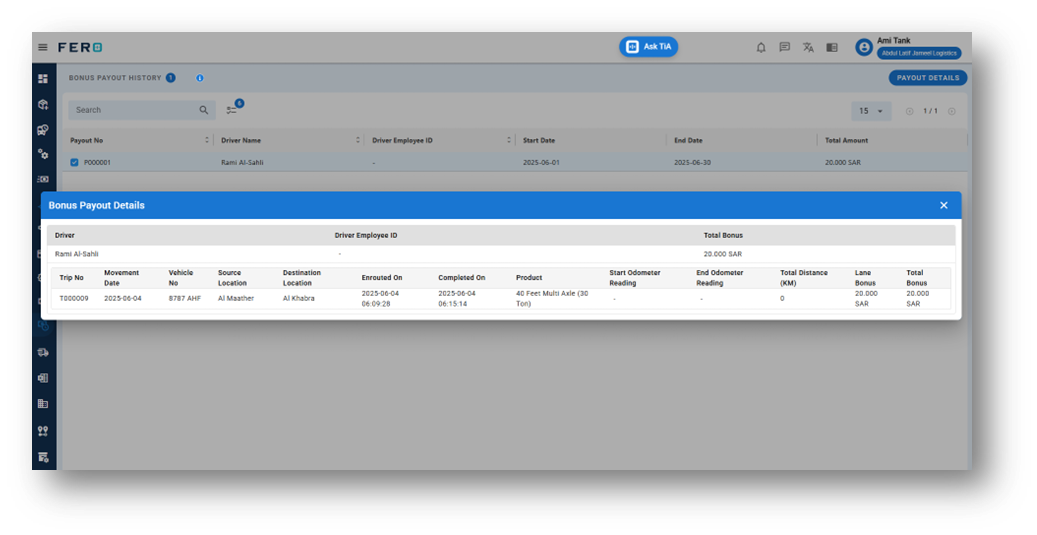
Organizations can now maintain a transparent and organized overview of all bonus payouts through a centralized record system. Each entry captures essential details, including the payout number, driver’s name, employee ID, the defined payout period (start and end dates), and the total amount disbursed. This level of detail not only promotes accountability but also streamlines the tracking and auditing processes, ensuring that bonus disbursements are both accurate and verifiable.
How to check bonus history:
Step 1 :- Go to the Bonus section and click to open the bonus history homepage.
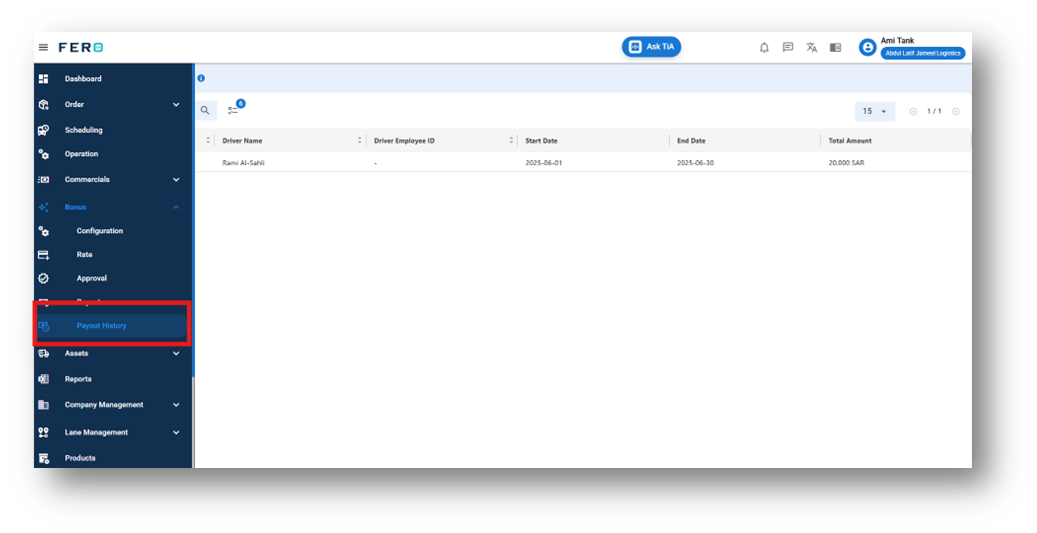
Step 2 :- check left corner than click on the pay out details.
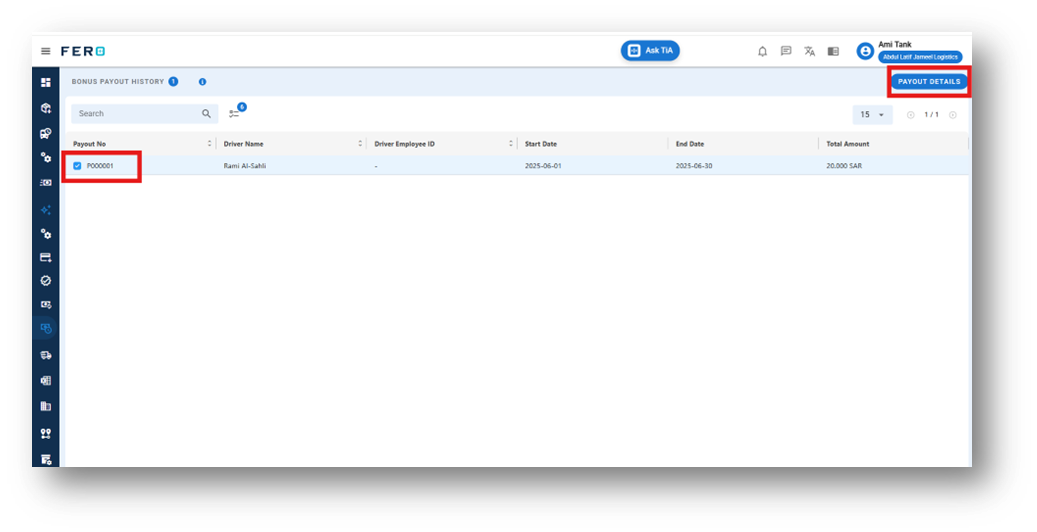
Step 3 :- can view all the details over here.