
Trip Planning
Trip Planning Module Overview
Objective
The Trip Planning module simplifies and automates the creation of optimized trips within the logistics process. With two key sub-modules—Planning Templates and Trip Planning—it ensures streamlined order grouping, improved vehicle utilization, and adherence to operational constraints, enabling cost-effective and efficient logistics operations.
The Trip Planning module is divided into two key parts:
- Planning Templates:- Create predefined templates that serve as the foundation for efficient and repeatable trip planning.
- Automated Trip Planning :- Automate the creation of optimized trips by leveraging planning templates and advanced optimization algorithms.
- Zone :- Define zones and assign them to drivers to enhance your delivery operations. Effectively manage operational areas for streamlined and optimized driver assignments.
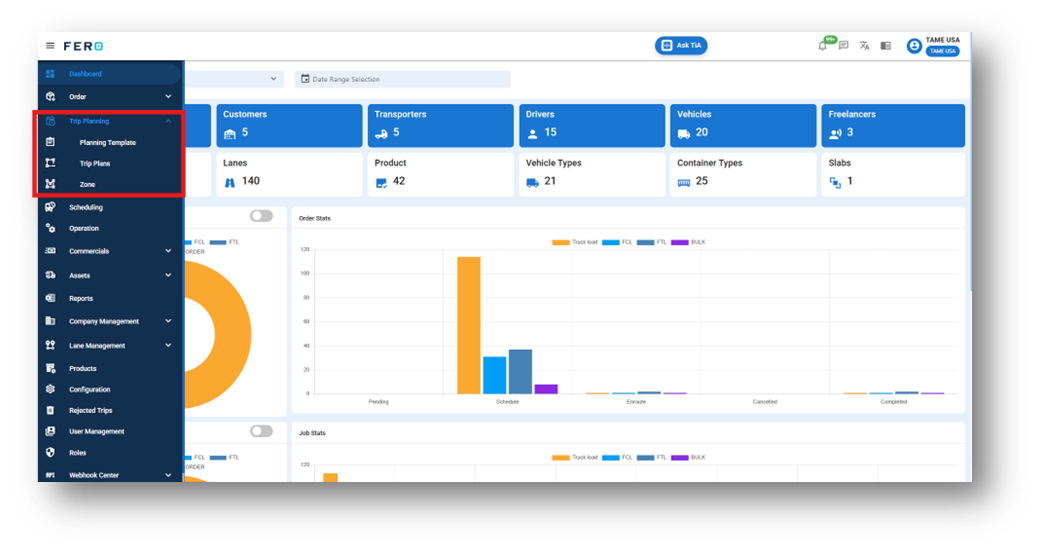
Planning Template overview:
Plan trips effortlessly by configuring parameters and constraints using planning templates. These templates, tailored to your specific needs, offer multiple configurations and act as a flexible framework for efficient trip planning across various scenarios.
How do I setup the Planning Template module?
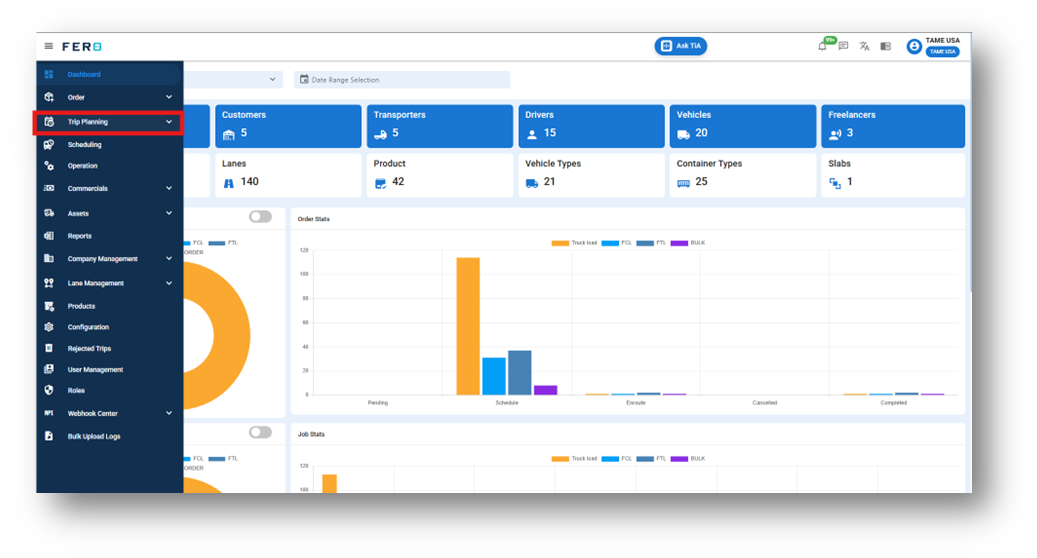
Step 1 :- Access the Trip Planning module from the menu bar and select it to reveal a drop-down list of submodules.
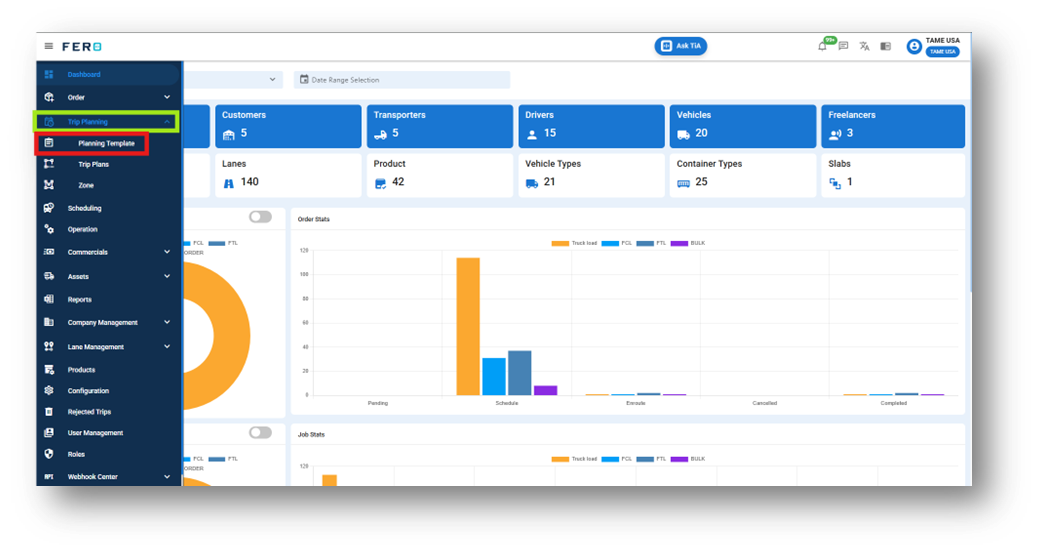
Step 2 :- Go to the Planning Template section and click to open the planning template homepage.
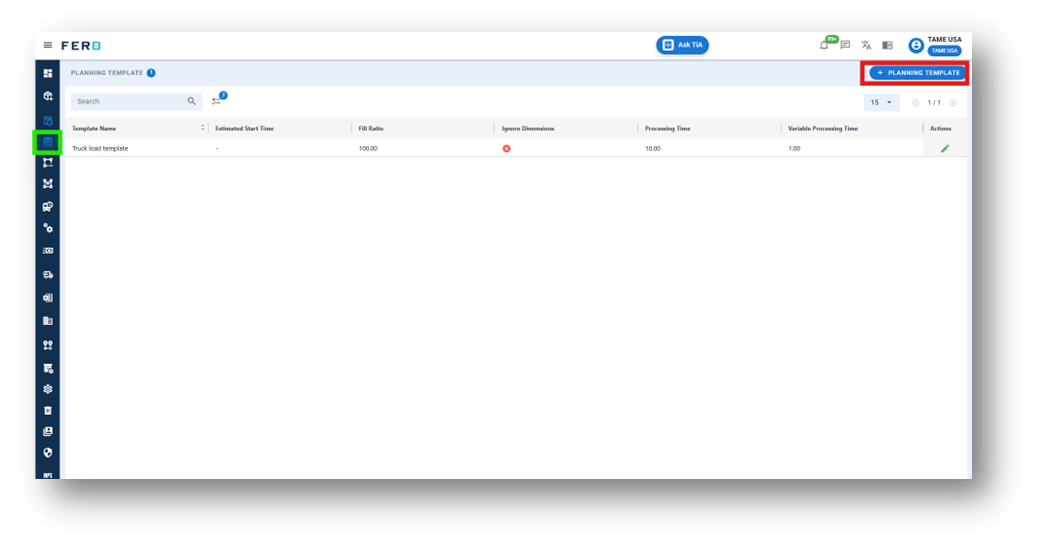
Step 3 :- Click on "Add Planning Template" to start adding Planning template to the platform.
Step 4: Fill Out the 'Add Planning Template' Screen
- Template Name: Enter the name of the template.
- Planning Method: Select planning method from the drop down list.
- Route Planning: Select Route planning from the drop down list
- Order Type: Select Order type from the drop down list
- Fill Roti: Specify the value for Fill Roti.
- Processing Time: Enter the processing time
After filling out these fields, click the "Submit" button. Your Planning Template will be created in the system, allowing you to manage it effectively within your transportation operations.
FAQs
Q1.How to Edit the Planning Template?
Yes, you can edit the planning template. Navigate to the edit icon in the planning template home screen.
Trip Plans overview
Plan My Trip Use AI-powered trip planner to create efficient delivery routes. Just name the plan, select project and order segment, pick planning date, and choose template. System generates best plan for order deliveries.
How to Set Up and Add Planning template
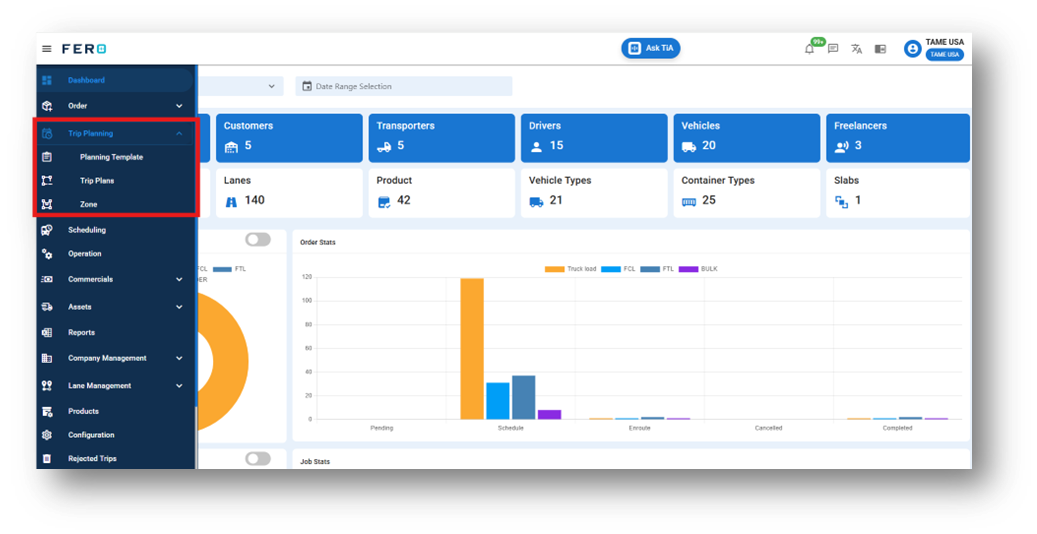
Step 1 :- Access the Trip Planning module from the menu bar and select it to reveal a drop-down list of submodules.
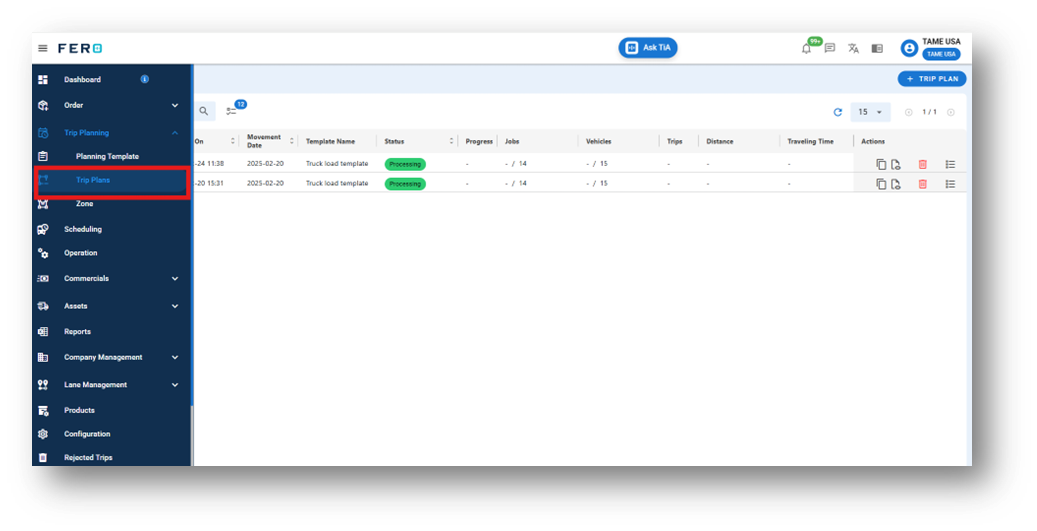
Step 2 :- Go to the Trip plans section and click to open the Trip plan homepage.
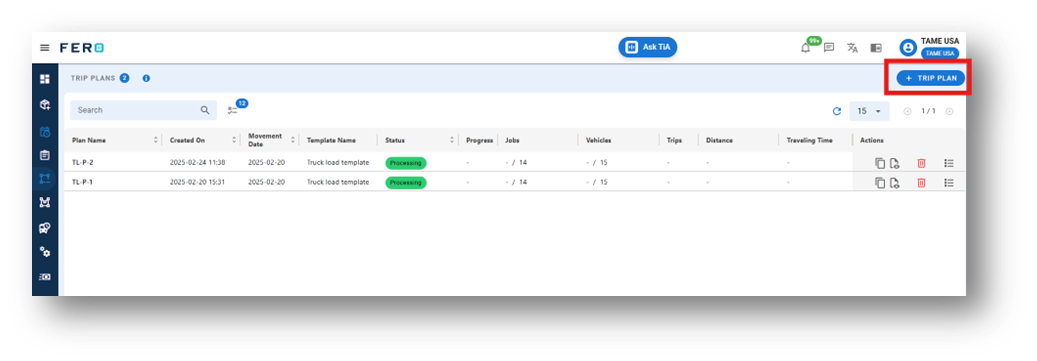
Step 3 :- Click on "Add Trip Plain" to start creating the trip plain in the platform.
Step 4: Fill Out the 'Trip Plans configuration' Screen.
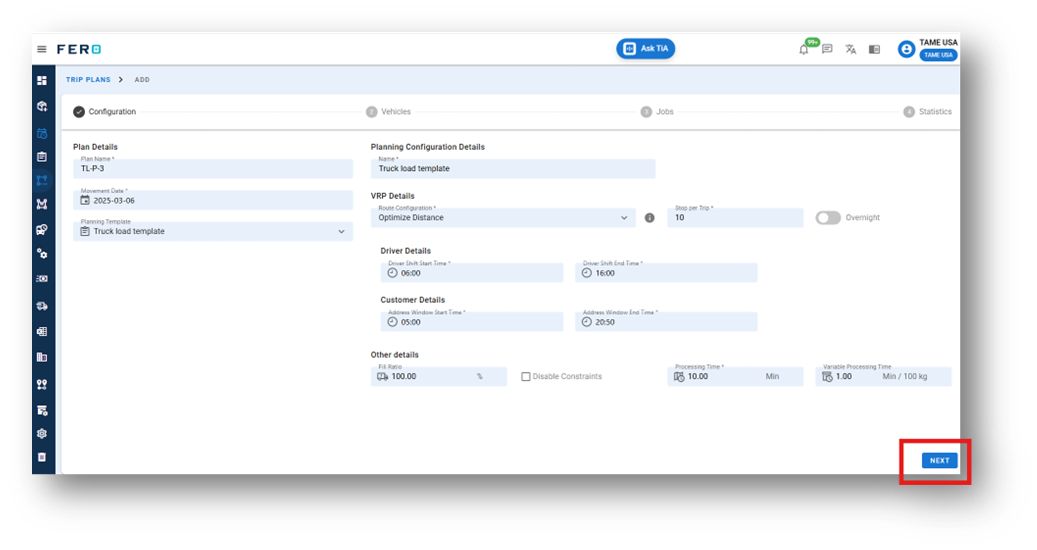
- Plan Name: Enter the name of the plan.
- Select Movement date of the orders date.
- Enter Estimated Trip start time of the orders
- Select Planning template from the drop down list.
- Enter planning configuration Name of the trip.
- Select Planning method from the drop down list.
- Select Route planning key from the dropdown list.
- Select Order type from the drop down list.
- Enter Fill Ratio and Processing time of the orders.
after filling this details of all the Trip Plans configuration click Next.
Step 5 :- Select Vehicles that you want to use for the trip plain Item delivery then click Next.
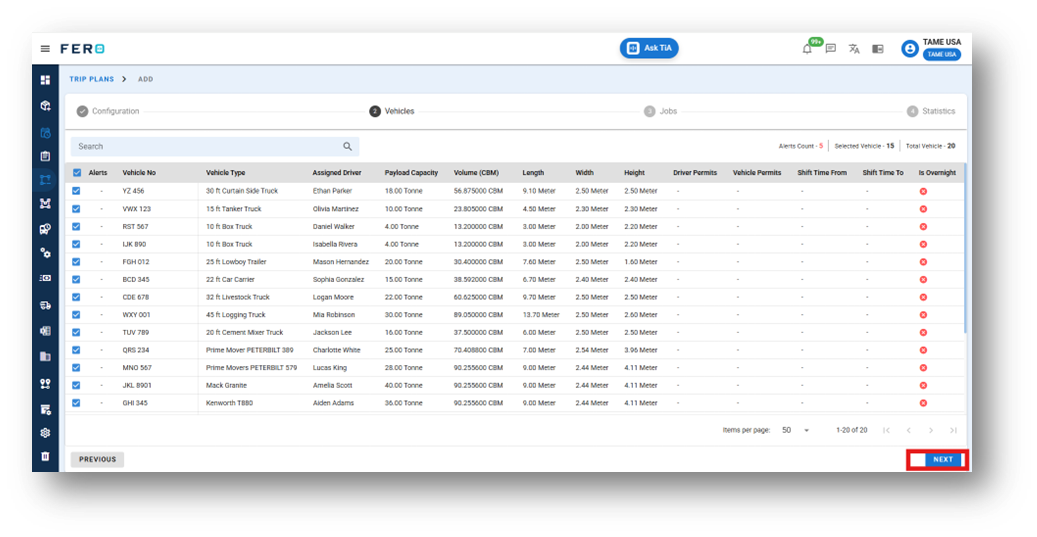
Step 6 :- After filling this details list of all the Jobs list will appear select the jobs for you want to create a plain or select all click next
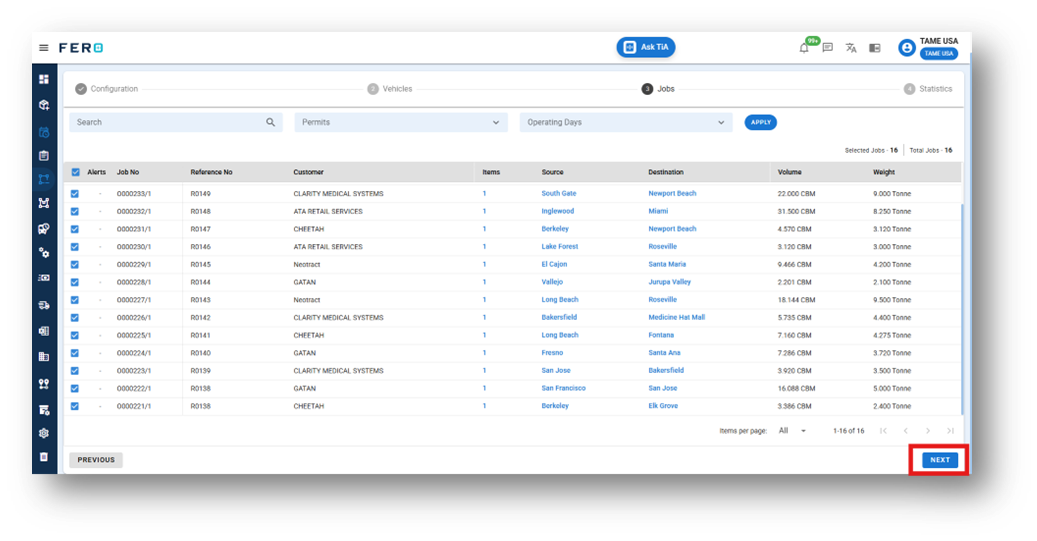
Step 7 :- Then View Statistics of the trip plain with details in a map view then click Submit.
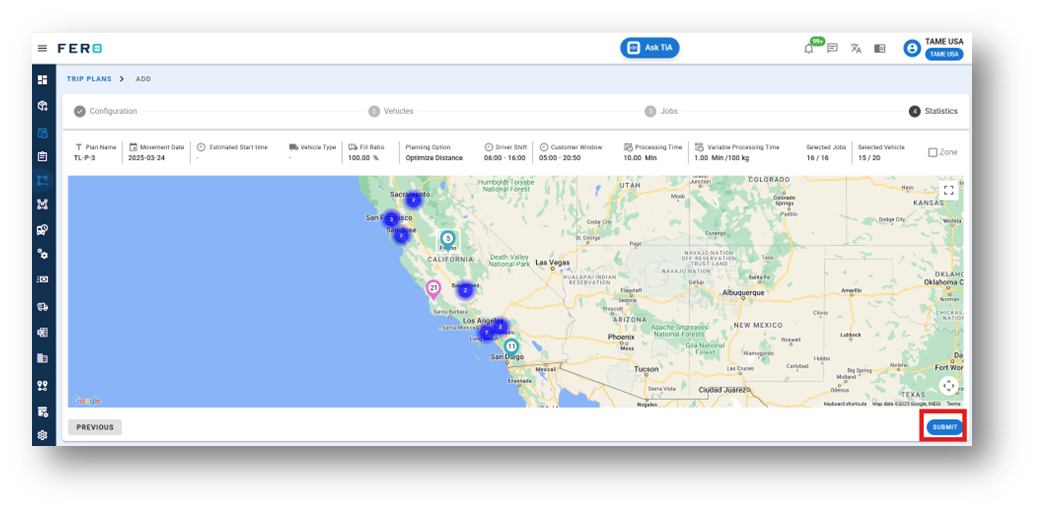
.