Introduction to Product Management
Products Overview
In our system, "Products" encompass essential operational elements critical for efficient management. These include vehicle types, trailer types, container types, and their specifications, as well as weight slabs for pricing details. Additionally, dimensions of these elements are managed within the system.
Setting up products is generally a one-time task; however, occasional adjustments or additions may be required to meet evolving business needs.
Key Elements:
- Vehicle Types: Different categories of vehicles used in operations.
- Trailer Types: Various types of trailers with specific uses and capabilities.
- Container Types: Types of containers, including their specifications and dimensions.
- Weight Slabs: Pricing details based on weight classifications.
This setup ensures streamlined operations and precise management of resources within your organization.
Product Management Video Tutorial
Vehicle type module overview
The Vehicle Type module allows you to define and manage the various types of vehicles used for transporting items. Within this module, you will specify the name of each vehicle, along with detailed information about its dimensions and payload capacity. This ensures that all transportation movements are efficiently organized and accurately tracked.
Key Elements to Define:
- Vehicle Name: The name or identifier for the vehicle.
- Dimensions Information: Detailed measurements of the vehicle.
- Payload Capacity: The maximum load the vehicle can carry.
How to Set Up or Add Vehicle Types:
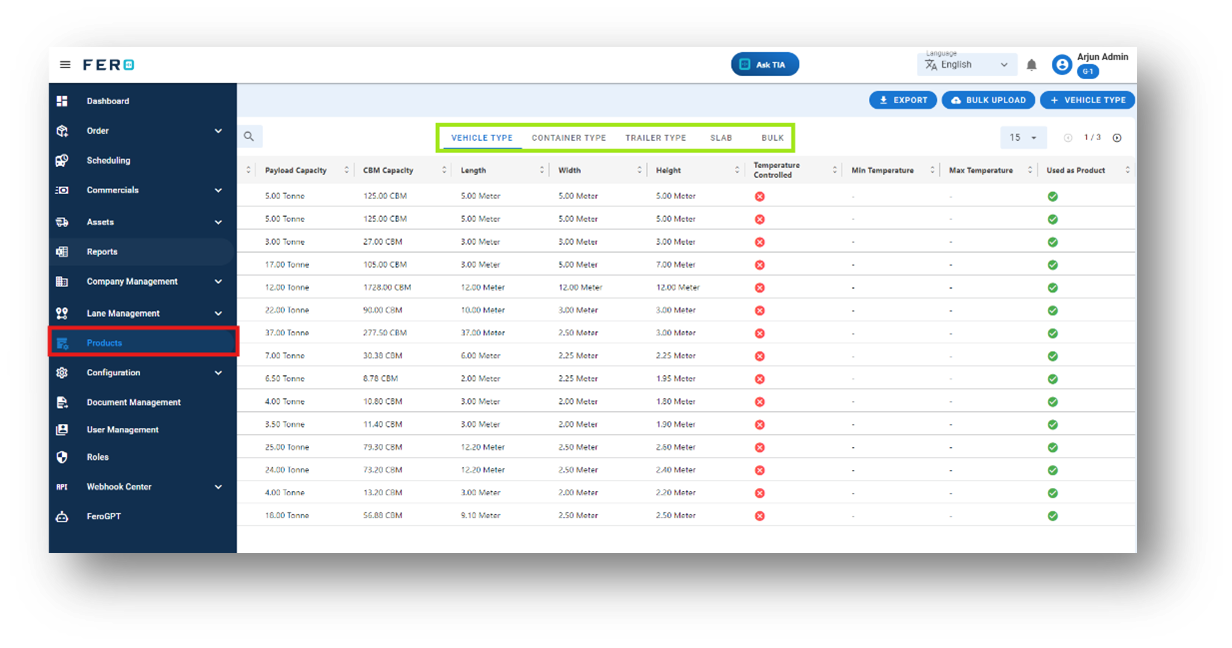
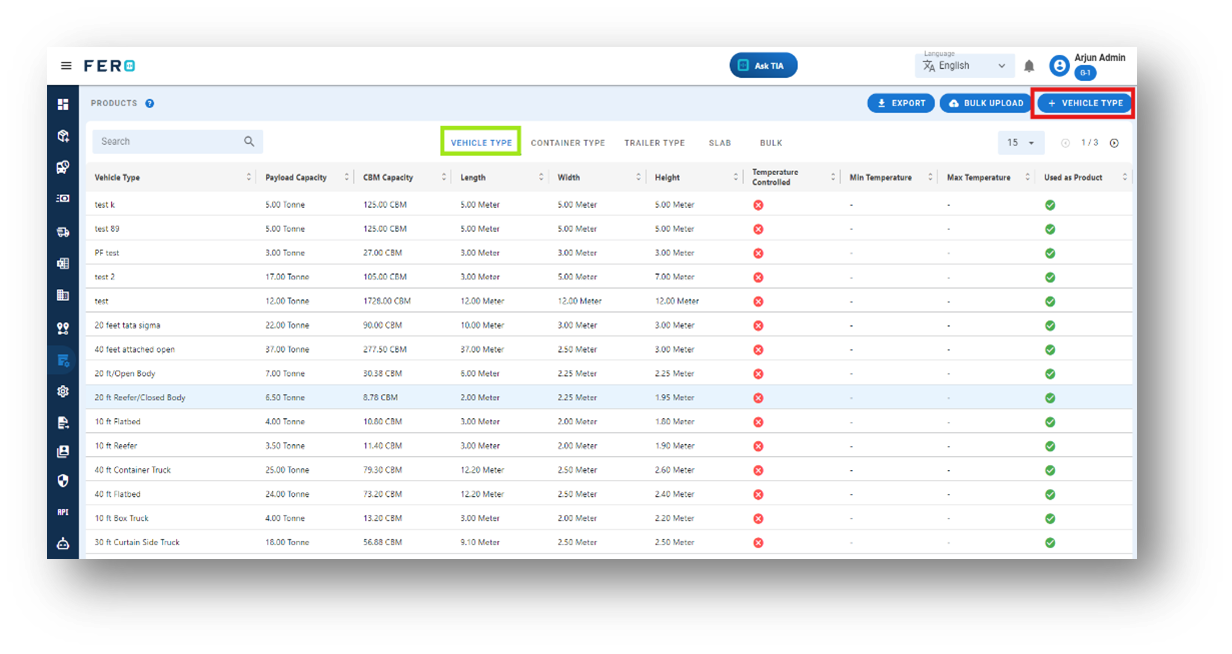
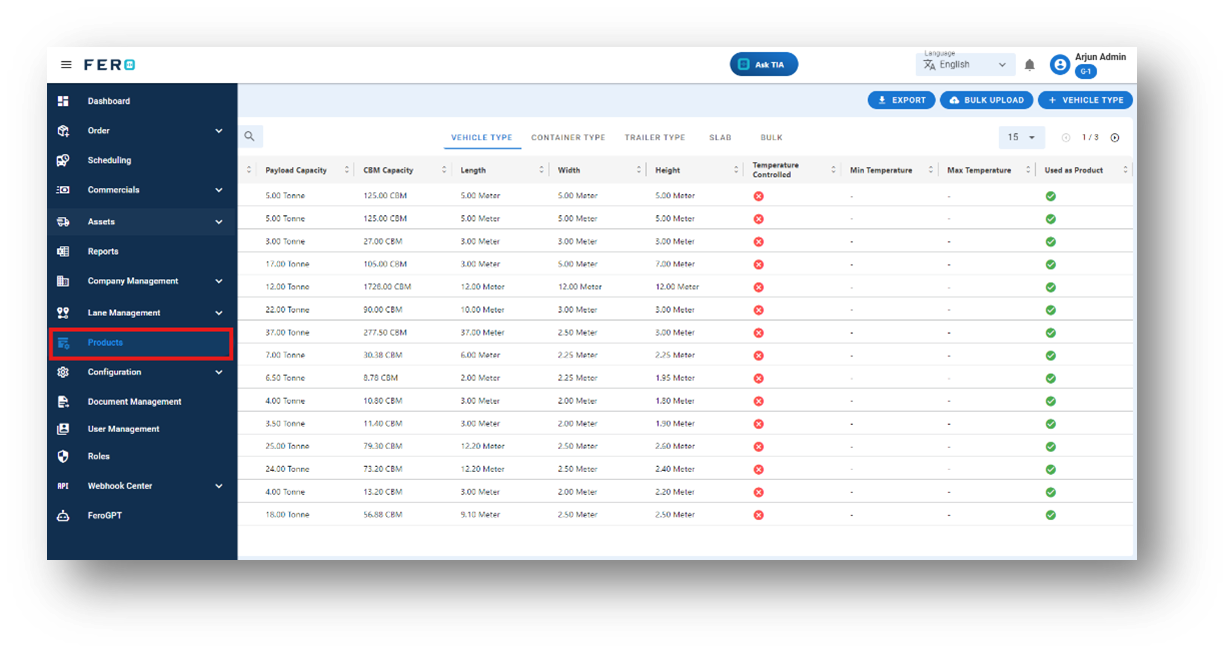
Step 1: Navigate to the Products module section and click on it to open the Products page.
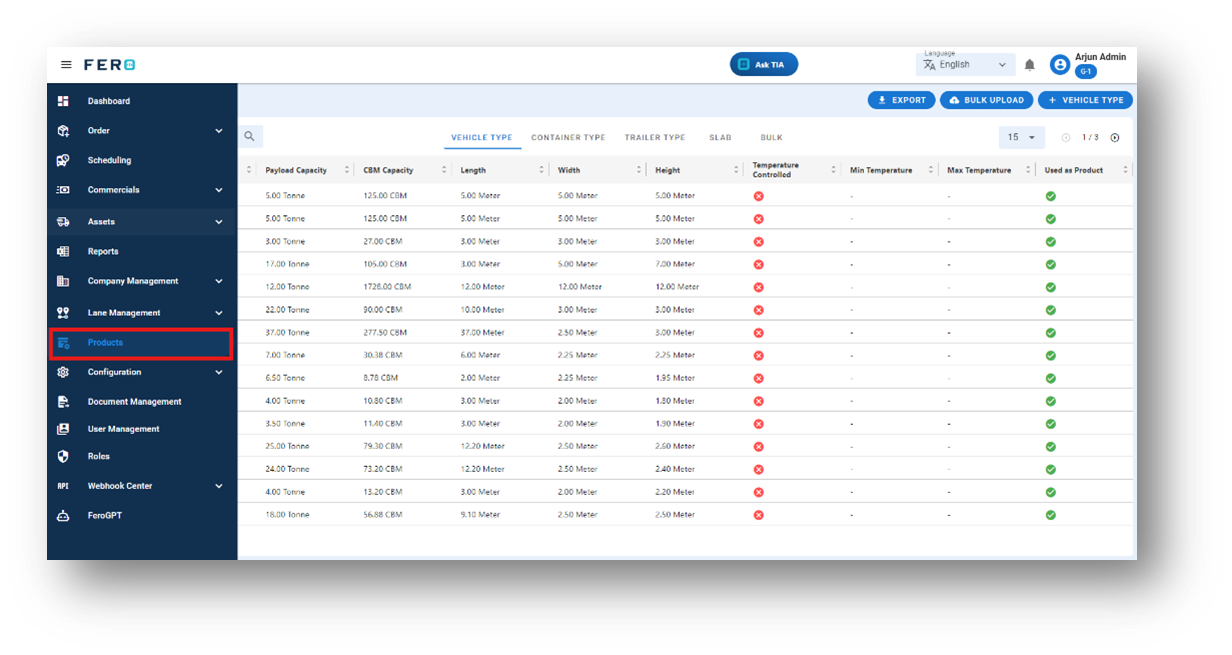
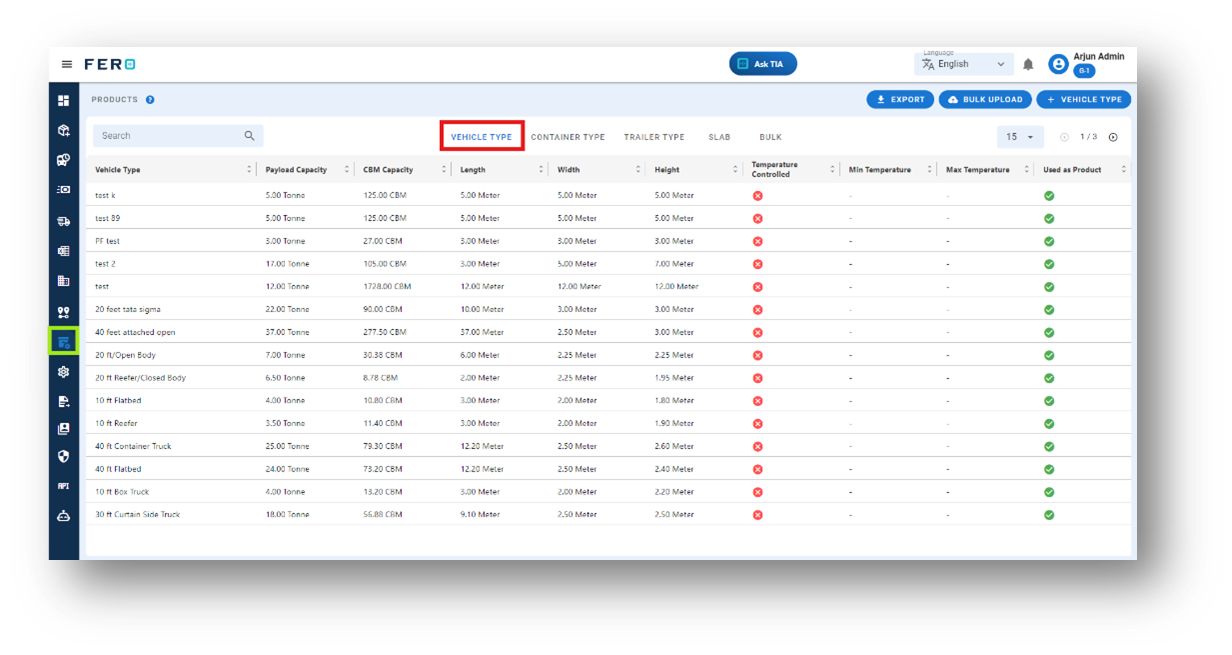
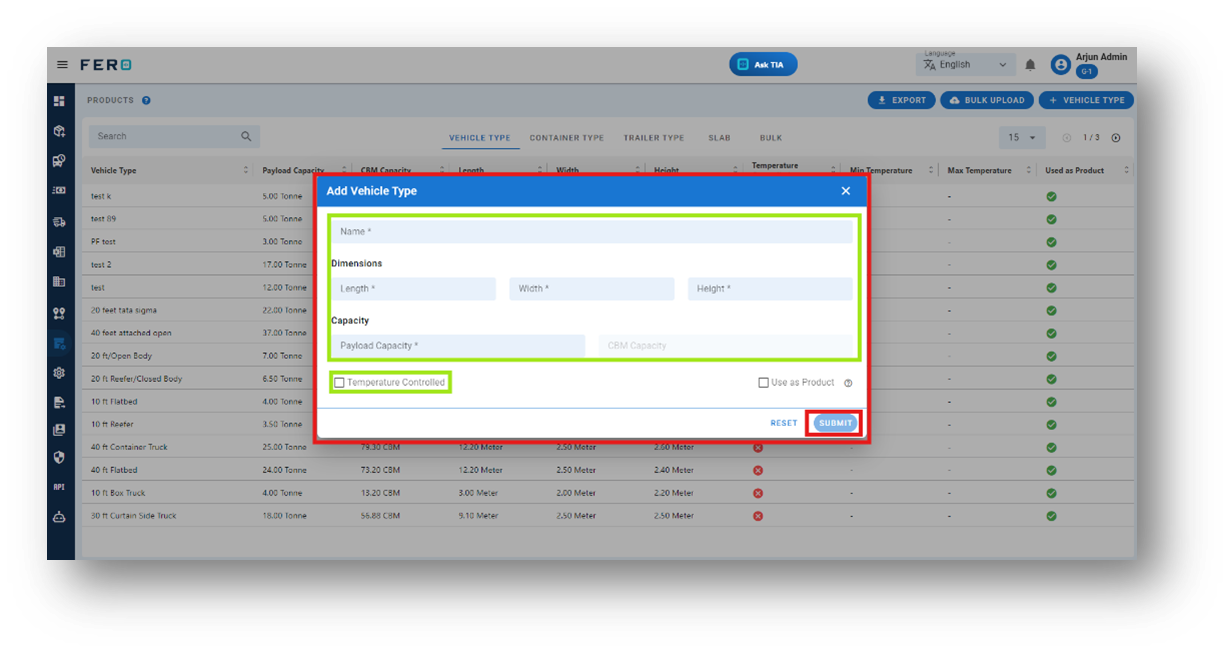
Step 3: Select the "Add Vehicle" option to initiate the process of adding a vehicle type. A pop-up screen will appear.
- Vehicle Name
- Dimension Details: Length, Width, and Height
- Tonnage Capacity
- Cubic Meter (CBM)
- Toggle Button for Temperature Control: If the vehicle has temperature control functionality, enable this option.
After filling out these fields, click the "Submit" button. Your new vehicle type will be added to the system, allowing you to manage it effectively within your transportation operations.
FAQs
Q1. Can I Bulk Upload the vehicle Type?
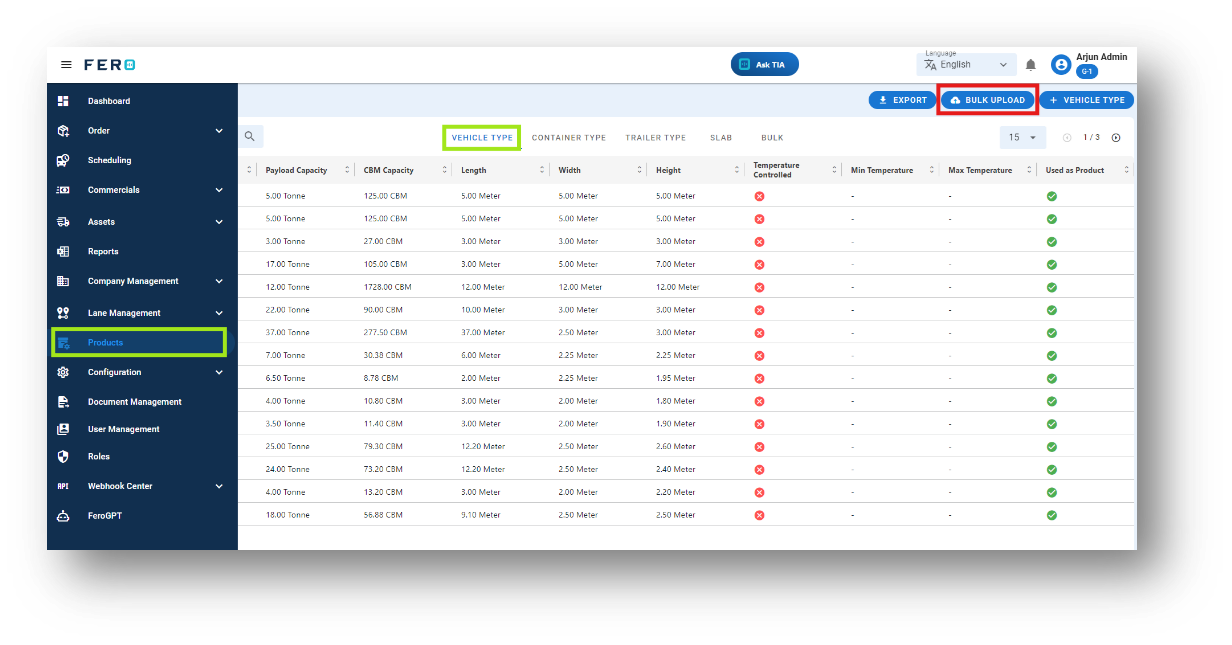
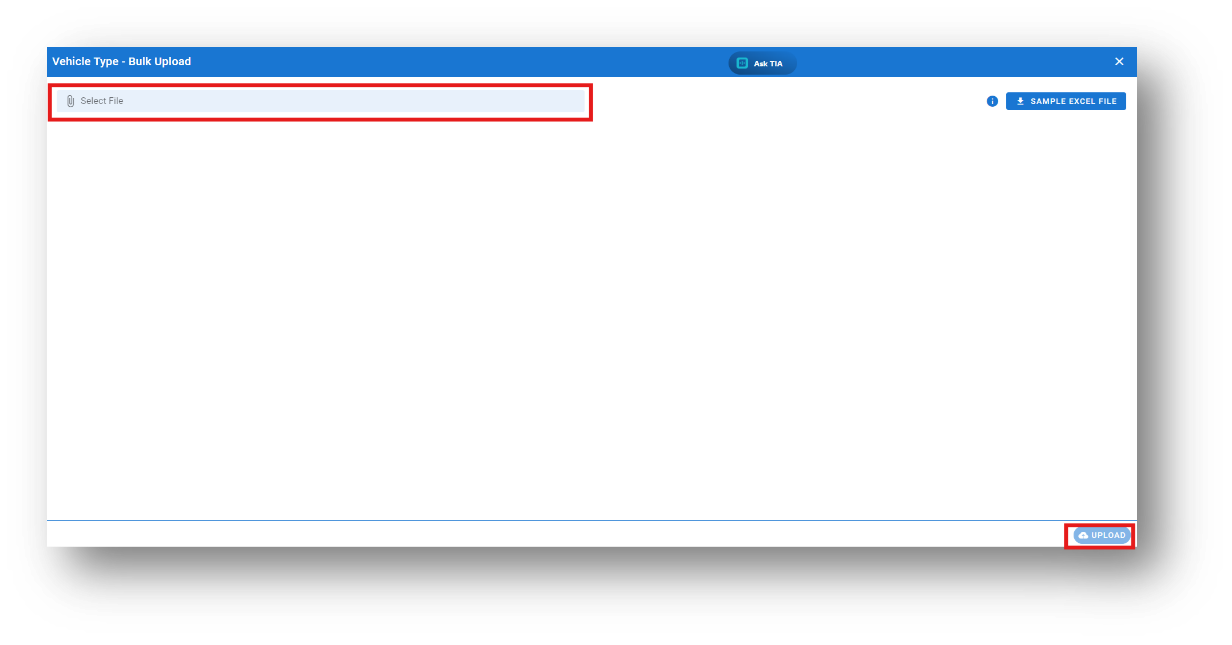
Yes, you can bulk upload vehicle types. This method is the easiest and fastest way to add various vehicle types. To do this, navigate to the bulk upload option, download the sample file, enter the details into the sample file, and upload the document. All the vehicle types will be added within seconds.
Steps to Bulk Upload Vehicle Types:
Step 1: Navigate to the Bulk Upload option.
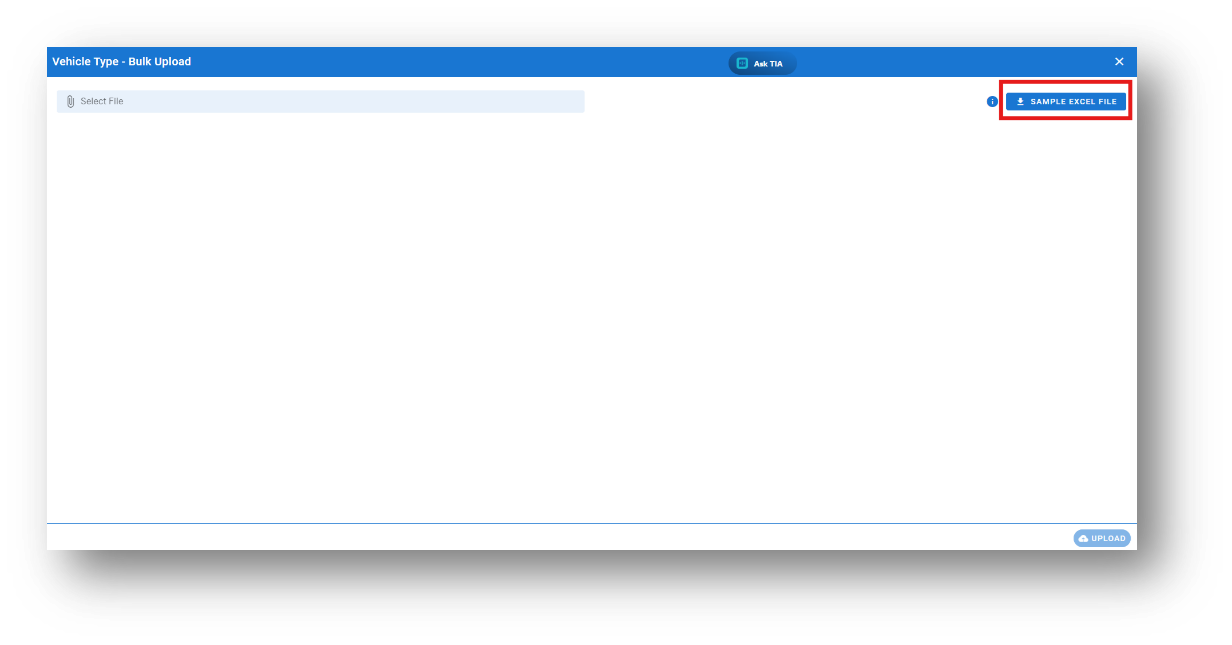
Step 3: Select the completed file from your system and click the "Upload" button.
All the vehicle types will be added to the system within seconds.
Container type module overview
The container Type module allows you to define and manage the various types of containers used for transporting items. Within this module, you will specify the name of each container, along with detailed information about its dimensions and payload capacity. This ensures that all transportation movements are efficiently organized and accurately tracked.
Key Elements to Define:
- Container Name: The name or identifier for the container.
- Dimensions Information: Detailed measurements of the vehicle.
- Payload Capacity: The maximum load the vehicle can carry.
How to Set Up or Add container Types:
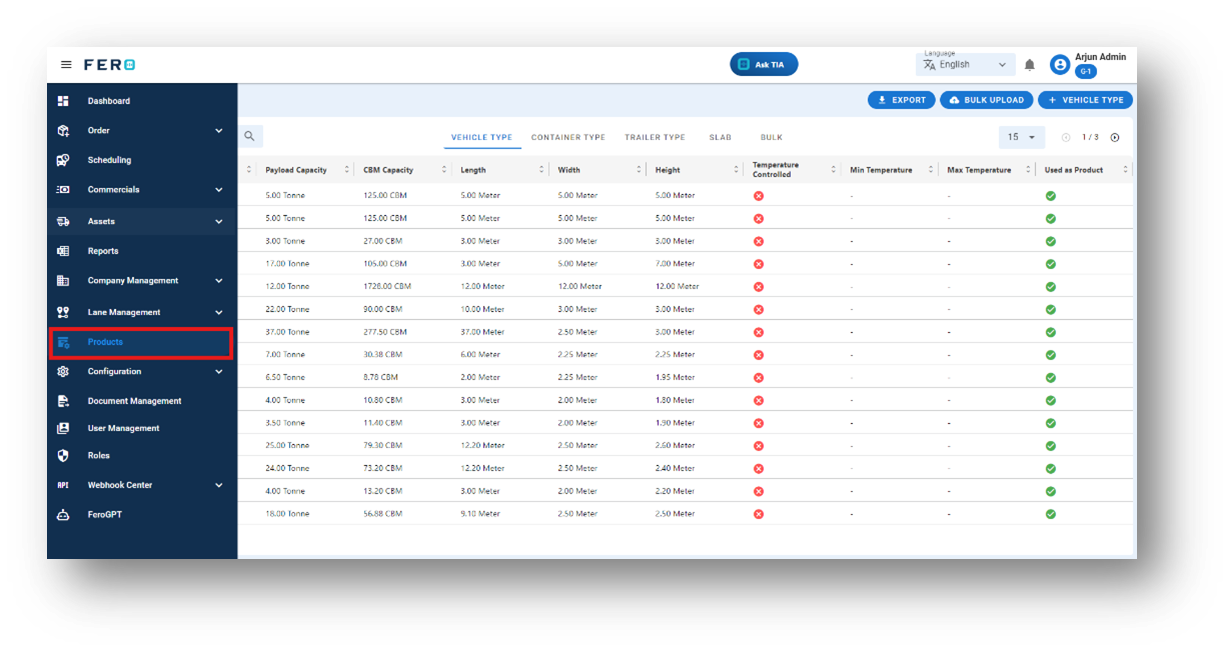
Step 1: Navigate to the Products module section and click on it to open the Products page.
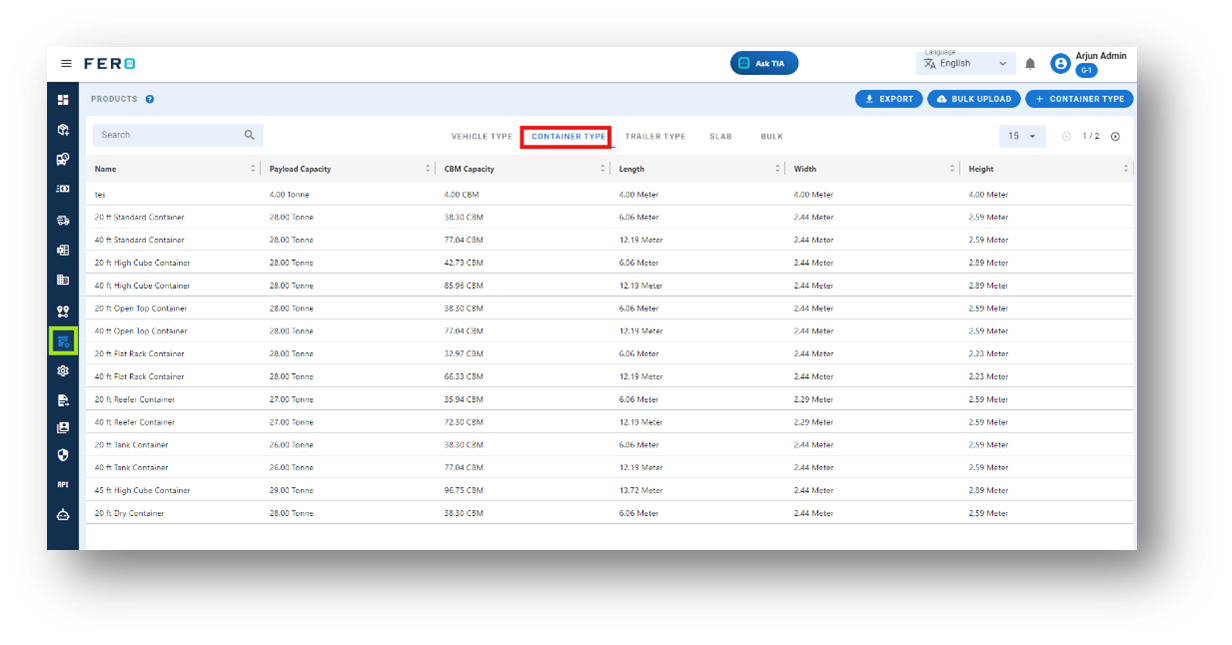
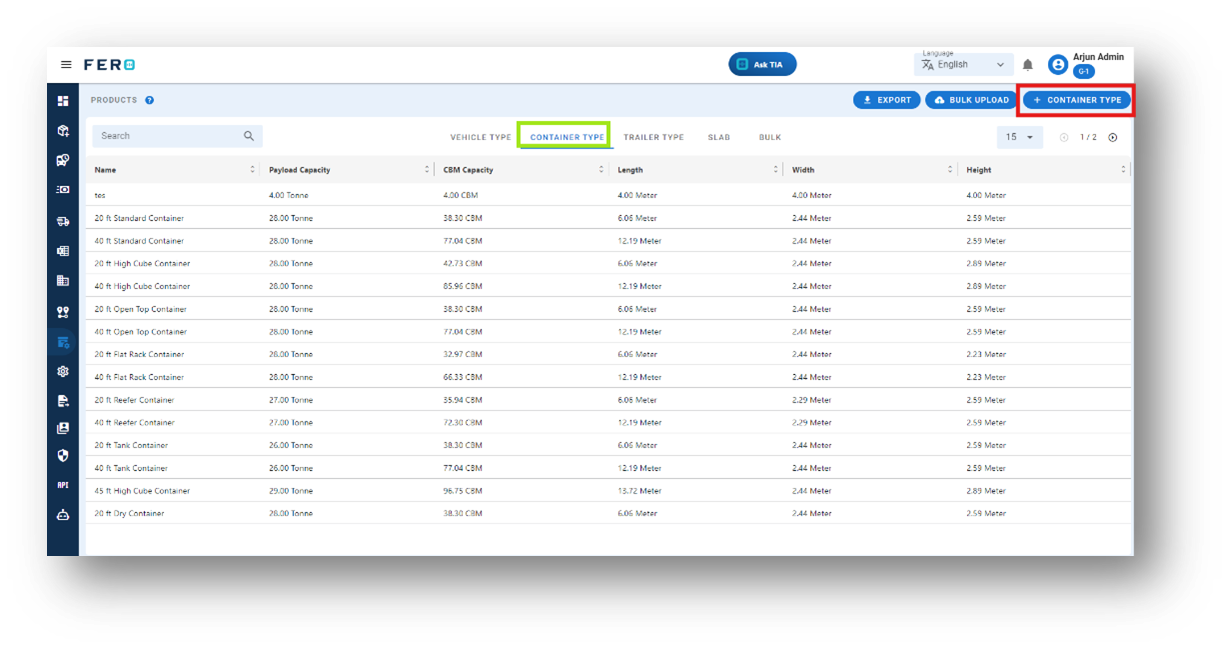
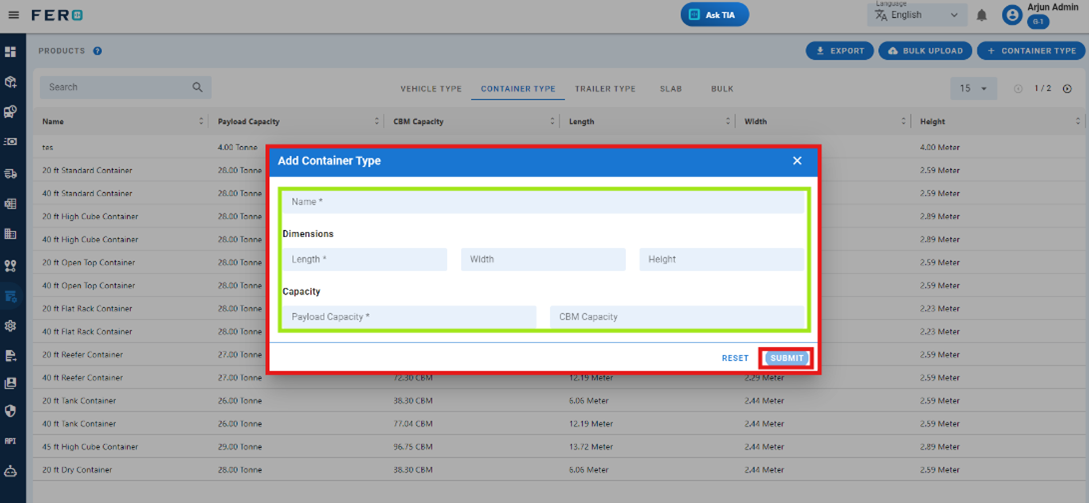
- Container Name
- Dimension Details: Length, Width, and Height
- Tonnage Capacity
- Cubic Meter (CBM)
After filling out these fields, click the "Submit" button. Your new container type will be added to the system, allowing you to manage it effectively within your transportation operations.
FAQs
Q1. Can I Bulk Upload the Container Type?
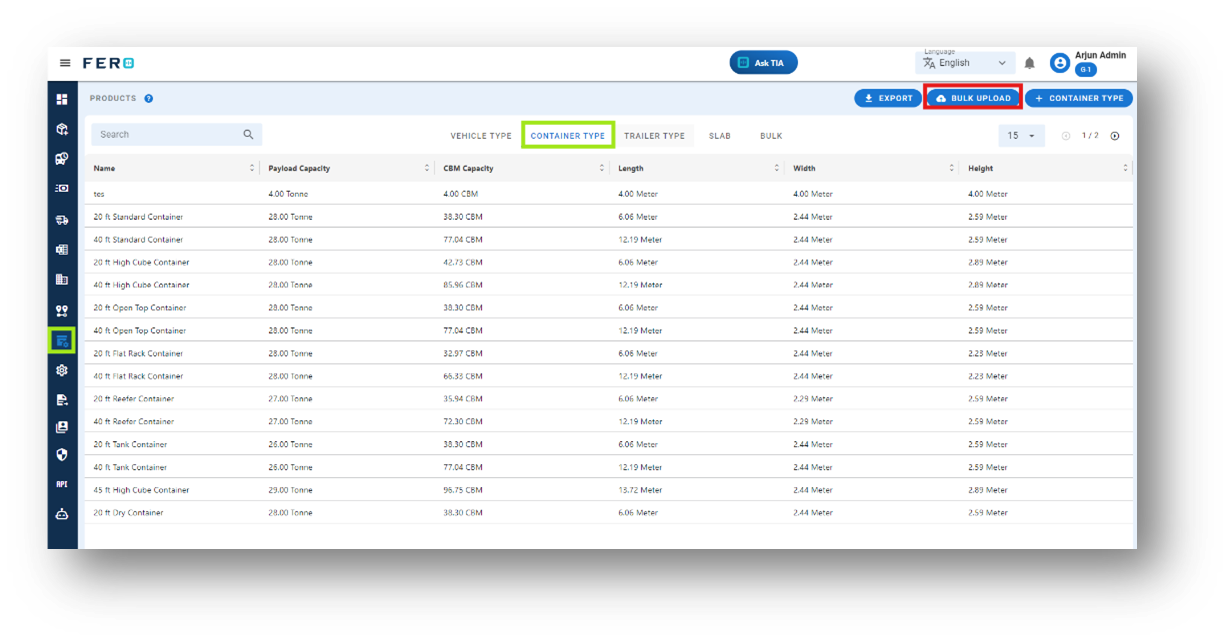
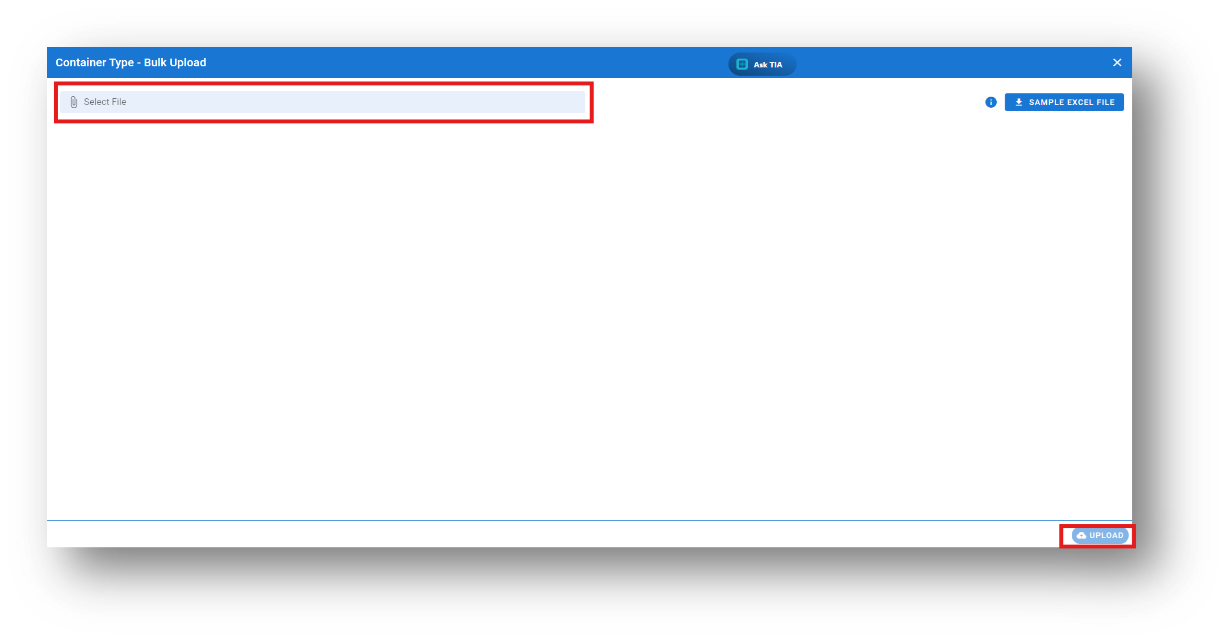
Yes, you can bulk upload container types. This method is the easiest and fastest way to add various container types. To do this, navigate to the bulk upload option, download the sample file, enter the details into the sample file, and upload the document. All the container types will be added within seconds.
Steps to Bulk Upload container Types:
Step 1: Navigate to the Bulk Upload option.
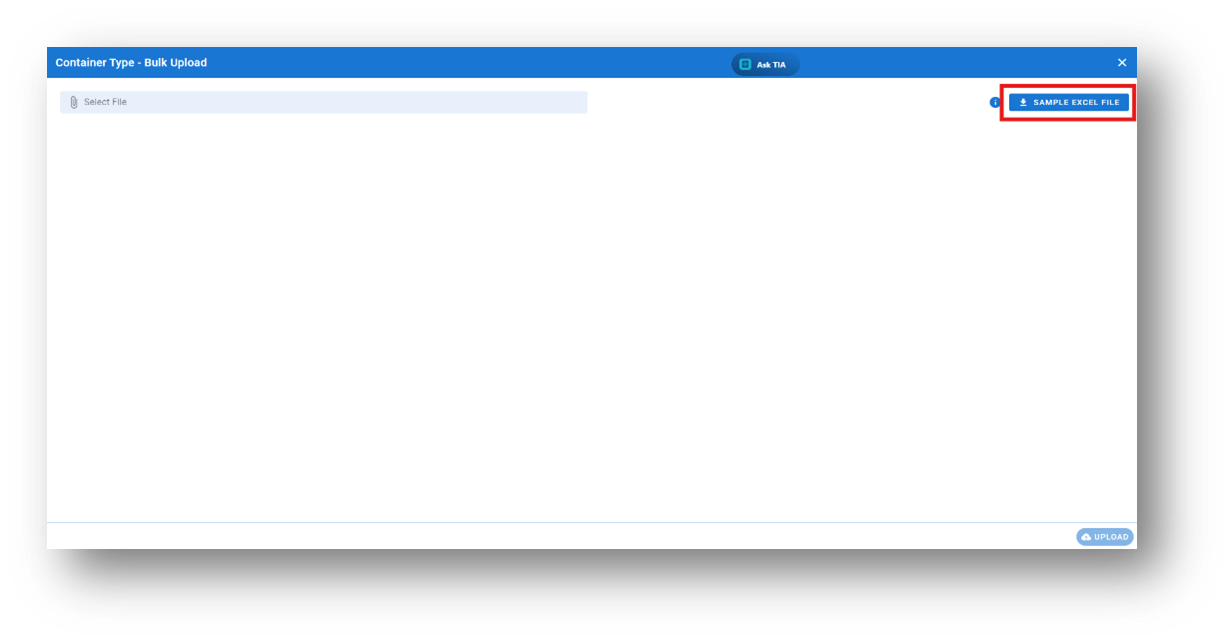
All the vehicle types will be added to the system within seconds.
Trailer type module overview
The Trailer Type module allows you to define and manage the various types of Trailers used for transporting items. Within this module, you will specify the name of each Trailer, along with detailed information about its dimensions and payload capacity. This ensures that all transportation movements are efficiently organized and accurately tracked.
- Key Elements to Define:
- Trailer Name: The name or identifier for the Trailer.
- Dimensions Information: Detailed measurements of the Trailer.
- Payload Capacity: The maximum load the Trailer can carry.
- Toggle Button for Temperature Control: If the Trailer has temperature control functionality, enable this option.
How to Set Up or Add Trailer Types:
Step 1: Navigate to the Products module section and click on it to open the Products page.
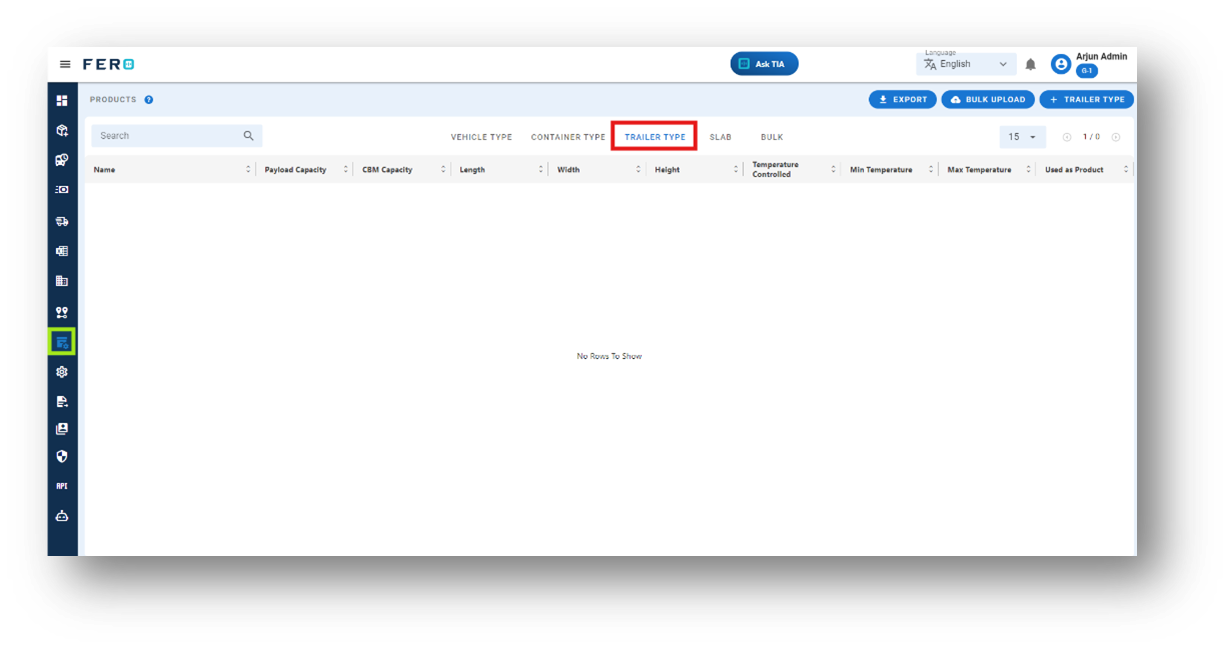
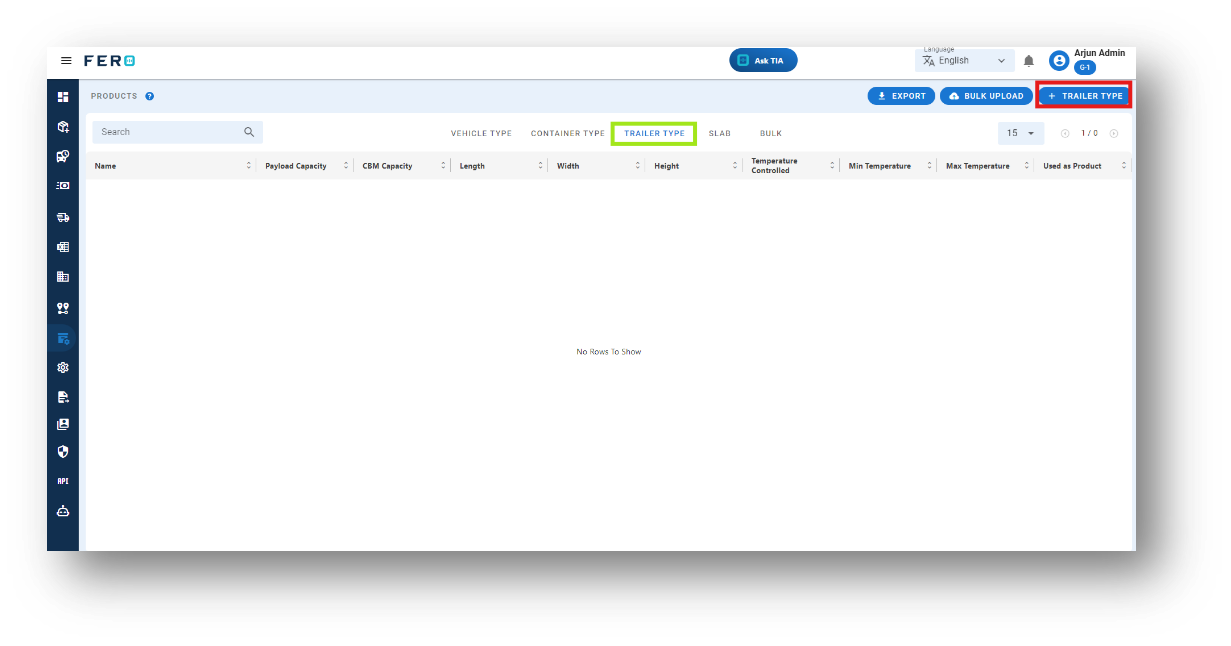
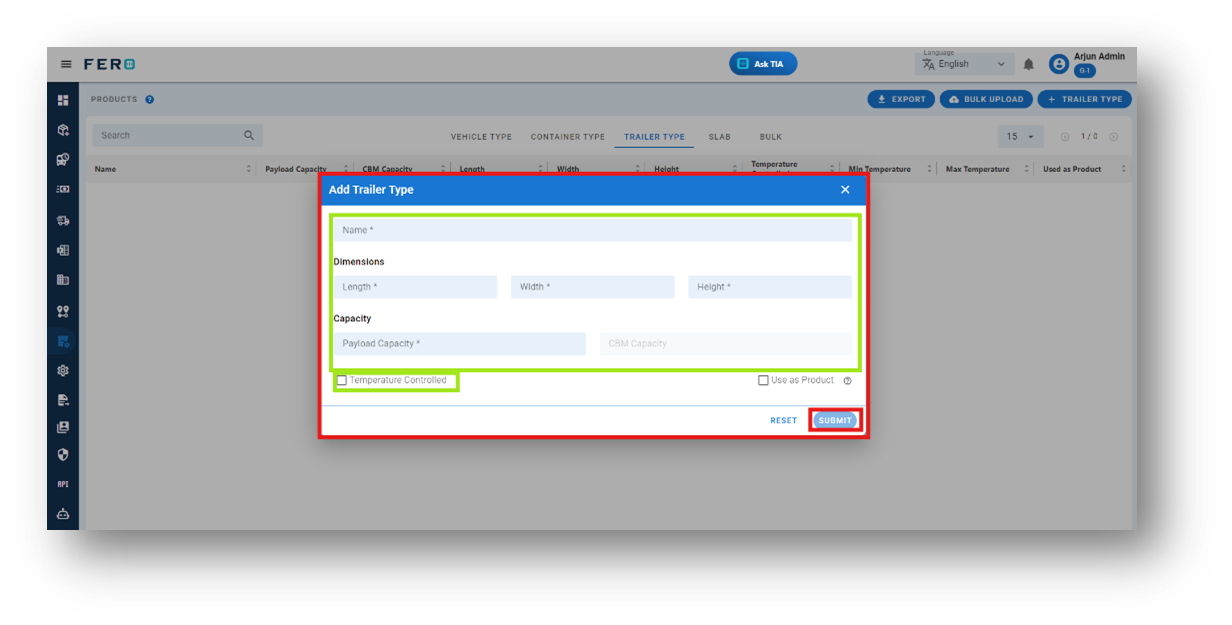
- Trailer Name
- Dimension Details: Length, Width, and Height
- Tonnage Capacity
- Cubic Meter (CBM)
- Toggle Button for Temperature Control: If the Trailer has temperature control functionality, enable this option.
After filling out these fields, click the "Submit" button. Your new Trailer type will be added to the system, allowing you to manage it effectively within your transportation operations.
FAQs
Q1. Can I Bulk Upload the Trailer Type?
Yes, you can bulk upload Trailer type. This method is the easiest and fastest way to add various container types. To do this, navigate to the bulk upload option, download the sample file, enter the details into the sample file, and upload the document. All the Trailer types will be added within seconds.
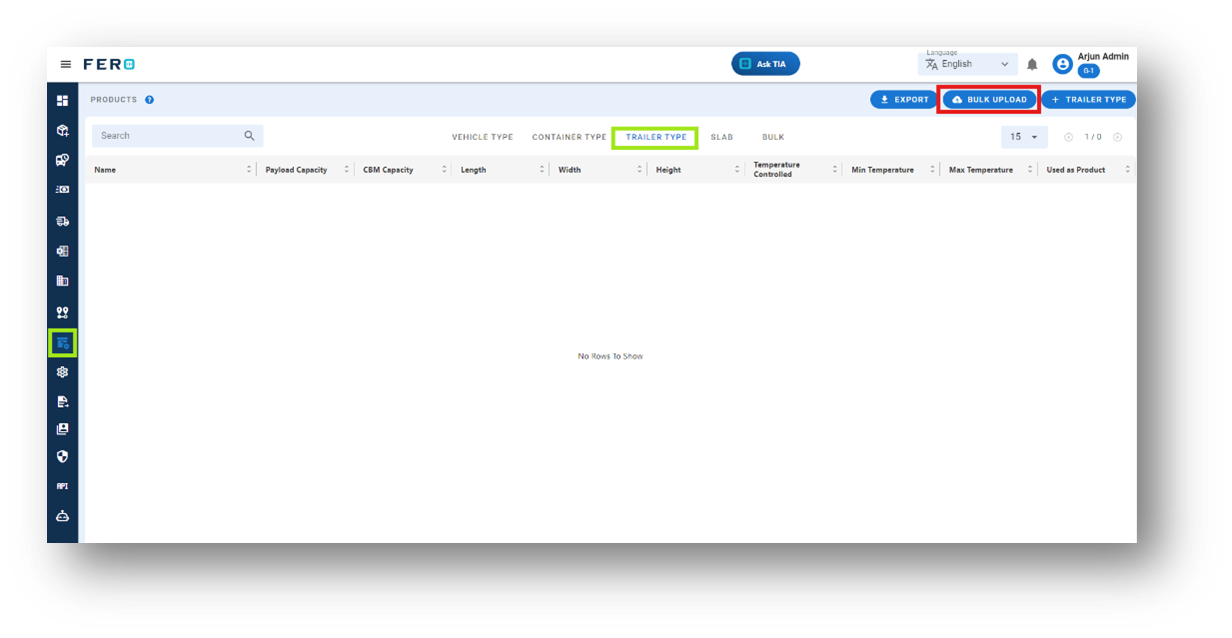
Steps to Bulk Upload Trailer Types:
Step 1: Navigate to the Bulk Upload option.
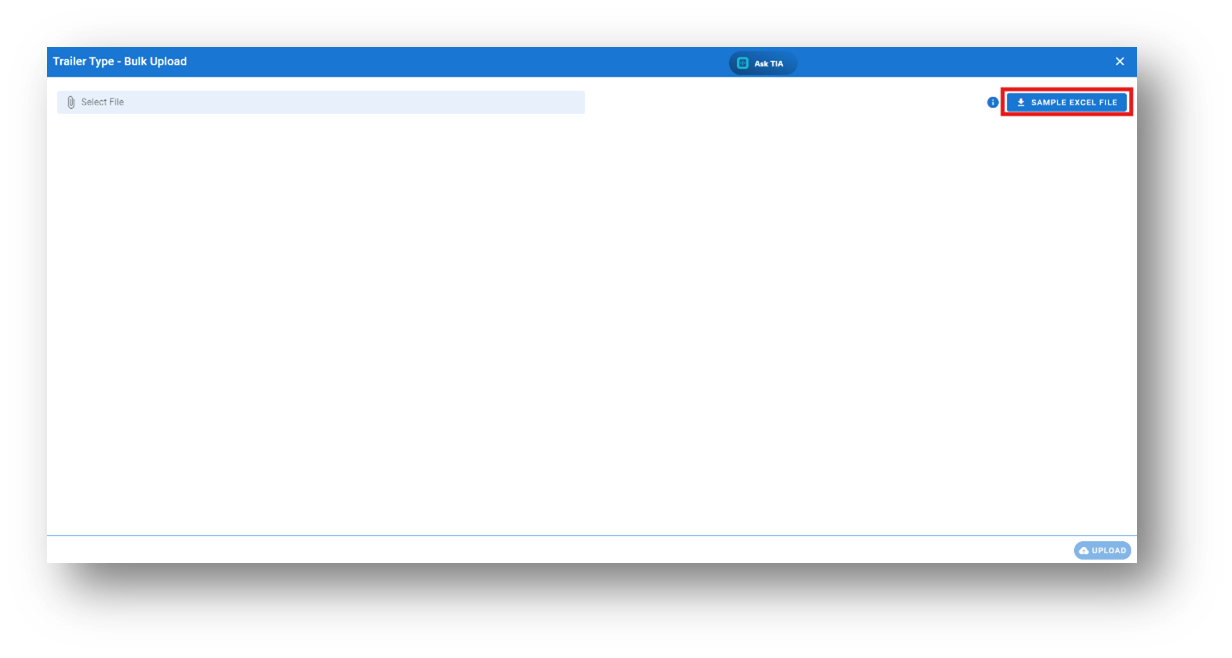
Step 2: Download the sample file and fill in all your Trailer details according to the format provided in the sample file.
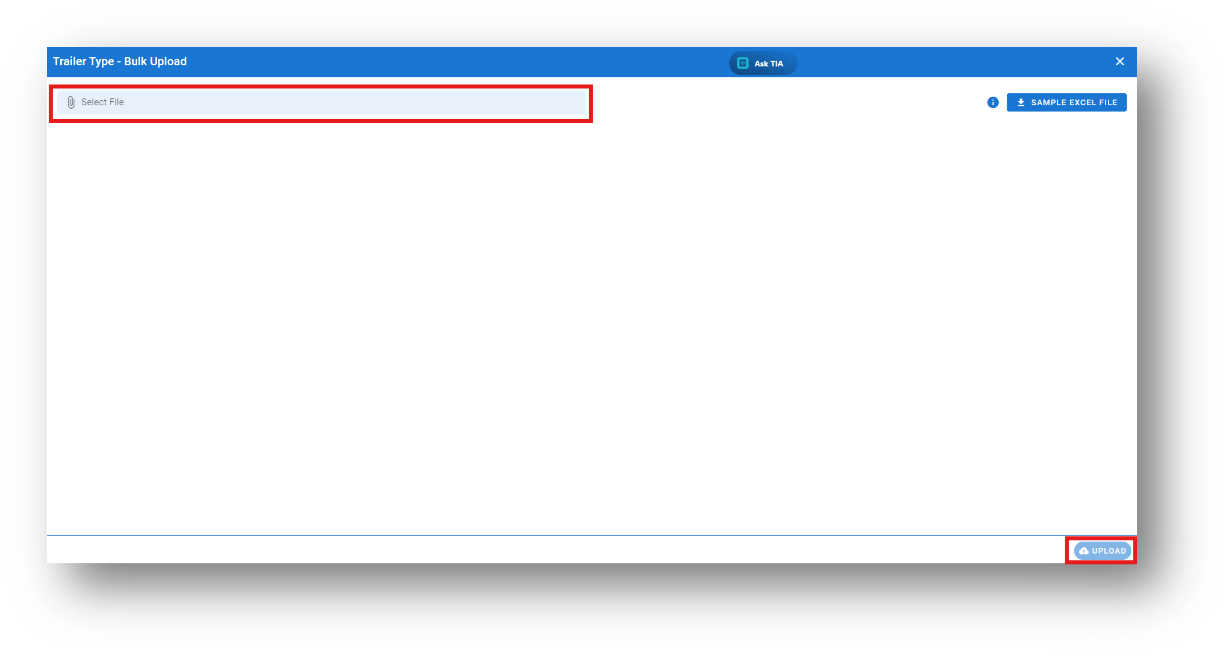
All the trailer types will be added to the system within seconds.
Slab module overview
The Slab module allows you to define weight slabs, which are ranges of weight (e.g., 100kg to 200kg). These weight slabs are crucial for setting up contracts with transporters or customers, as they enable the system to calculate prices based on the weight of the items being transported.
Key Elements:
- Weight Range: Define the starting and ending weight for each slab (e.g., 100kg to 200kg).
- Pricing Contracts: Use these weight slabs to establish pricing agreements with transporters or customers.
- Automated Price Calculation: The system utilizes the defined weight slabs to automatically determine the price based on the item's weight.
How to Set Up or Add Slab:
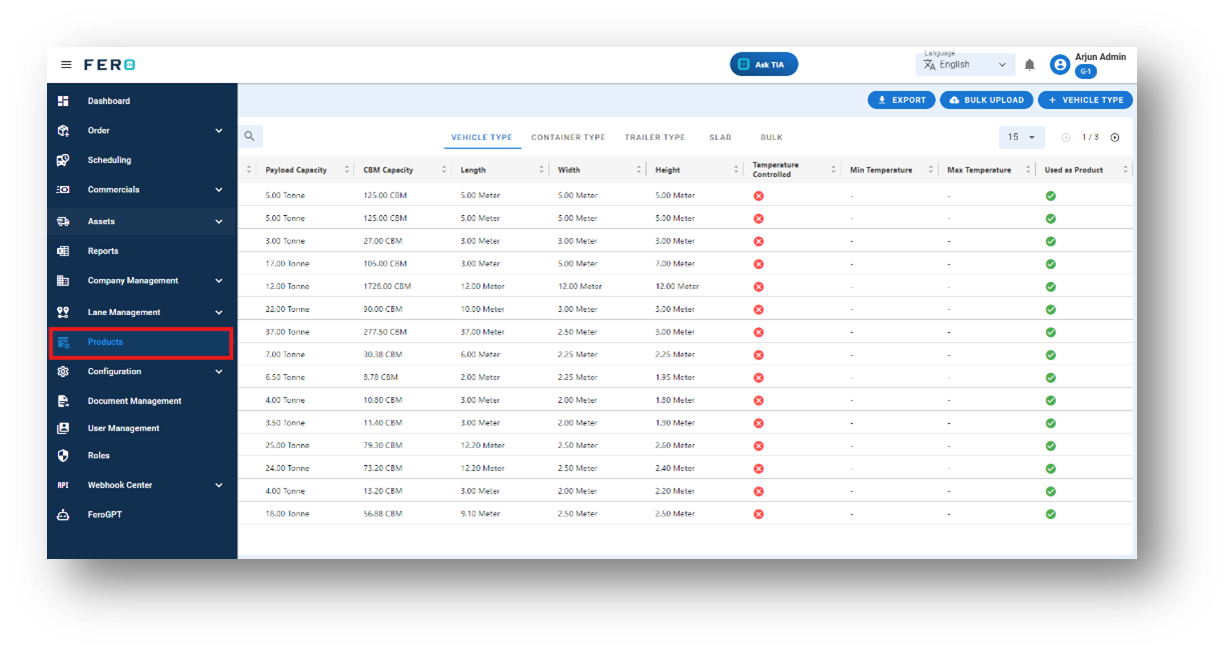
Step 1: Navigate to the Products module section and click on it to open the Products page.
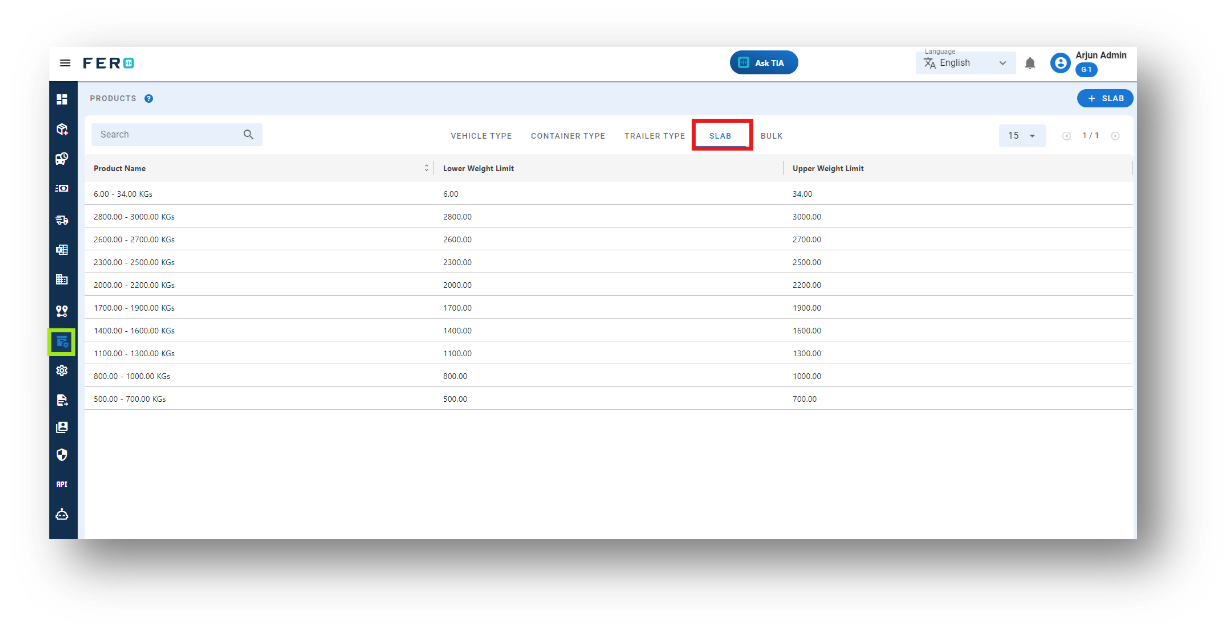
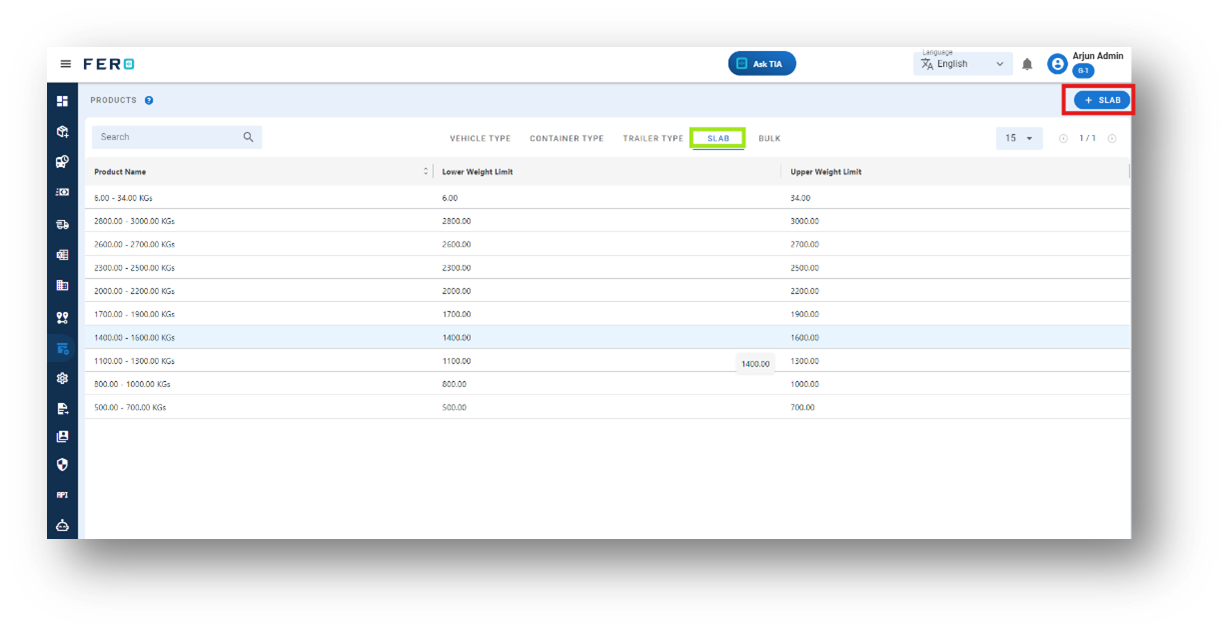
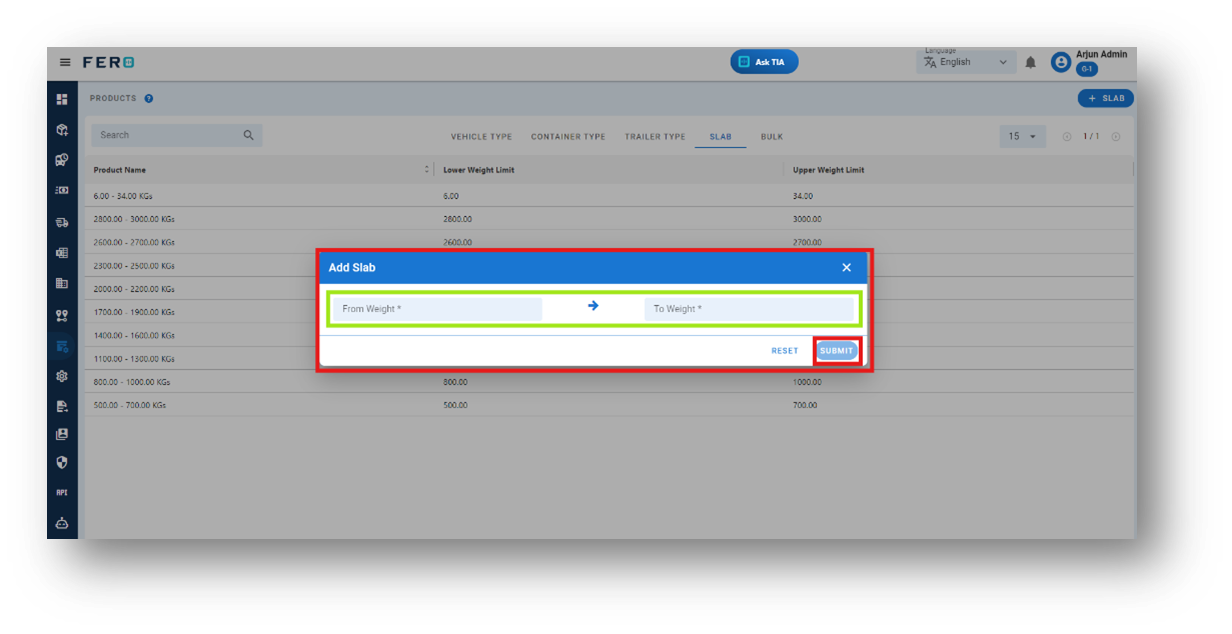
Step 4: Complete the required fields on the "Add Slab" pop-up page:
- From Weight: Enter the starting weight for the slab.
- To Weight: Enter the ending weight for the slab.
After filling out these fields, click the "Submit" button. Your weight slab will be added to the system, facilitating accurate price calculations based on item weight.