Order Management Overview
Orders Overview
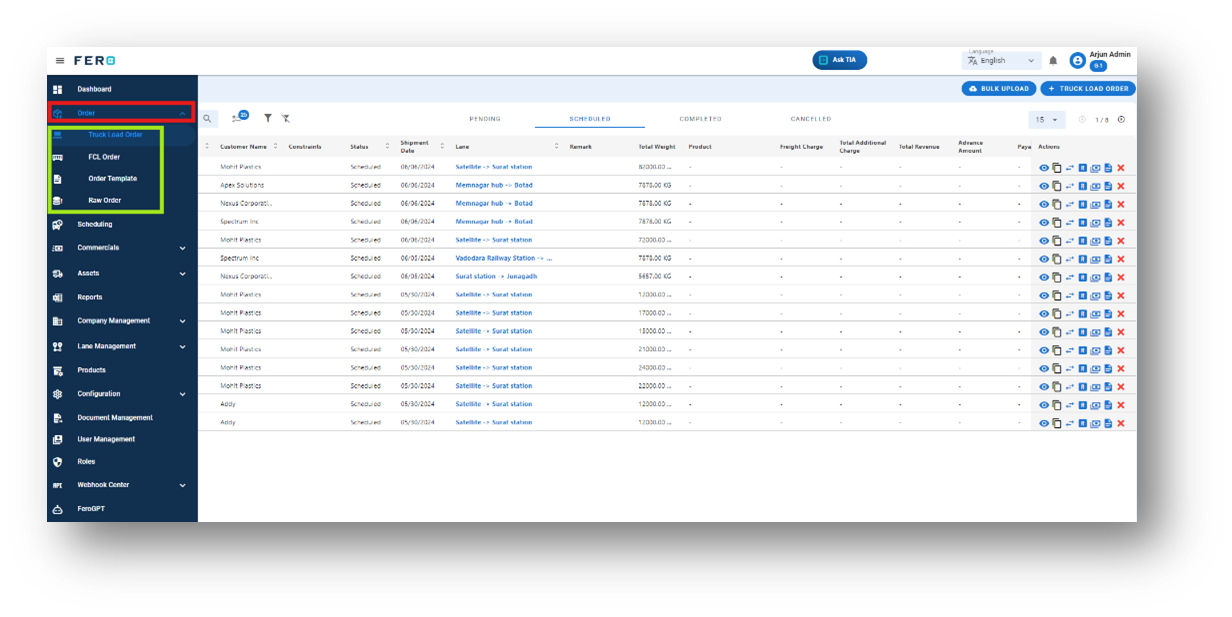
The Orders module allows for the creation and management of various types of orders, including Truck Load Orders and Full Container Load (FCL) Orders. There are three types of orders you can create within this module:
- Truck Load Order: For managing truck load shipments.
- FCL Order: For managing full container load shipments.
- FTL Order: For managing full Truck Load Shipment
- Bulk Order: For Managing and Creating Bulk Orders
- Order Template: For Creating a order template for creating specific requirement orders
- Raw Order: For handling orders integrated from third-party systems.
This comprehensive module streamlines the process of order creation and management, ensuring seamless integration and efficient handling of all shipment types.
Truck Load Orders module overview:
A Truck Load Order refers to the process of organizing and managing shipments that utilize the full capacity of a truck. This type of order is typically used when a single shipment or a consolidated load occupies the entire truck space.
Key Elements:
- Full Capacity Utilization: The truck is fully loaded with goods from a single shipment or multiple consolidated shipments.
- Efficient Management: Ensures optimal use of transportation resources by filling the truck to its maximum capacity.
- Streamlined Process: Facilitates easy tracking and management of large shipments, improving logistical efficiency.
Creating a Truck Load Order ensures that your transportation operations are efficient and cost-effective by maximizing the use of available truck space.
How do I create the Truck load order?
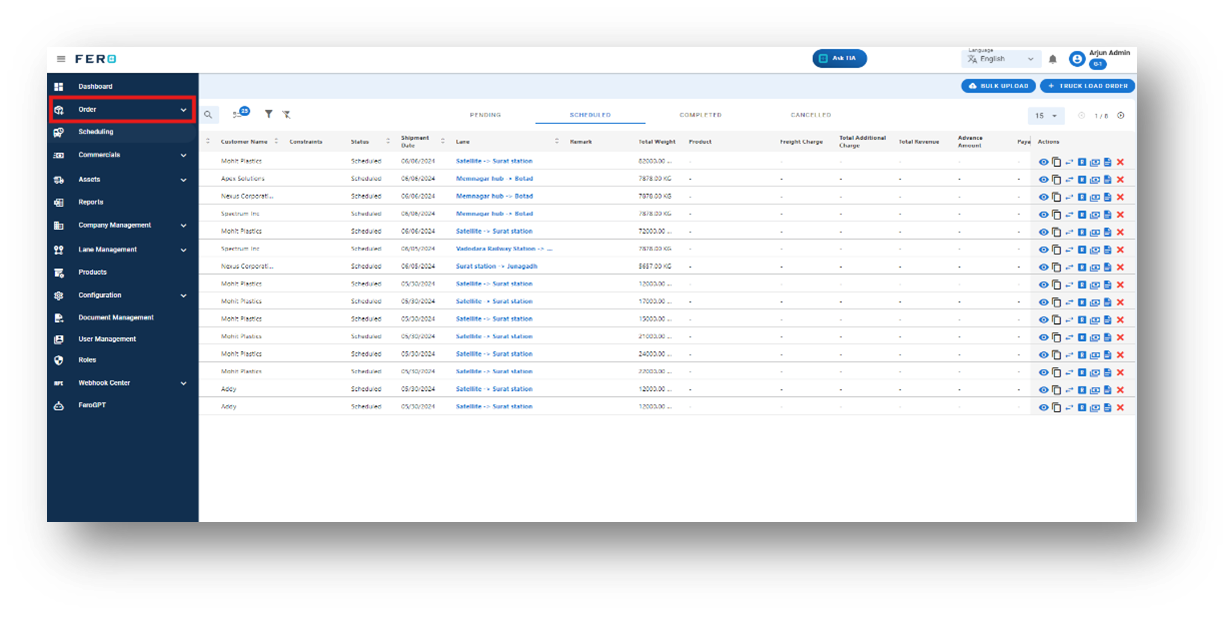
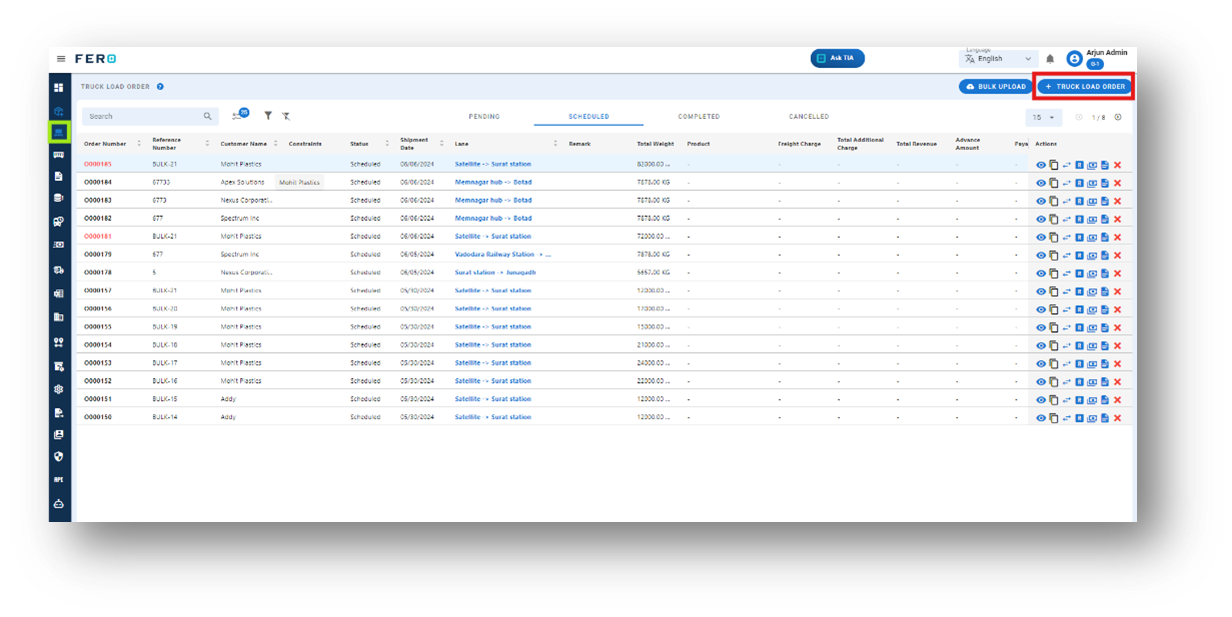
Step 1: Navigate to the orders section and click on it to reveal the drop-down list.
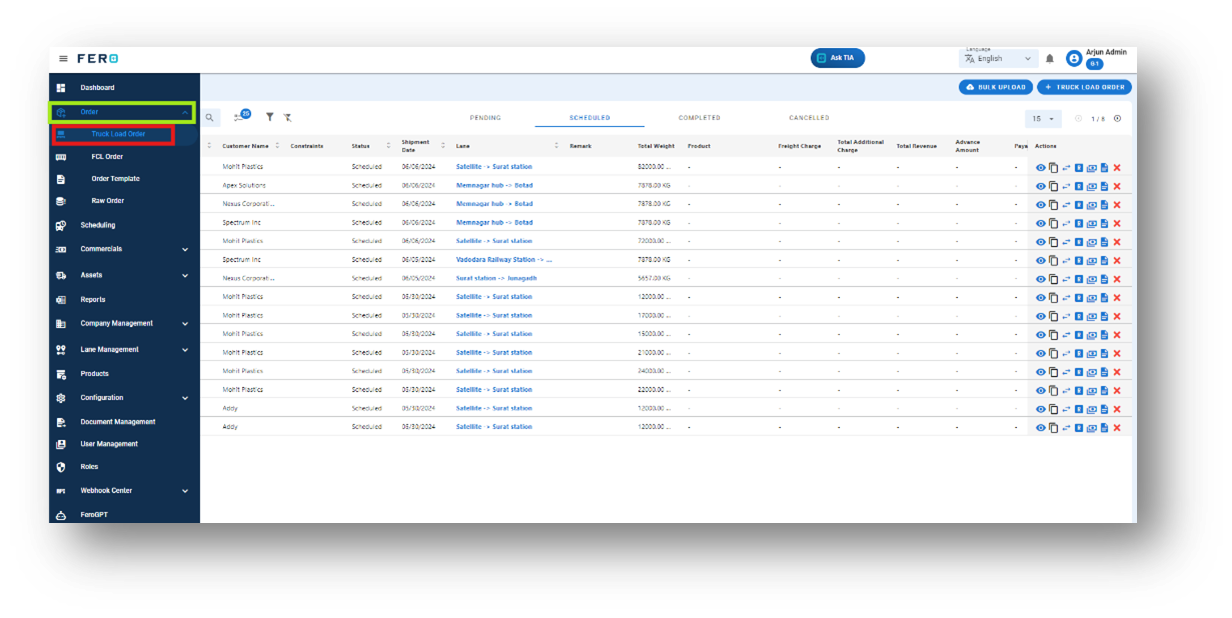
Step 2: Choose the Truck Load Order option from the drop-down list to access the truck load homepage.
Step 3: Select the "Add Truck Load Order" option to create the truck load order creation process.
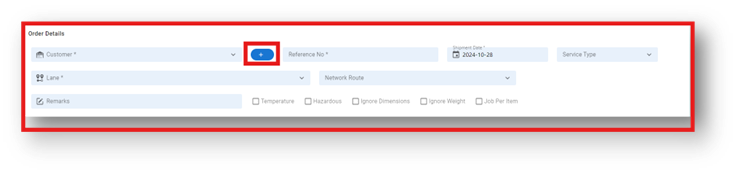
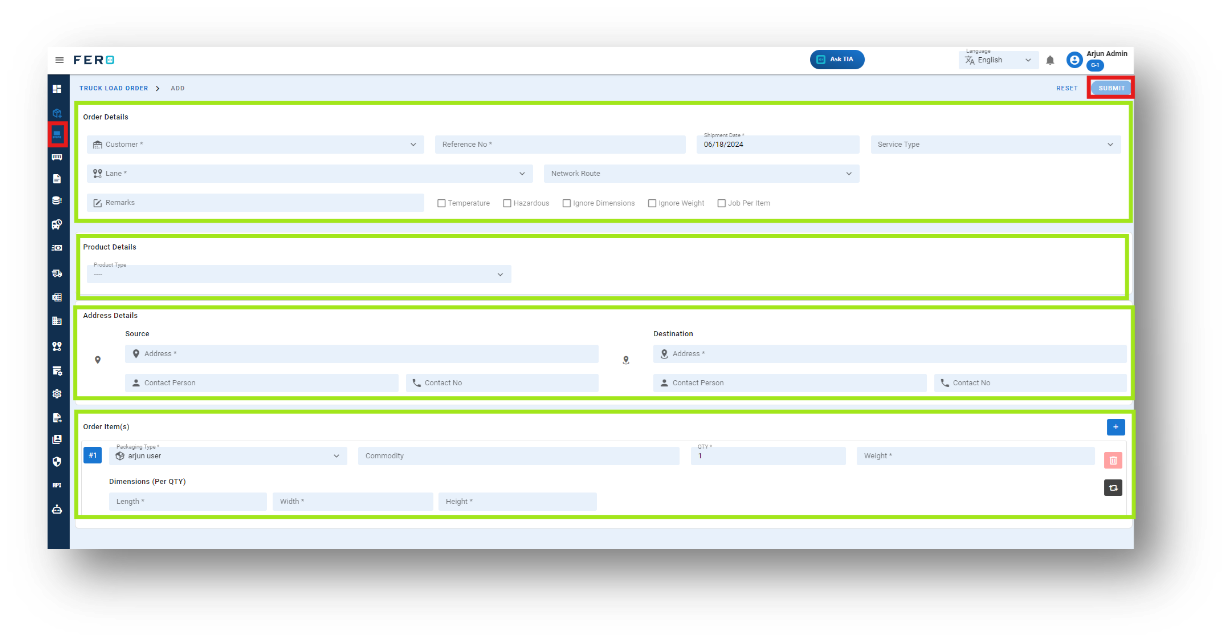
Step 4: Complete the required fields on the "Add Truck Load Order" screen:
- Add New Customer: Click on the (+). icon to add the new customer details.
- Existing Customer: Choose the existing customer from the dropdown.
- Reference Number: Enter any reference number that suits your needs.
- Shipment Date: Select the shipment date.
- Service Type: Choose the service type.
- Lane and Network route: Select the lane and network route from the dropdown.
- Remarks: Add any remarks if needed.
- Options: Select options such as temperature control, hazardous materials, etc., by clicking on the checkboxes.
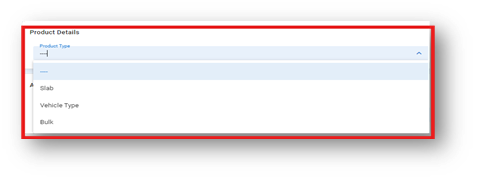
- Product Type: Hand-pick the product type from the dropdown menu.
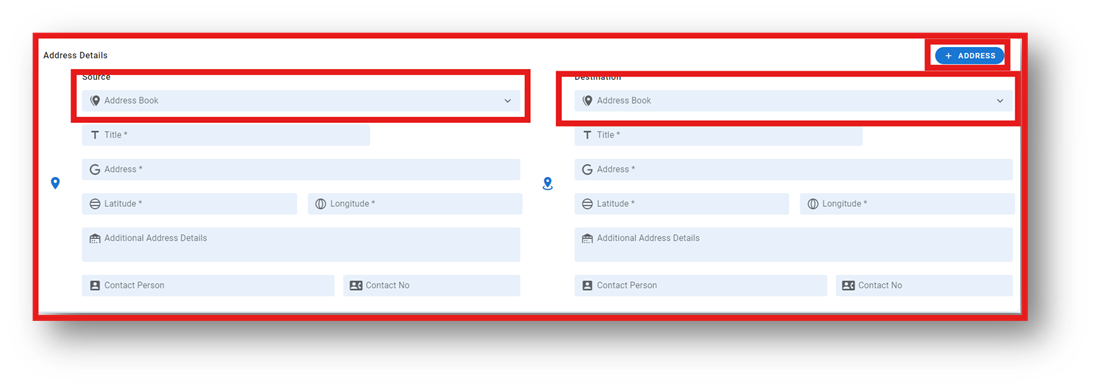
- Pickup and Drop-off Details:
- Enter accurate address and contact information for both locations.
- Use the toggle button to open the address book and choose an existing address if needed
- To save an address for future use, add the customer's address to your address book.
- For order details, use the address book dropdown to select any saved address.
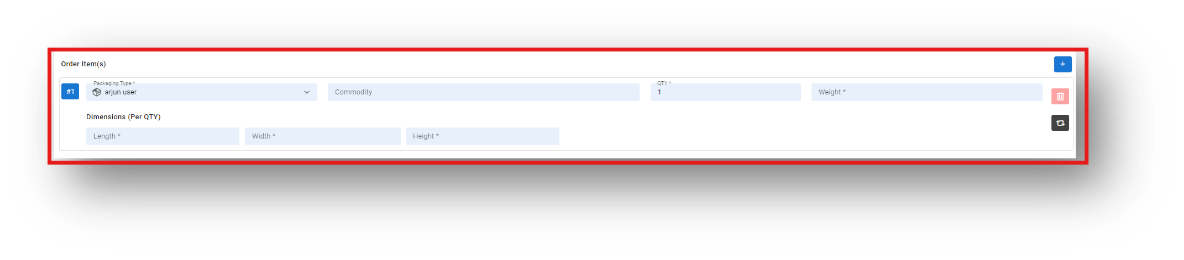
- Order Item Details: Specify the dimensions and weight of each order item.
- Click on the plus icon to add more items.
Submit: Click "Submit" to add the truck load order.
Note: Fields marked with * are mandatory.
FAQs
Q1. Can I Edit Truck load order Details?
Yes, Truck load orders details can be edited by navigating to the truck load order homepage in scheduled page and these changes can only be done before allocating the asset or vehicle to the order, where all truck load orders are listed. Simply locate the eye icon requiring modification and click on the eye icon a page will appear there you have to navigate to edit icon click on it a page will appear make the changes the changes will done real time.
Steps to edit the Truck load orders
Step 1: Navigate to the scheduled page where all the orders are listed on the Truck Load Orders homepage.
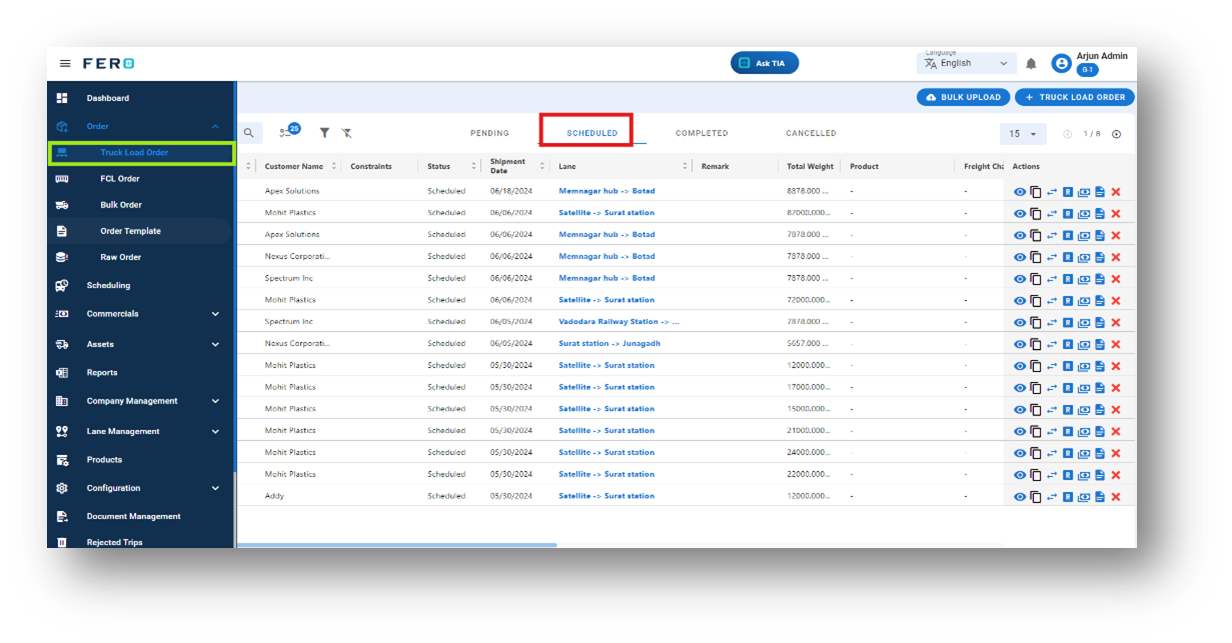
Step 2: Select the order you want to edit and click on the eye icon in the action bar.
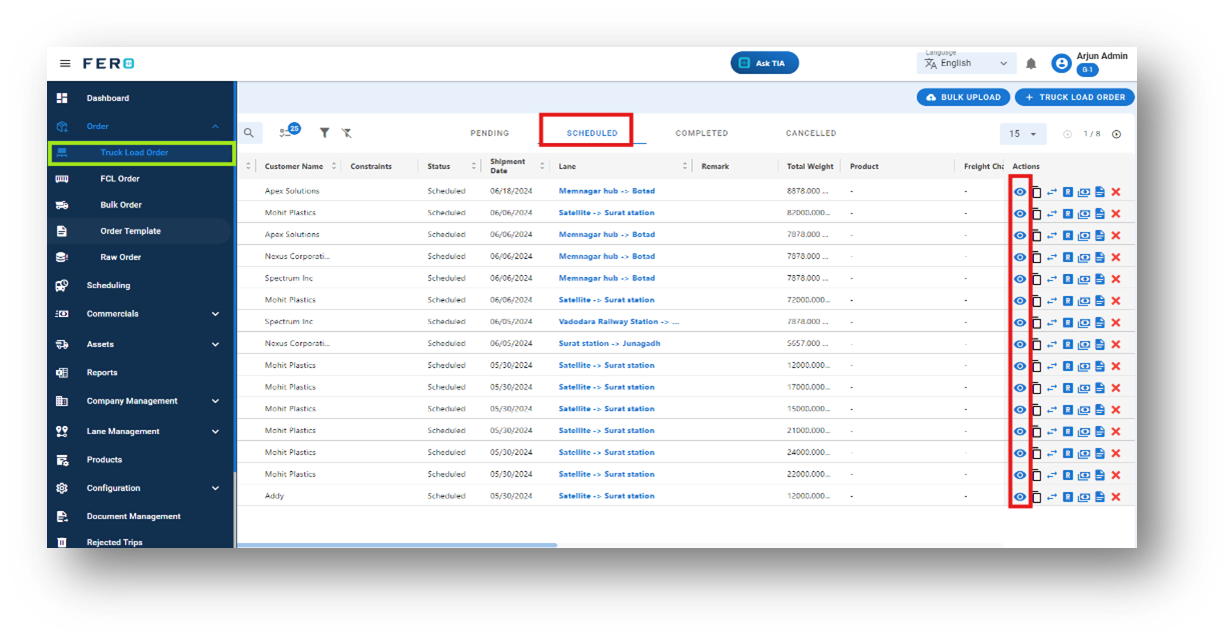
Step 3: To edit the order details, navigate to the "Edit Orders" option and update the necessary information.
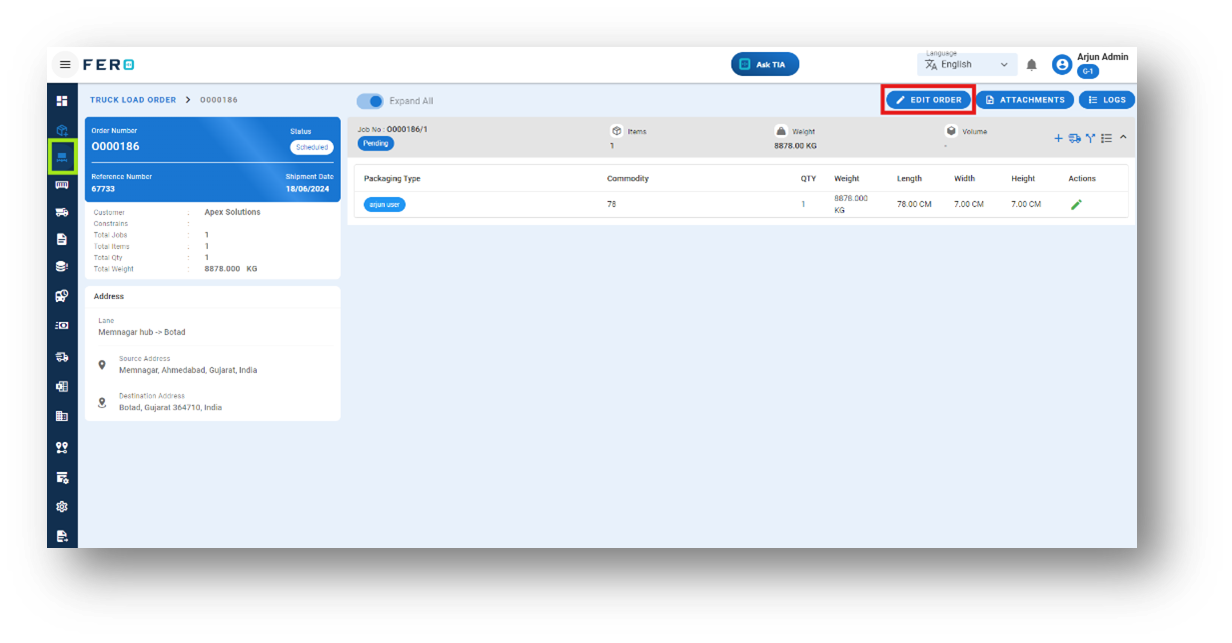
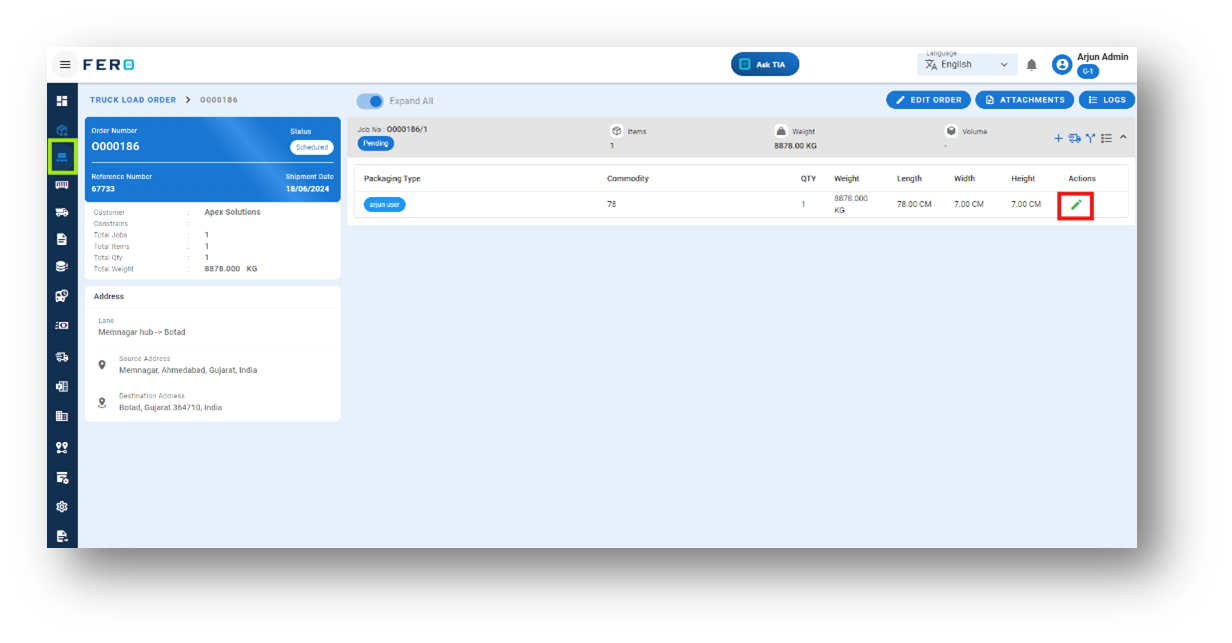
Step 4: If you need to edit the ordered items, click on the edit icon next to the items.
By following these steps, you can easily update the details of your Truck Load Orders to ensure accuracy and efficiency.
Q2. How to Add More Items to an Existing Order?
Yes, you could add more items to an order if you forgot or need to update it. Just follow these steps:
Step 1: Navigate to the scheduled page where all the orders are listed on the Truck Load Orders homepage.
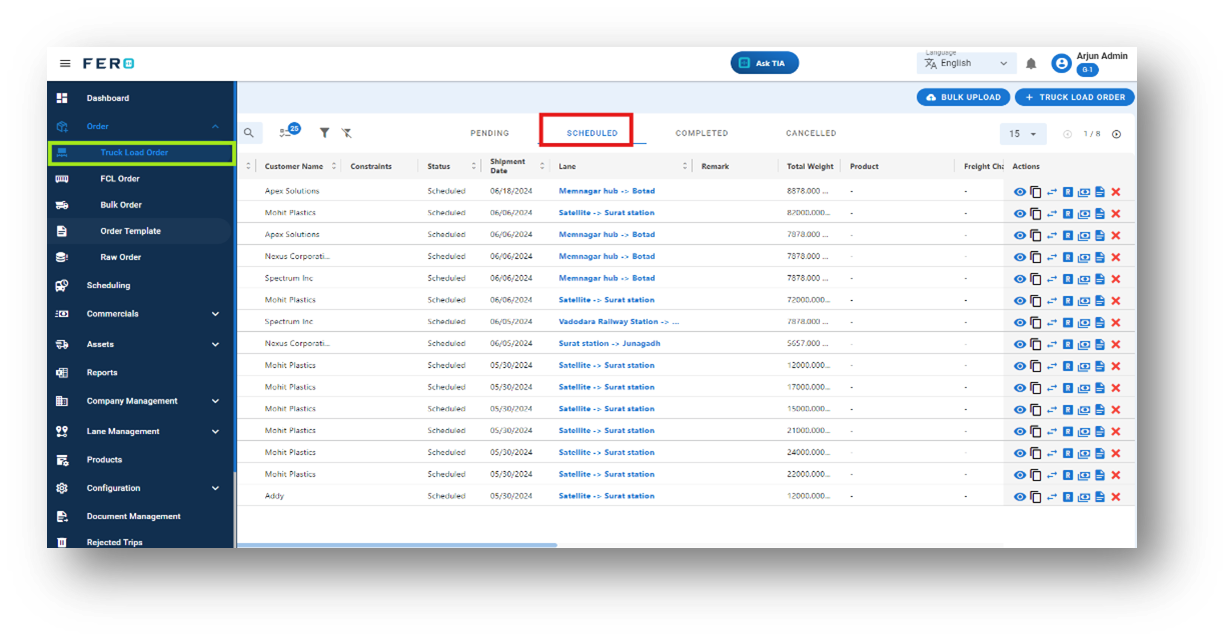
Step 2: Select the order you want to edit and click on the eye icon in the action bar.
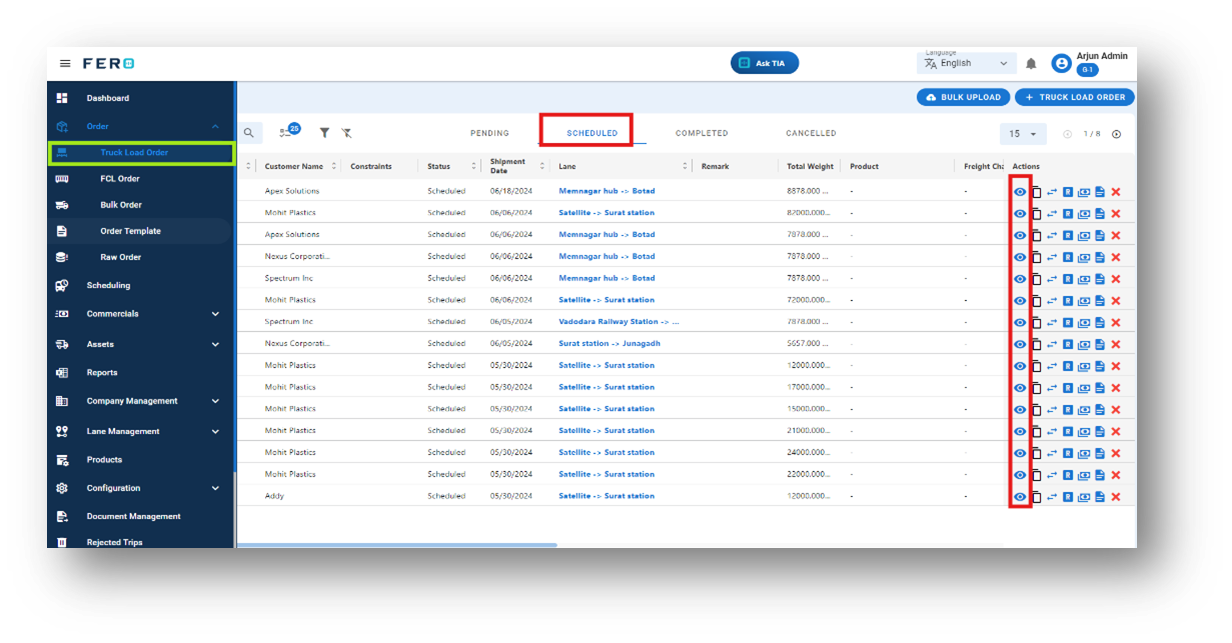
Step 3: To add an item to the order, navigate to the "Add Item" icon and click on it.
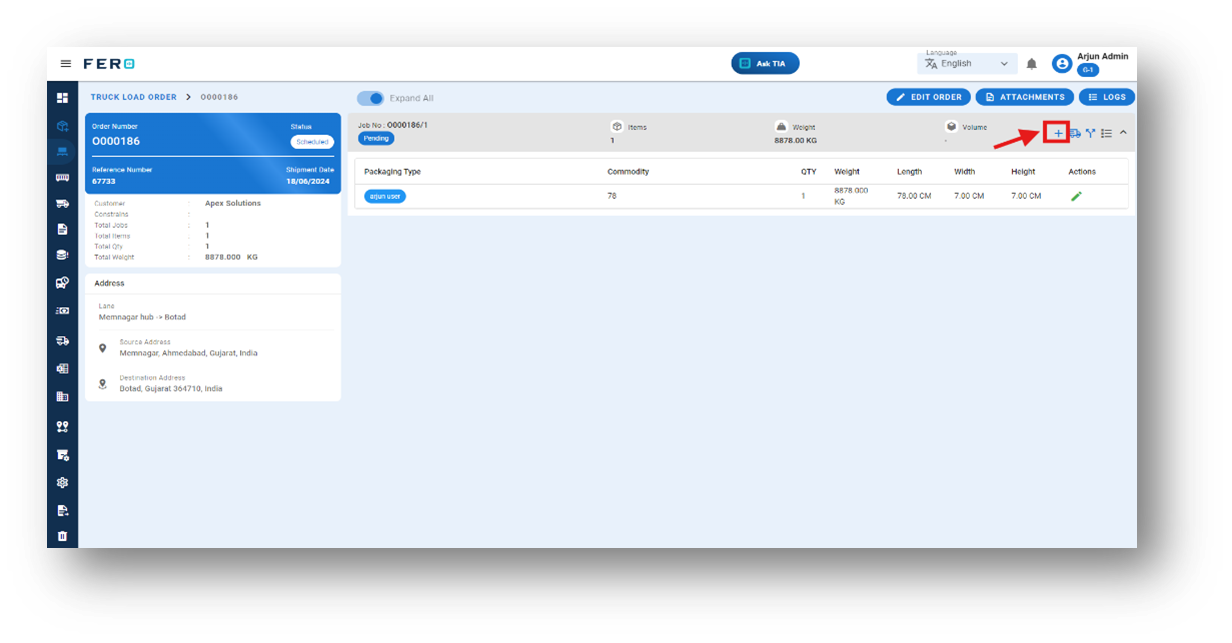
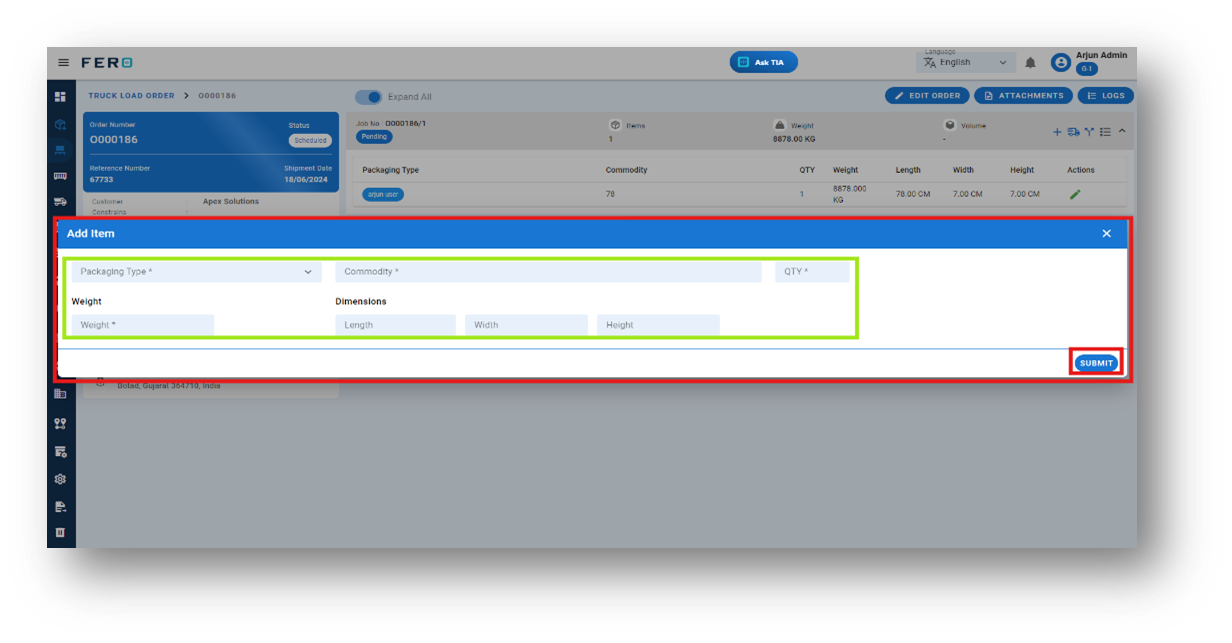
Step 4: A new page will appear. Fill in the required fields for the new item and click "Submit."
Q3. How to Split Orders or Order Items if the Item Size and Quantity are Too Large
Yes, you can split orders if the items are too large. The system will display a message indicating that the item size is too big and will prompt you to split the order.
Steps to Split Orders:
Step 1: Navigate to the scheduled page where all the orders are listed on the Truck Load Orders homepage.
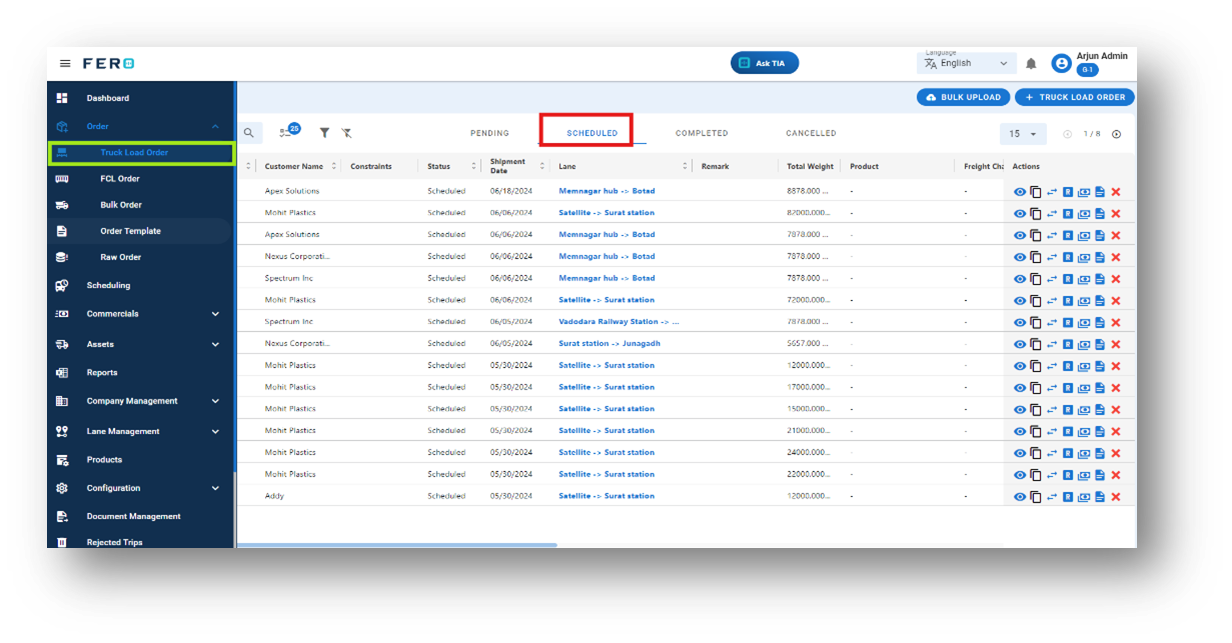
Step 2: Select the order you want to edit and click on the eye icon in the action bar.
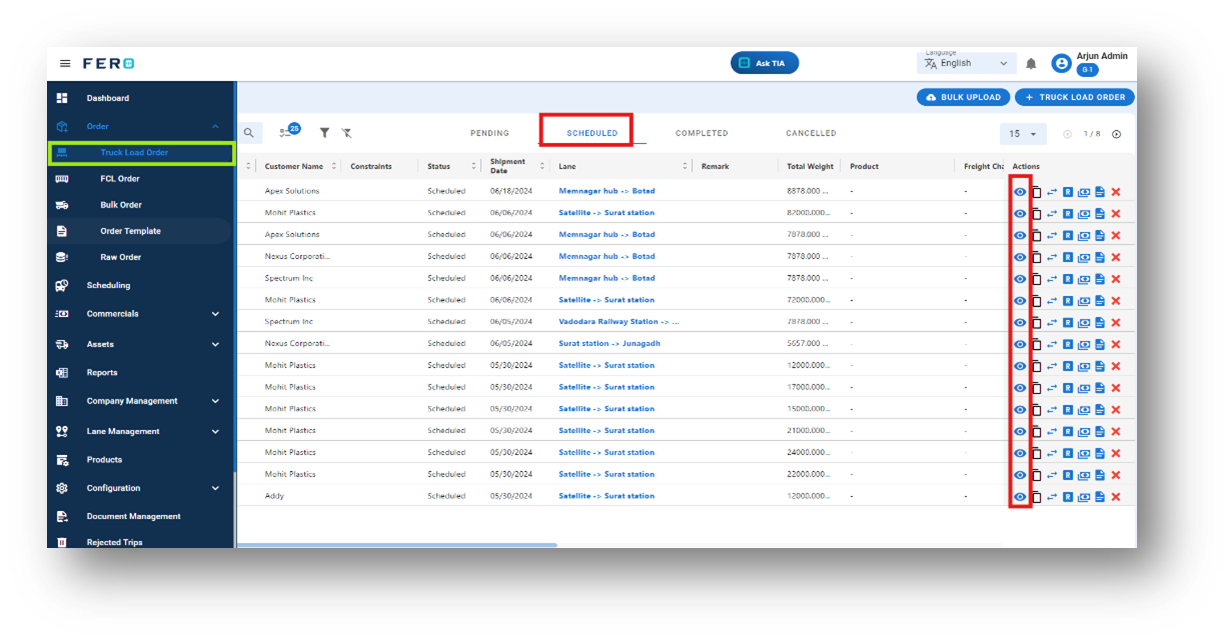
Step 3: To split an order, navigate to the "Job Split" icon and click on it.
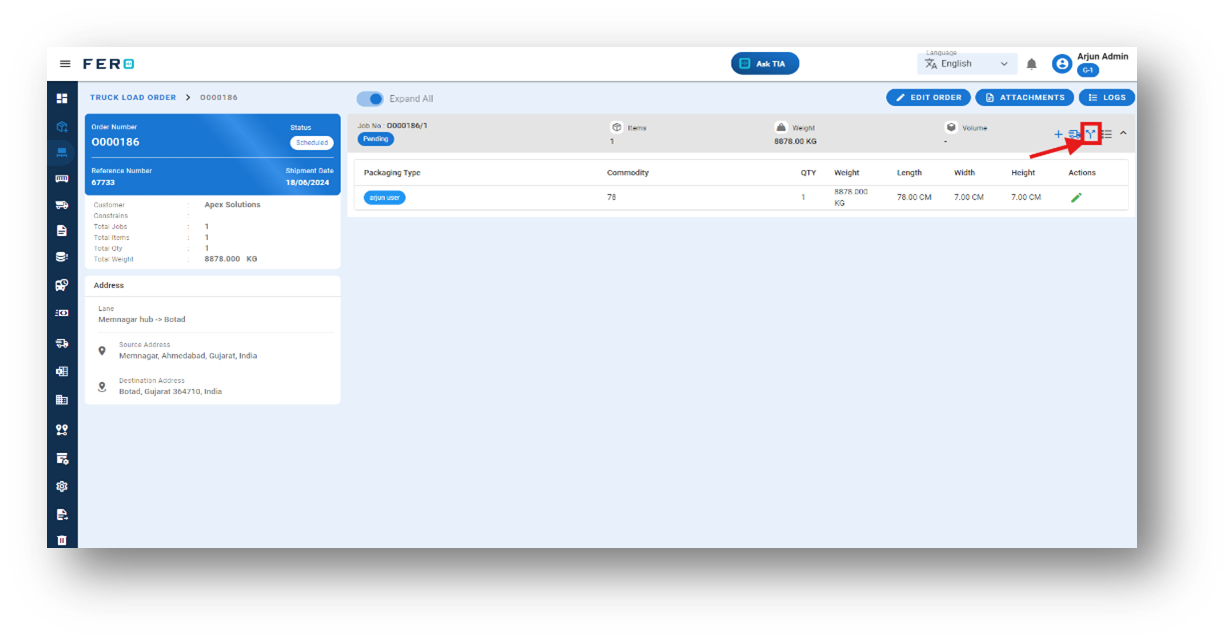
Step 4: A new page will appear. Select the item by clicking on the checkbox and then click the "Split Items" button.
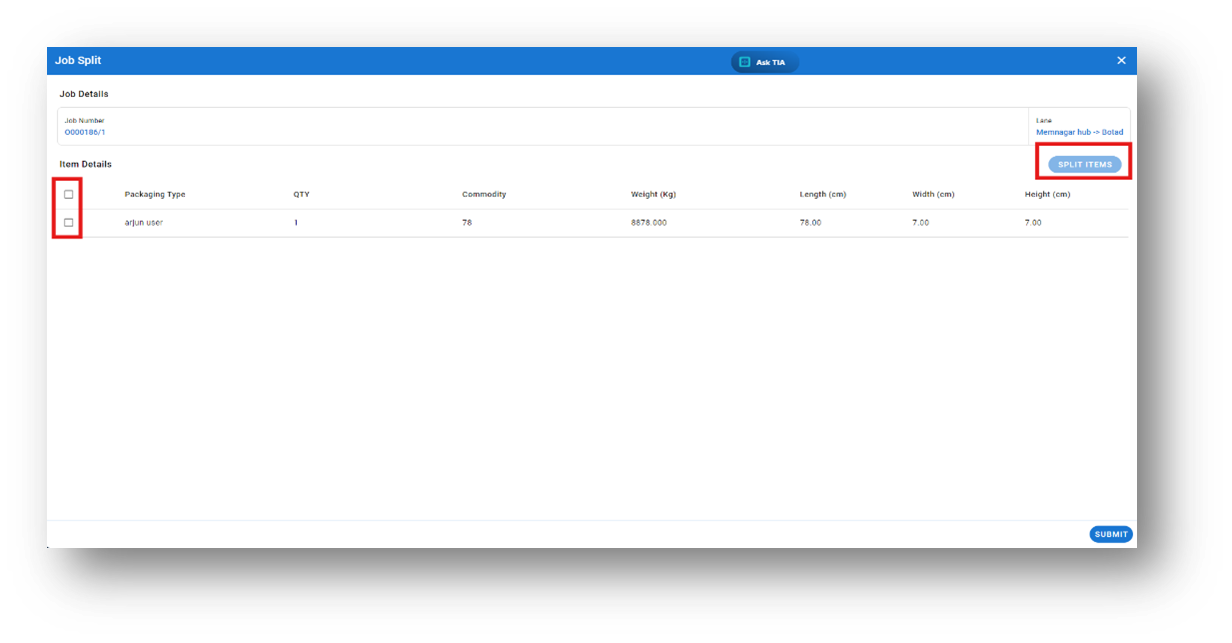
Step 5: Enter the quantity you want to split based on your understanding and click "Submit." Your items will be split.
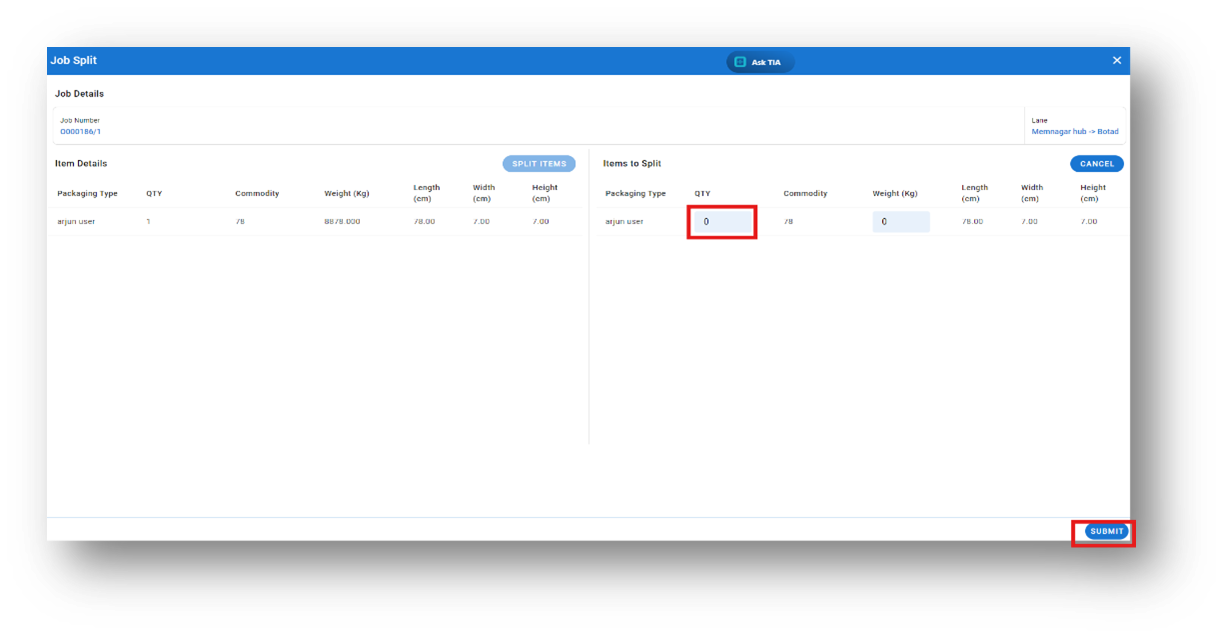
Important Note: When you split an order, the system will create a new order for the split items.
Q4. Can I Bulk Upload the Truck load orders?
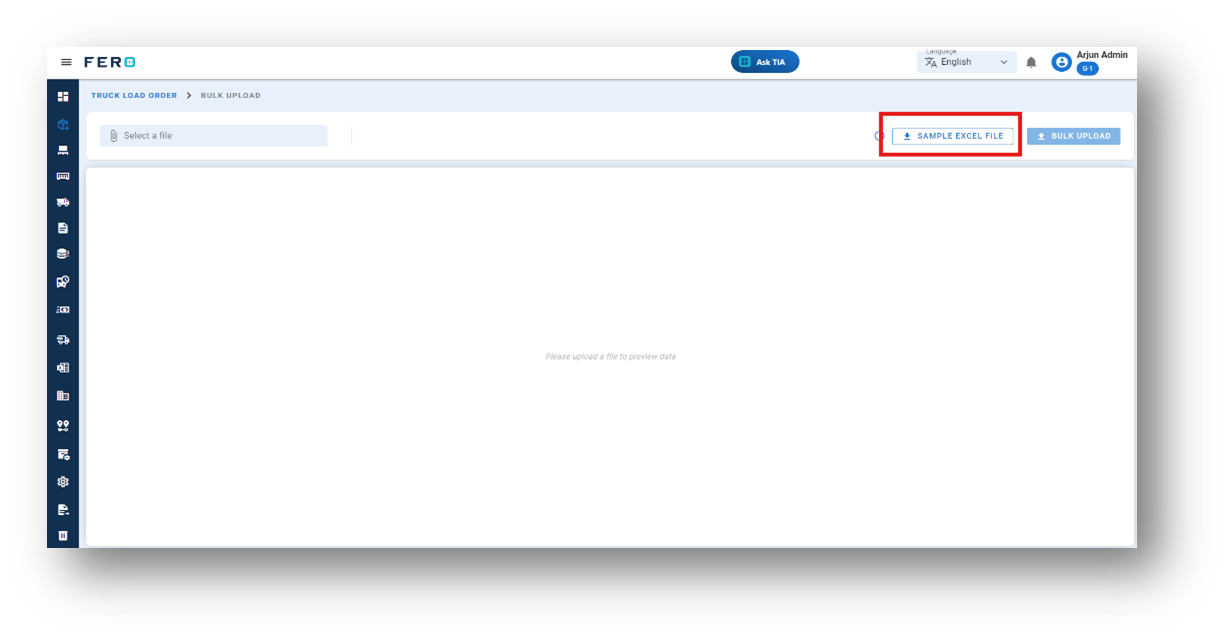
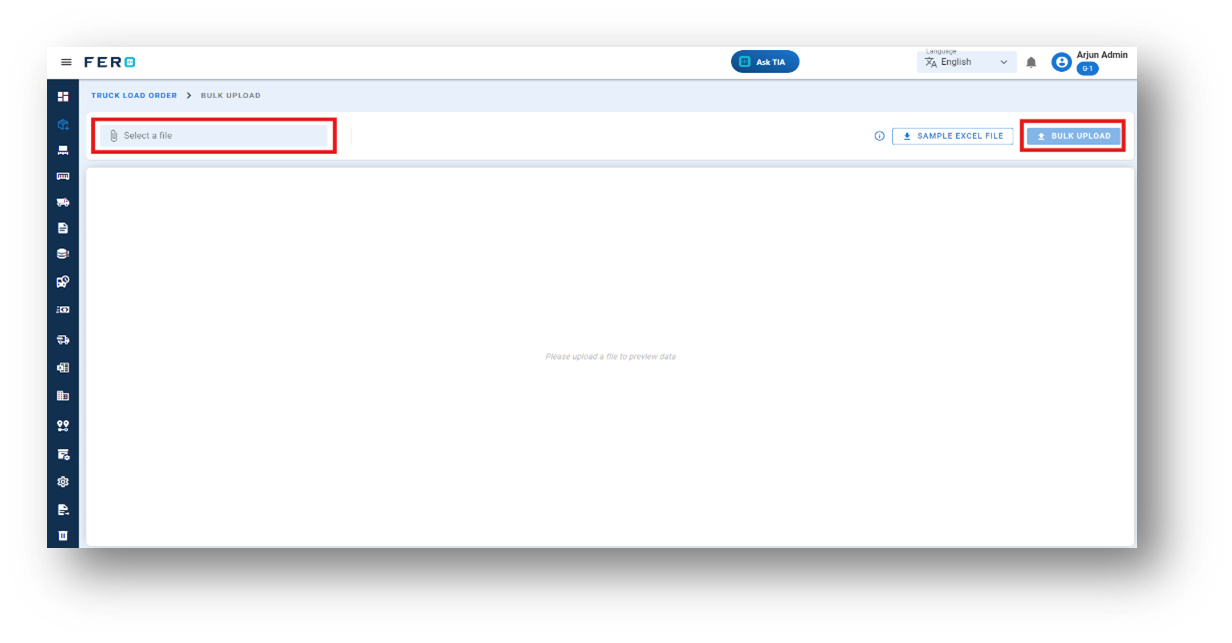
Yes, you can bulk upload Truck load orders. This method is the easiest and fastest way to add various Truck load orders. To do this, navigate to the bulk upload option, download the sample file, enter the details into the sample file, and upload the document. All Truck load orders will be added within seconds.
Steps to Bulk Upload truck load orders:
Step 1: Navigate to the Bulk Upload option.
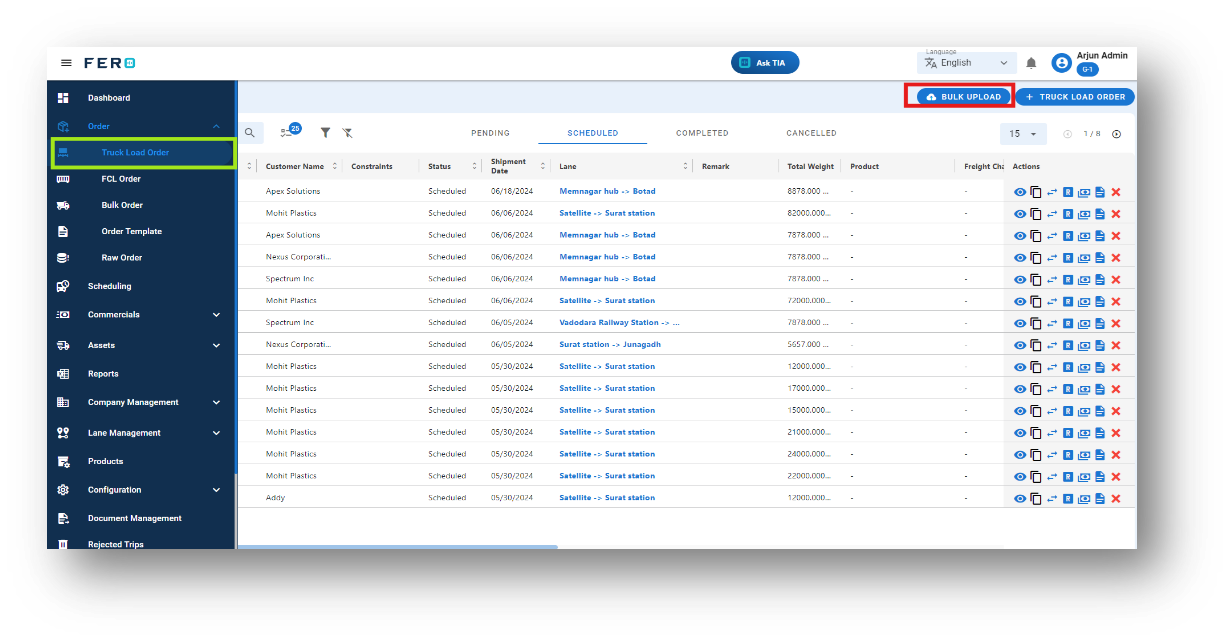
Step 2: Download the sample file and fill in all your Truck load orders details according to the format provided in the sample file.
Step 3: Select the completed file from your system and click the "Upload" button.
All the Truck load orders will be added to the system within seconds.
Q5. How Can I Cancel a Truck Load Order if It Has Been Created?
Yes, you can cancel an order after it has been created. To cancel an order,
follow these steps:
Step 1: Navigate to the scheduled page where all the orders are listed on the Truck Load Orders homepage.
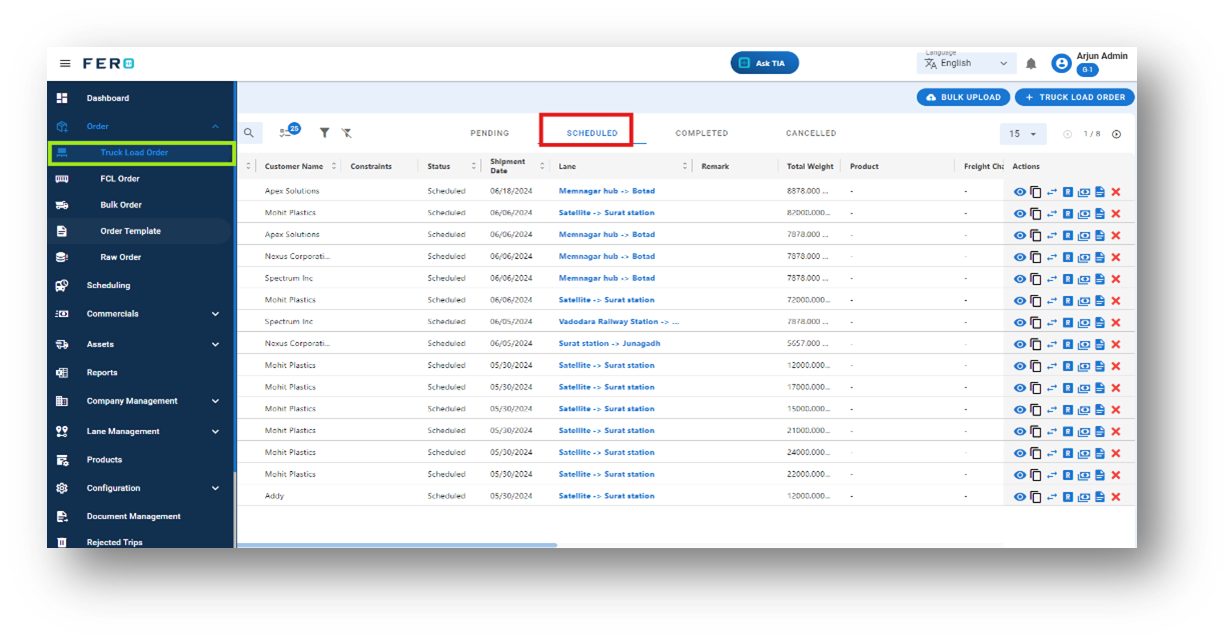
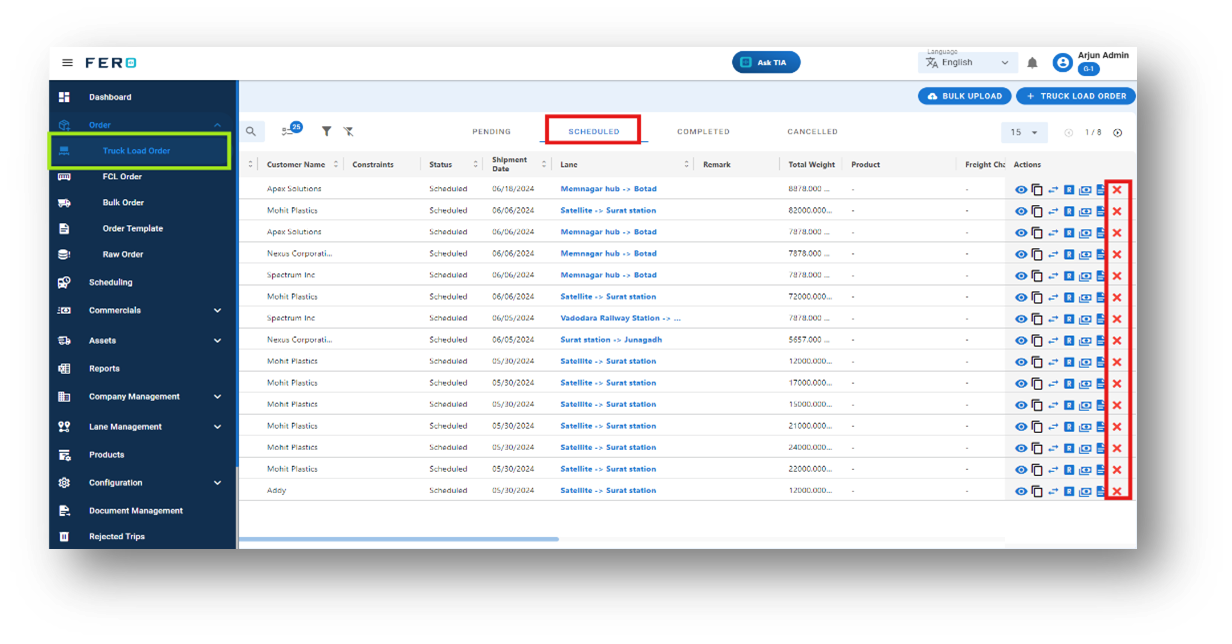
Step 2: Select the order you want to cancel and click on the cross icon (X) in the action bar.
By following these steps, you can easily cancel any order that has been created.
Full Container Load Orders module overview:
A Full Container Load (FCL) Order refers to the process of organizing and managing shipments that occupy the entire container. This type of order is typically used when a single shipment or a consolidated load requires the full capacity of a shipping container.
Key Elements:
- Full Capacity Utilization: The container is fully loaded with goods from a single shipment or multiple consolidated shipments, ensuring no wasted space.
- Efficient Management: Optimizes the use of transportation resources by filling the container to its maximum capacity.
- Streamlined Process: Facilitates easy tracking and management of large shipments, enhancing logistical efficiency.
- Secure Transportation: Goods are securely packed in a dedicated container, reducing the risk of damage or loss during transit.
Creating a Full Container Load Order ensures that your transportation operations are efficient and cost-effective by maximizing the use of available container space. This approach not only improves logistical efficiency but also enhances the security and integrity of the shipments.
How do I create the (FCL) Full container load order?
Step 1: Navigate to the orders section and click on it to reveal the drop-down list.
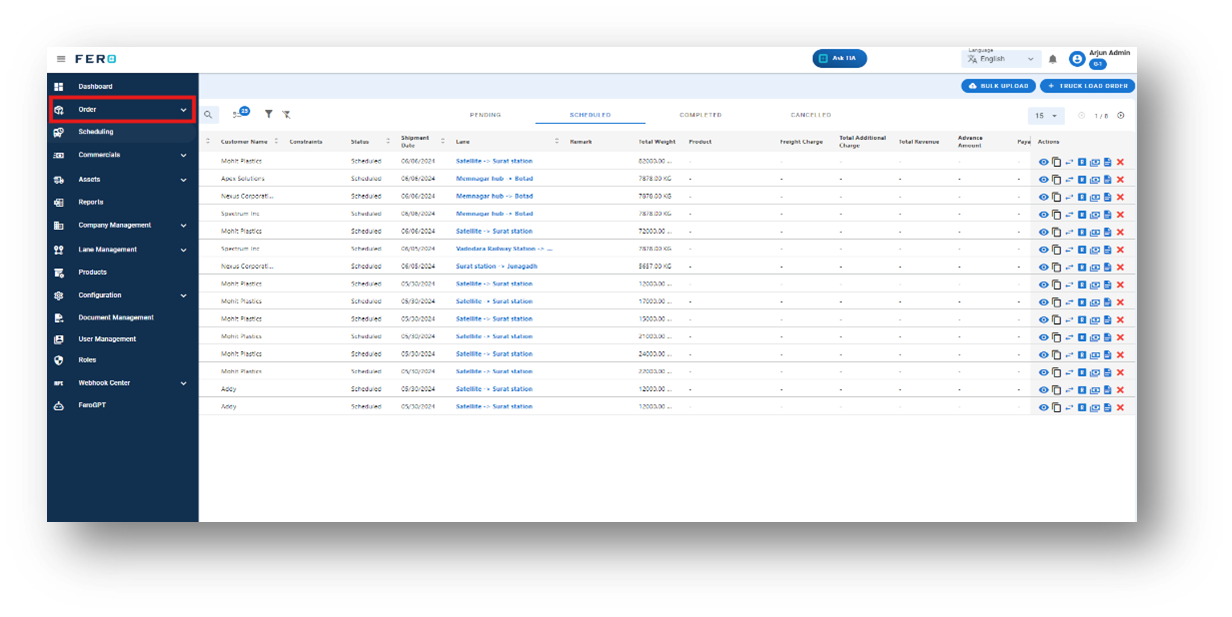
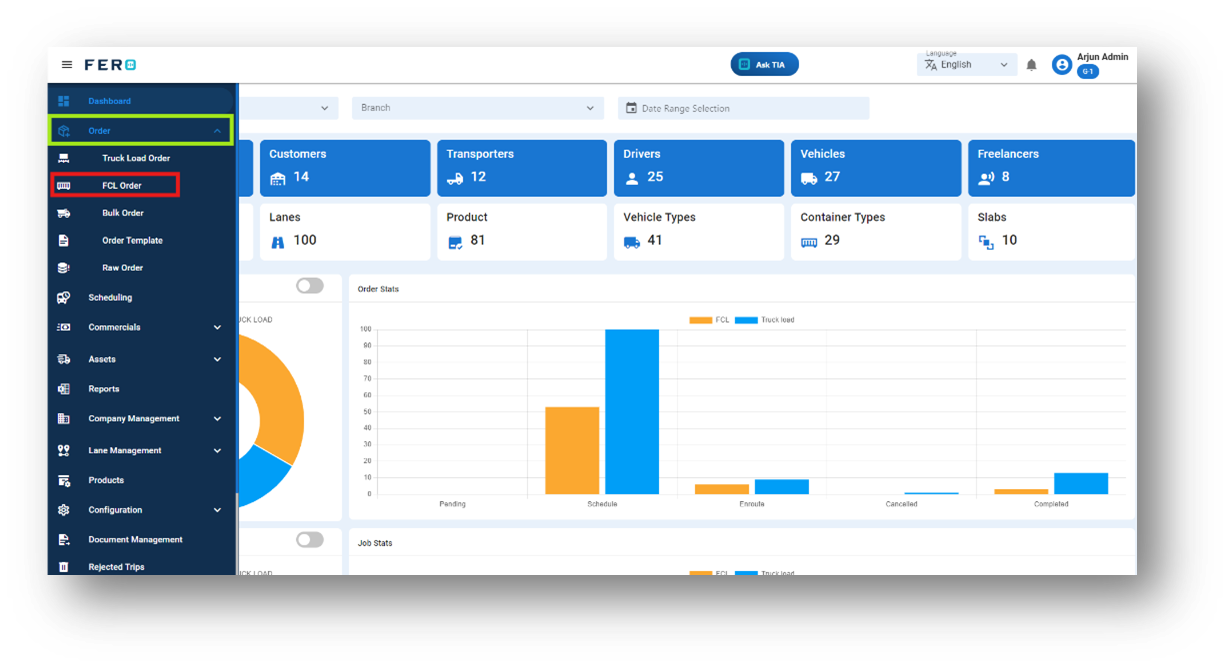
Step 2: Choose the FCL Order option from the drop-down list to access the FCL order homepage.
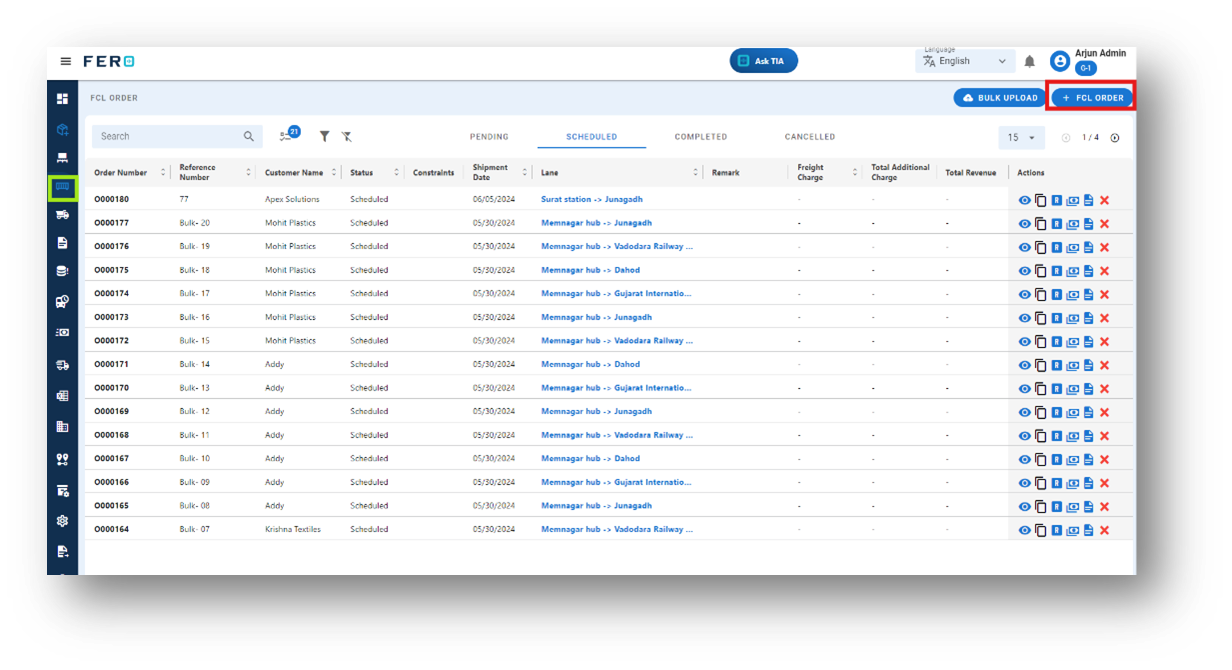
Step 3: Select the "Add FCL Order" option to create FCL order creation process.
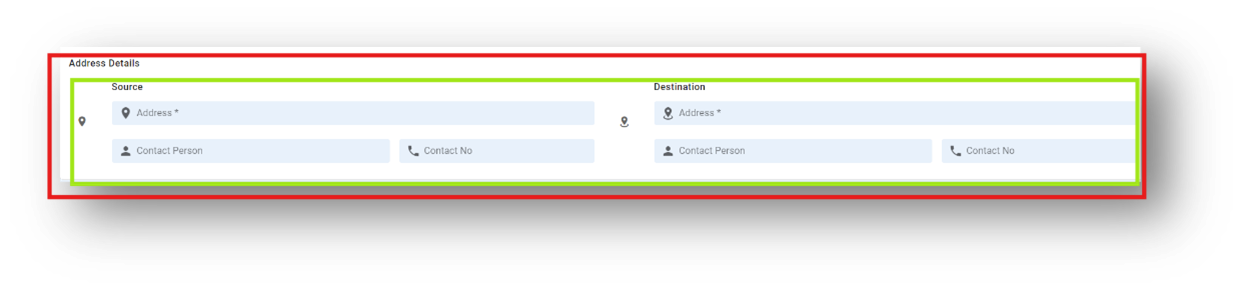
Step 4: Complete the Required Fields on the "Add FCL Order" Screen:
- Add New Customer: Click on the (+). icon to add the new customer details.
- Existing Customer: Choose the existing customer from the dropdown.
- Enter a Reference Number: Input any reference number that suits your needs.
- Select the Shipment Date: Choose the desired shipment date.
- Choose the Service Type: Select the appropriate service type.
- Select the Lane and Network Route: Pick the lane from the dropdown menu.
- Add Remarks: Include any additional remarks if needed.
- Select Options: Click on checkboxes for options such as temperature control, hazardous materials, etc.
- Provide Address Details: Enter accurate address details for both pickup and drop-off locations, including contact information.
- Use the Address Book: Toggle to access the address book and select existing address details.
- Specify Order Item Details: Provide the dimensions and weight for each order item.
- Add More Items: Click on the plus icon to add more items.
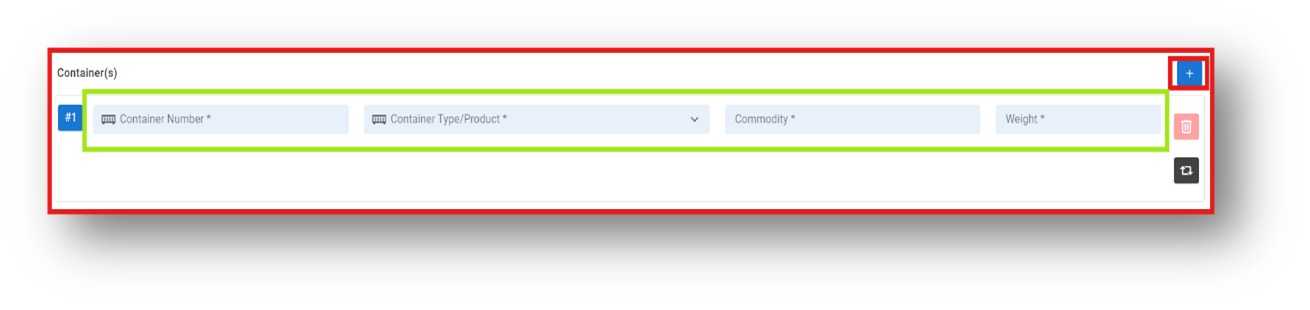
When all order details are filled out, click "Submit" to proceed.
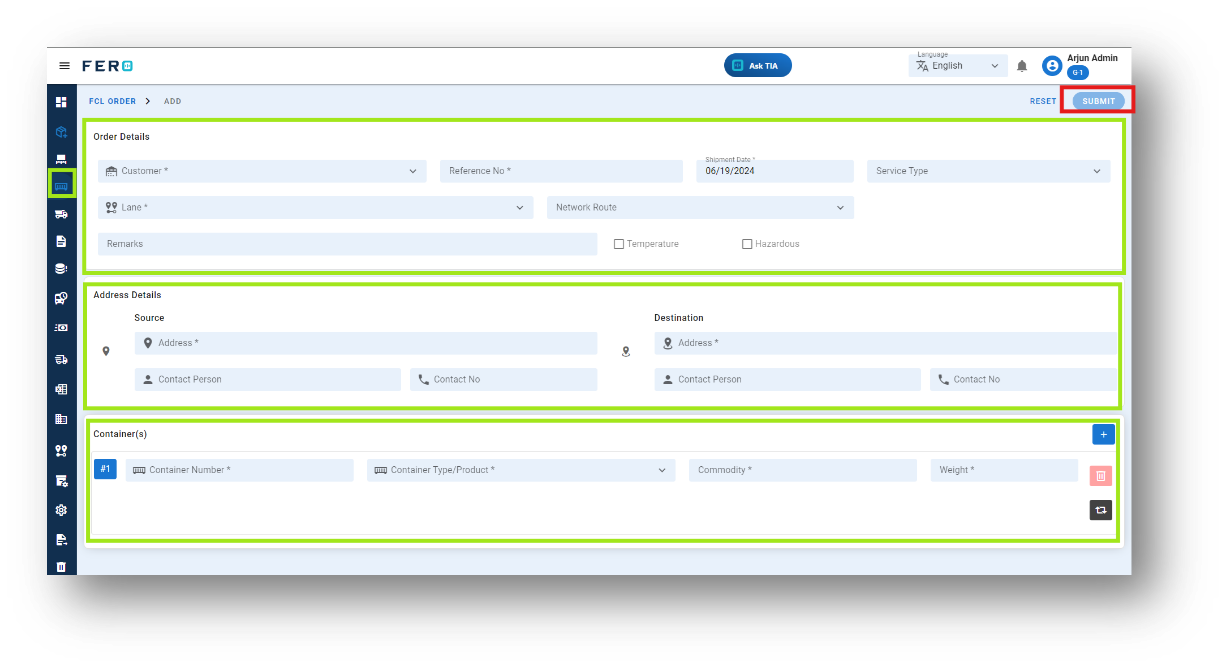
Remember: Fields marked with * are mandatory.
FAQs
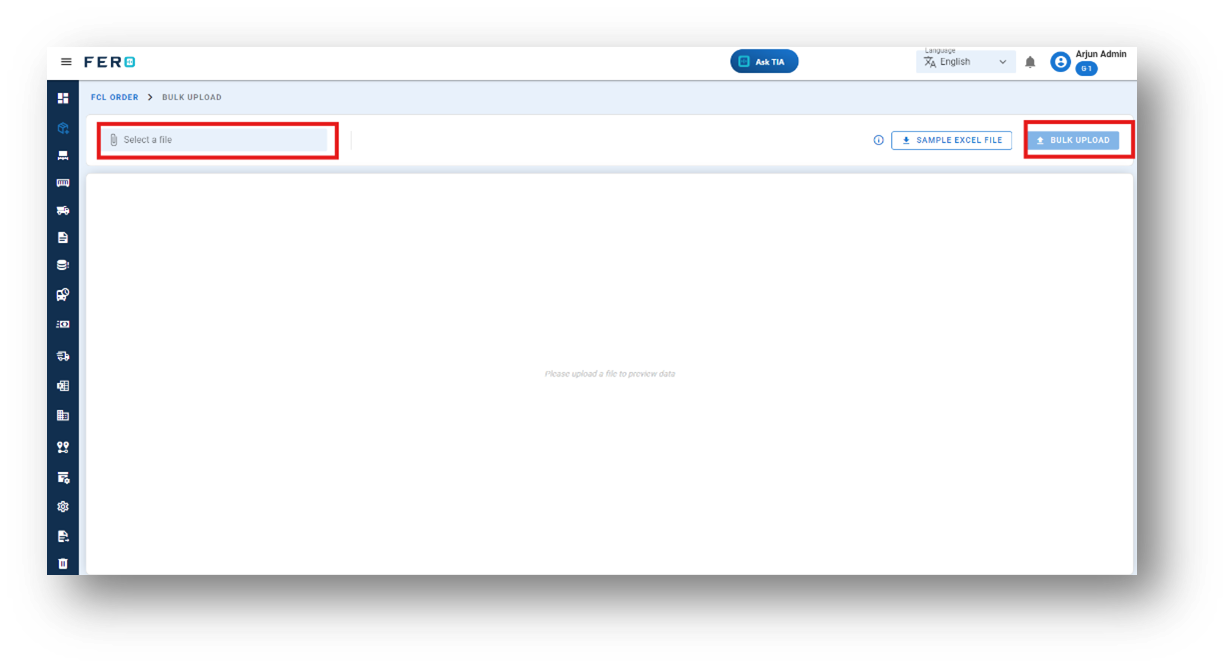
Q1. Can I Bulk Upload the FCL orders?
Yes, you can FCL orders. This method is the easiest and fastest way to add various FCL orders. To do this, navigate to the bulk upload option, download the sample file, enter the details into the sample file, and upload the document. All FCL orders will be added within seconds.
Steps to Bulk Upload FCL orders:
Step 1: Navigate to the Bulk Upload option.
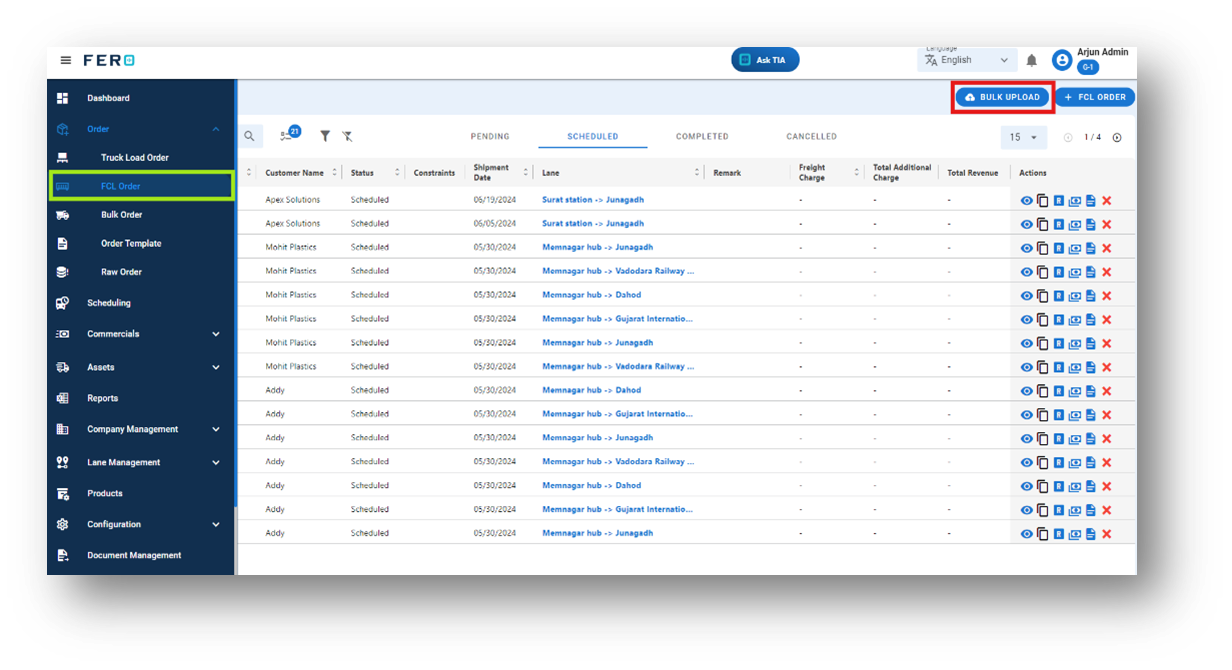
Step 2: Download the sample file and fill in all your FCL orders details according to the format provided in the sample file.
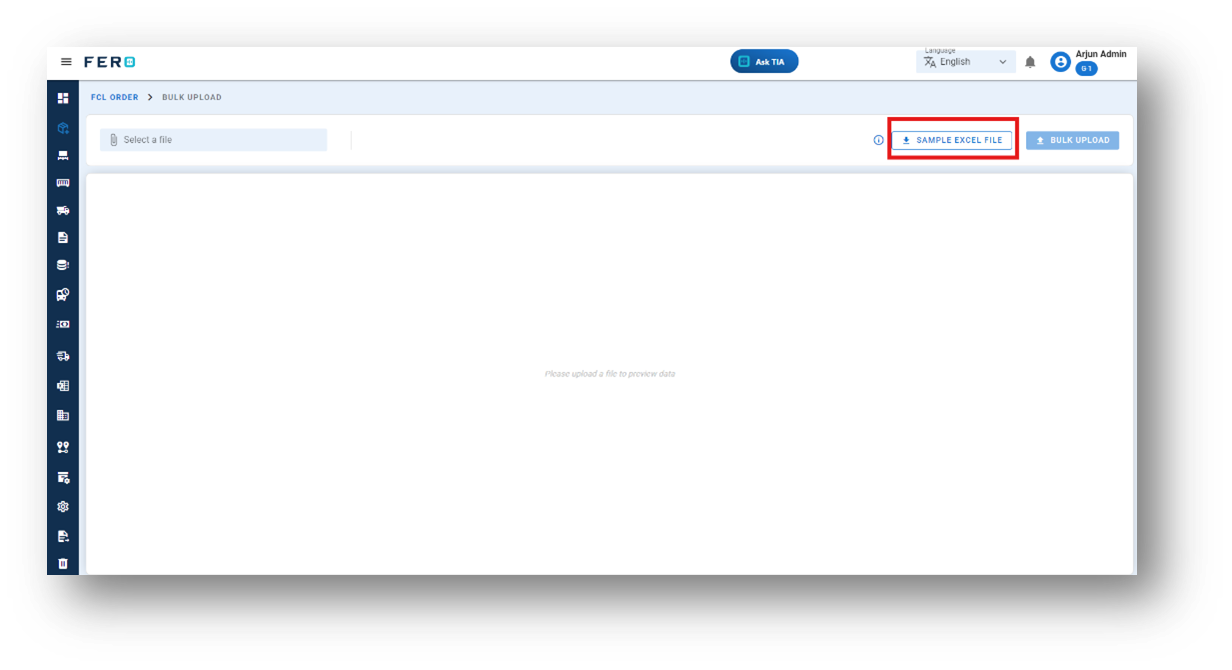
Step 3: Select the completed file from your system and click the "bulk Upload" button.
All the FCL orders will be added to the system within seconds.
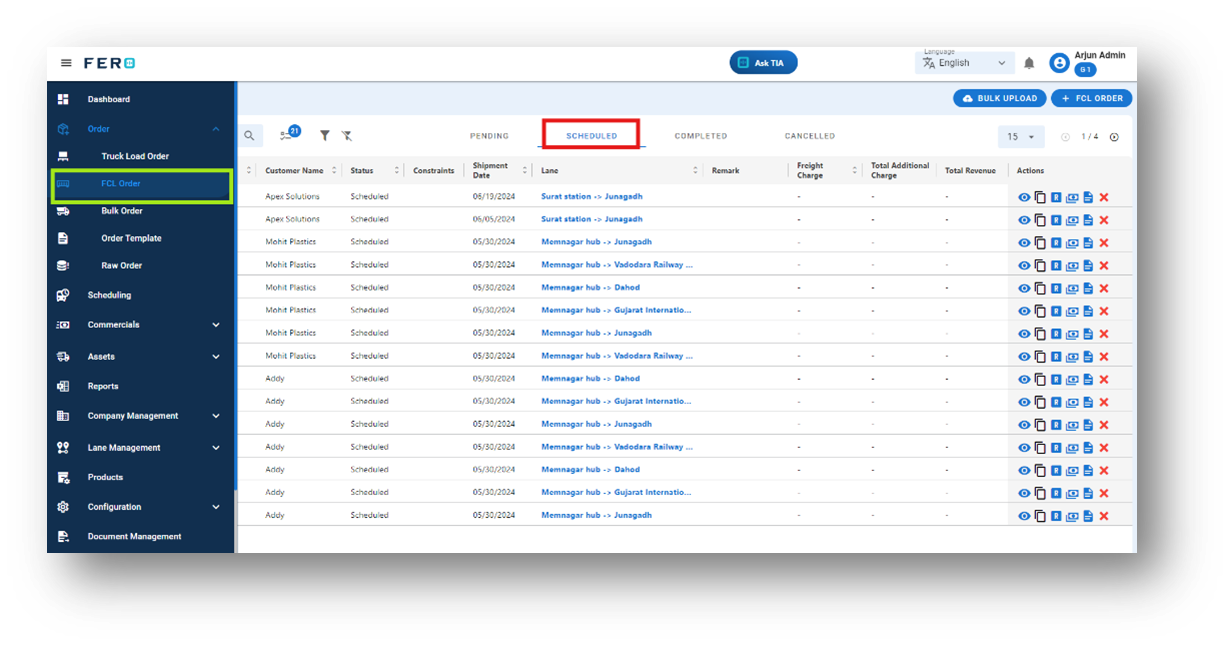
Q2. How Can I Cancel a FCL Order if It Has Been Created?
Yes, you can cancel an order after it has been created. To cancel an order,
follow these steps:
Step 1: Navigate to the scheduled page where all the orders are listed on the FCL Orders homepage.
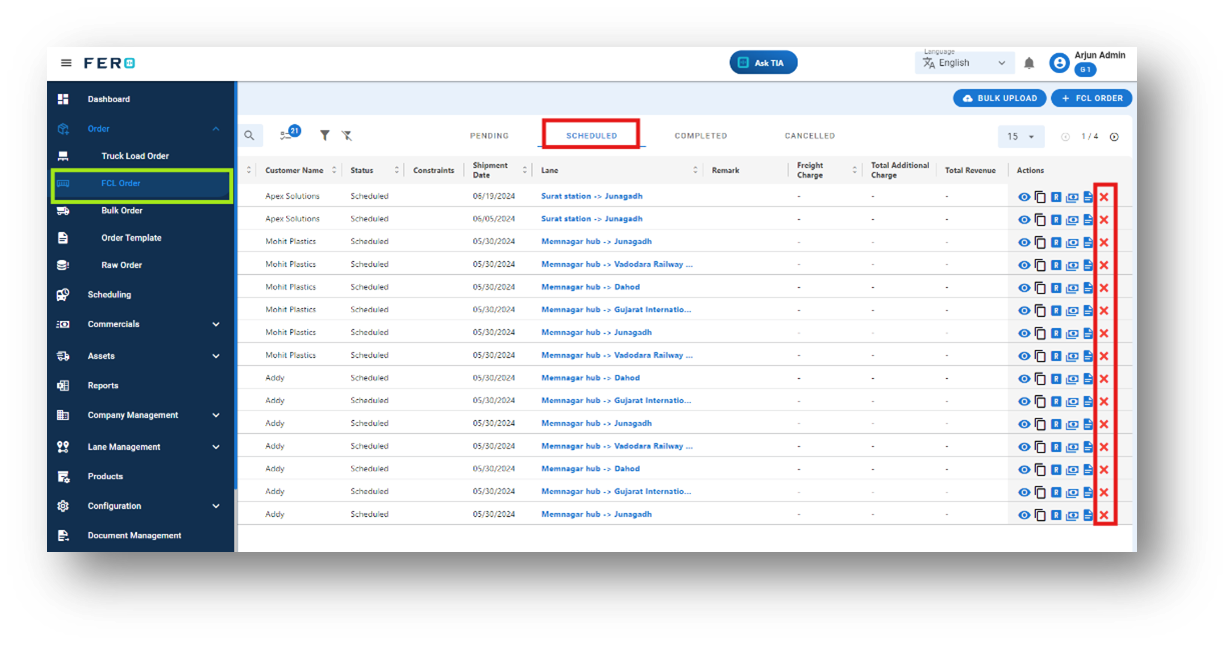
Step 2: Select the order you want to cancel and click on the cross icon (X) in the action bar.
By following these steps, you can easily cancel any order that has been created.
Q3. How Can I Add Multi-Leg Locations for Multi-Leg Movement of FCL Orders?
Yes, you can easily add multi-leg locations for the movement of FCL orders.
Here are the steps to follow:
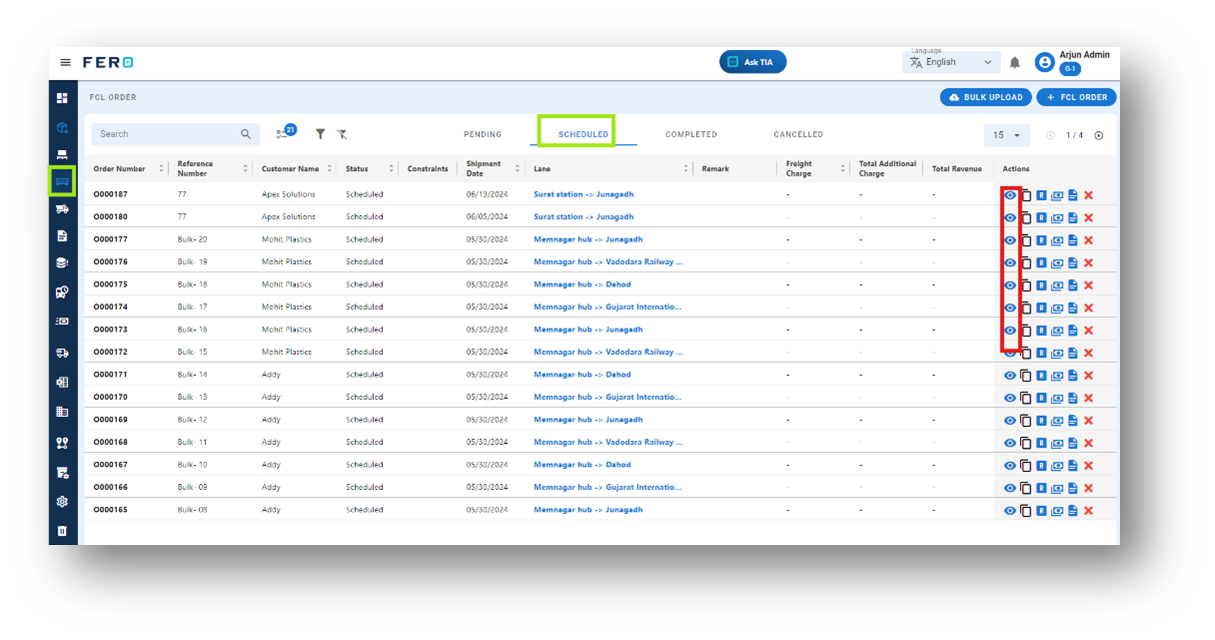
Step 1: Navigate to the scheduled page where all the orders are listed on the FCL Orders homepage.
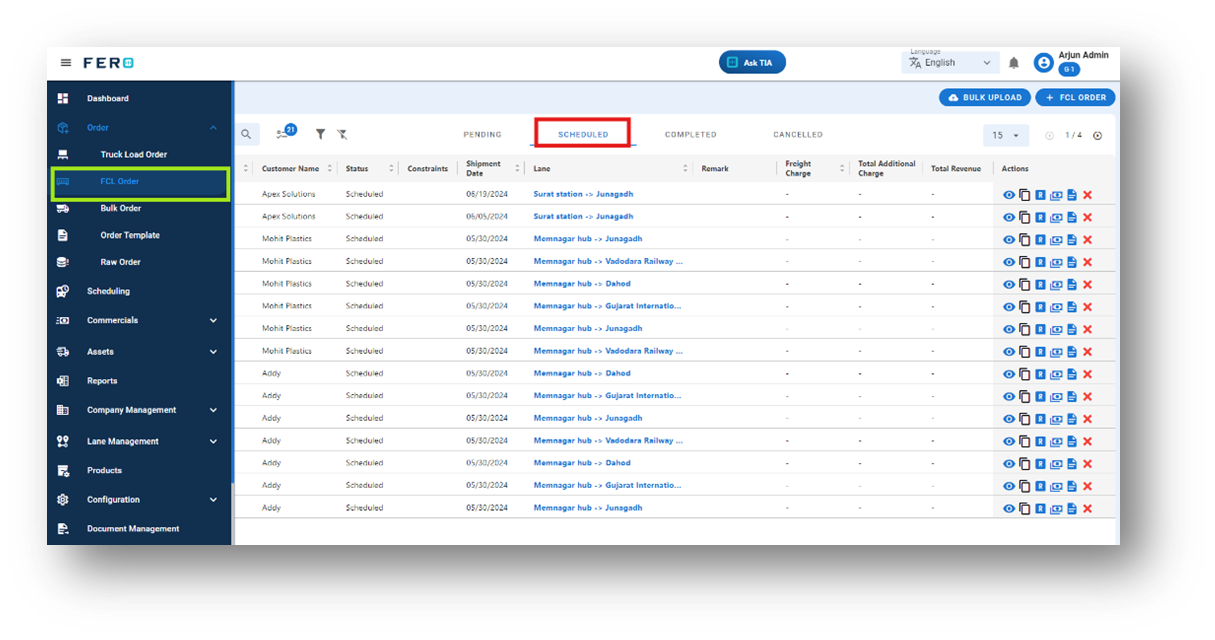
Step 2: Select the order for which you want to add multi-leg movement and click on the eye icon.
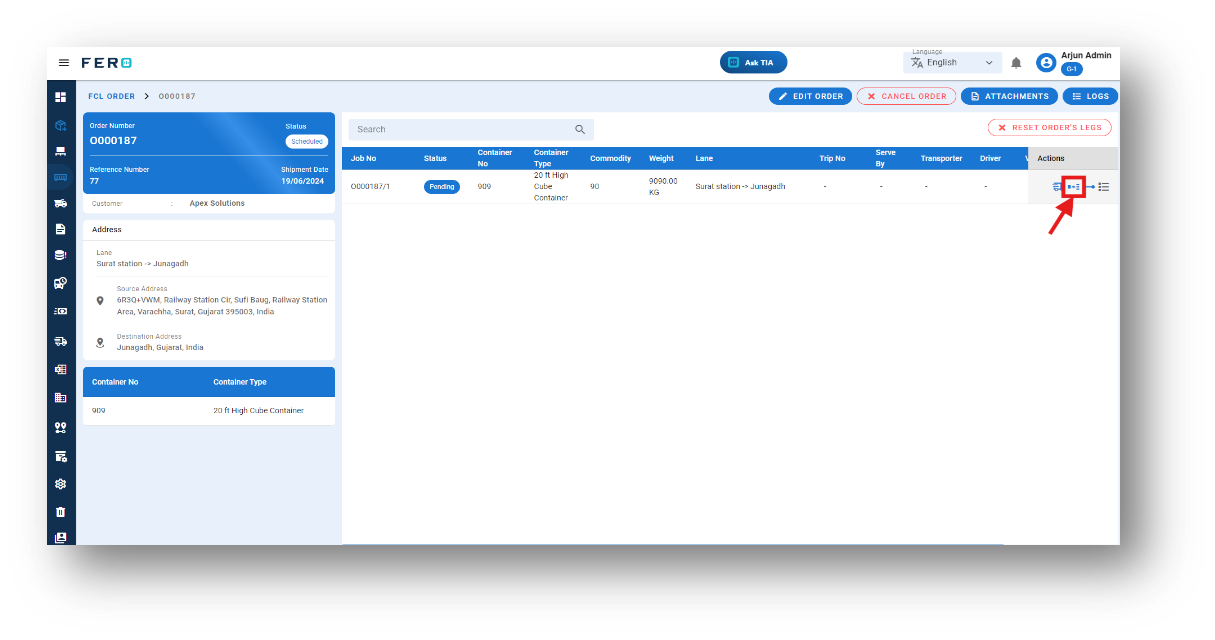
Step 3: In the Action field, locate and click on the "multi-leg" icon. A pop-up screen will appear.
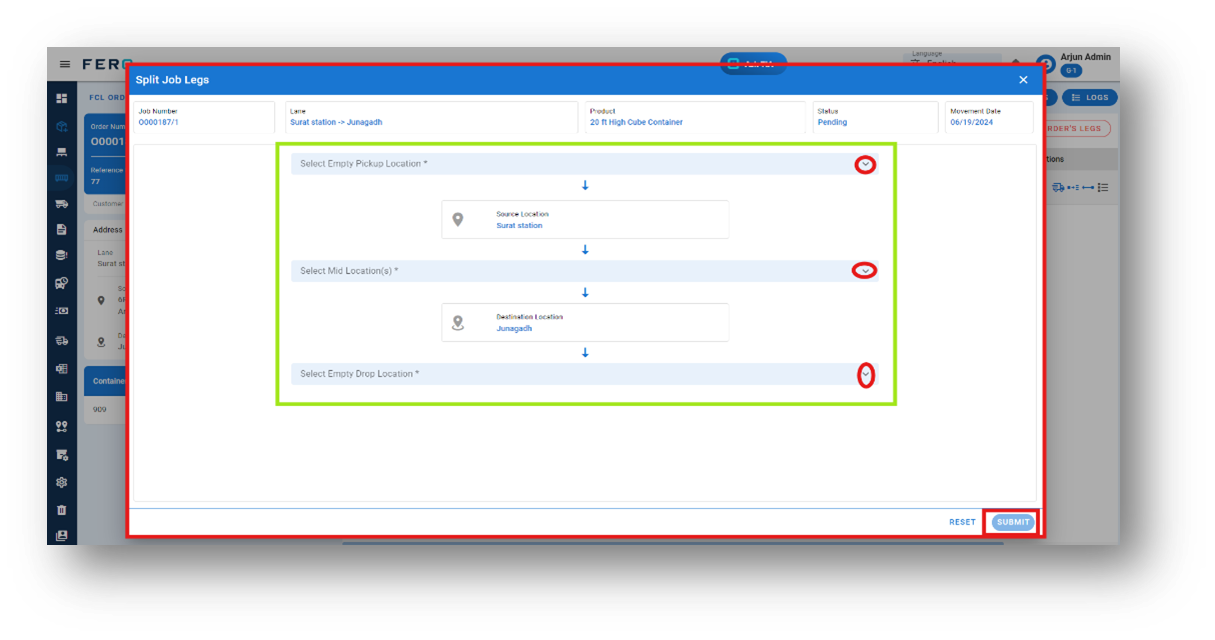
Step 4: Define the locations based on your operational journey flow from the dropdown fields. Then, click "Submit."
By following these simple steps, you can create multi-leg movement for your FCL orders, ensuring efficient transportation operations.
Full Truck Load (FTL) Order Overview:
A Full Truck Load (FTL) Order refers to a shipping arrangement where a truck's entire cargo space is dedicated to a single shipment. This shipping method is ideal for businesses that need to transport large volumes of goods, fully utilizing the truck's capacity without sharing it with other shipments.
Key Elements:
- Exclusive Truck Use: The entire truck is reserved for one shipment, ensuring quicker delivery times as there are no stops for multiple deliveries.
- Maximized Efficiency: With the truck fully dedicated to one load, it eliminates the need for consolidation, leading to streamlined logistics and improved operational efficiency.
- Cost-Effectiveness for Large Shipments: FTL is often the most economical option when shipping in bulk, as it maximizes space utilization and reduces per-unit shipping costs.
Creating an FTL Order ensures faster, more efficient transportation for large shipments, enhancing logistical control and optimizing freight costs.
How do I create the (FTL) Full Truck Load order?
Step 1: Navigate to the orders section and click on it to reveal the drop-down list.
Step 2: Choose the Full Truck Load Order option from the drop-down list to access the truck load homepage.
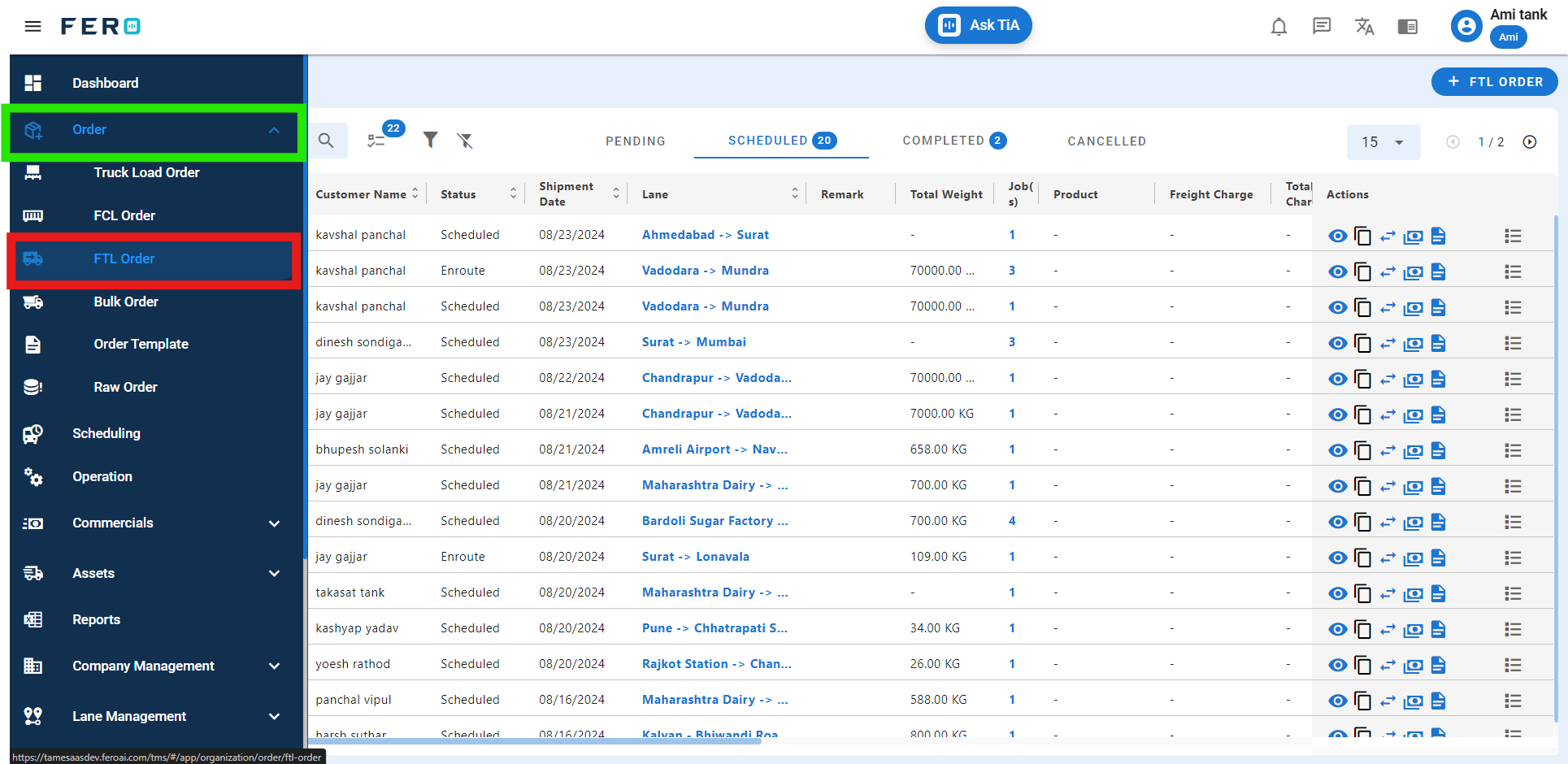
Step 3: Select the "Add FTL Order" option to create the truck load order creation process.
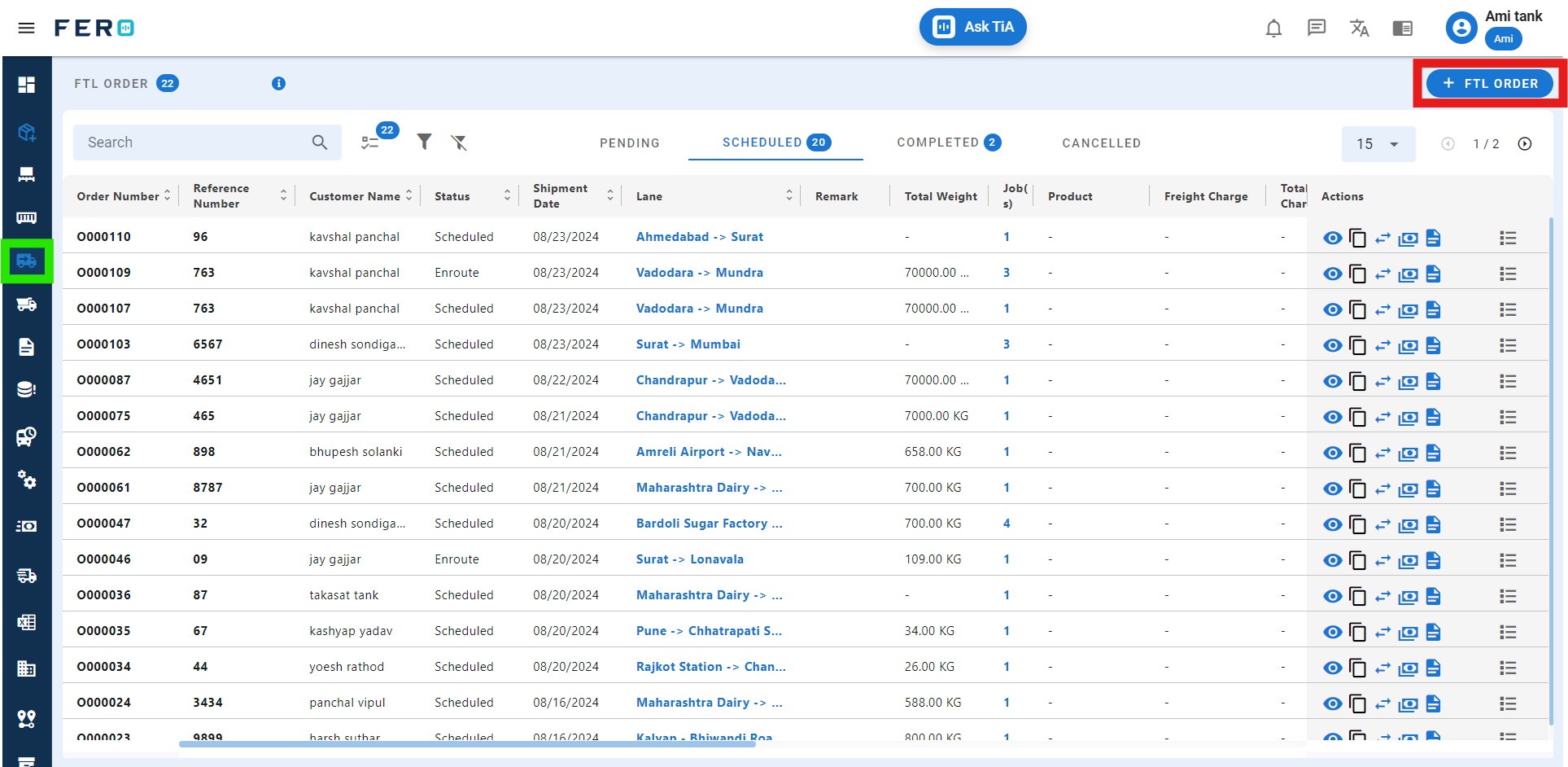
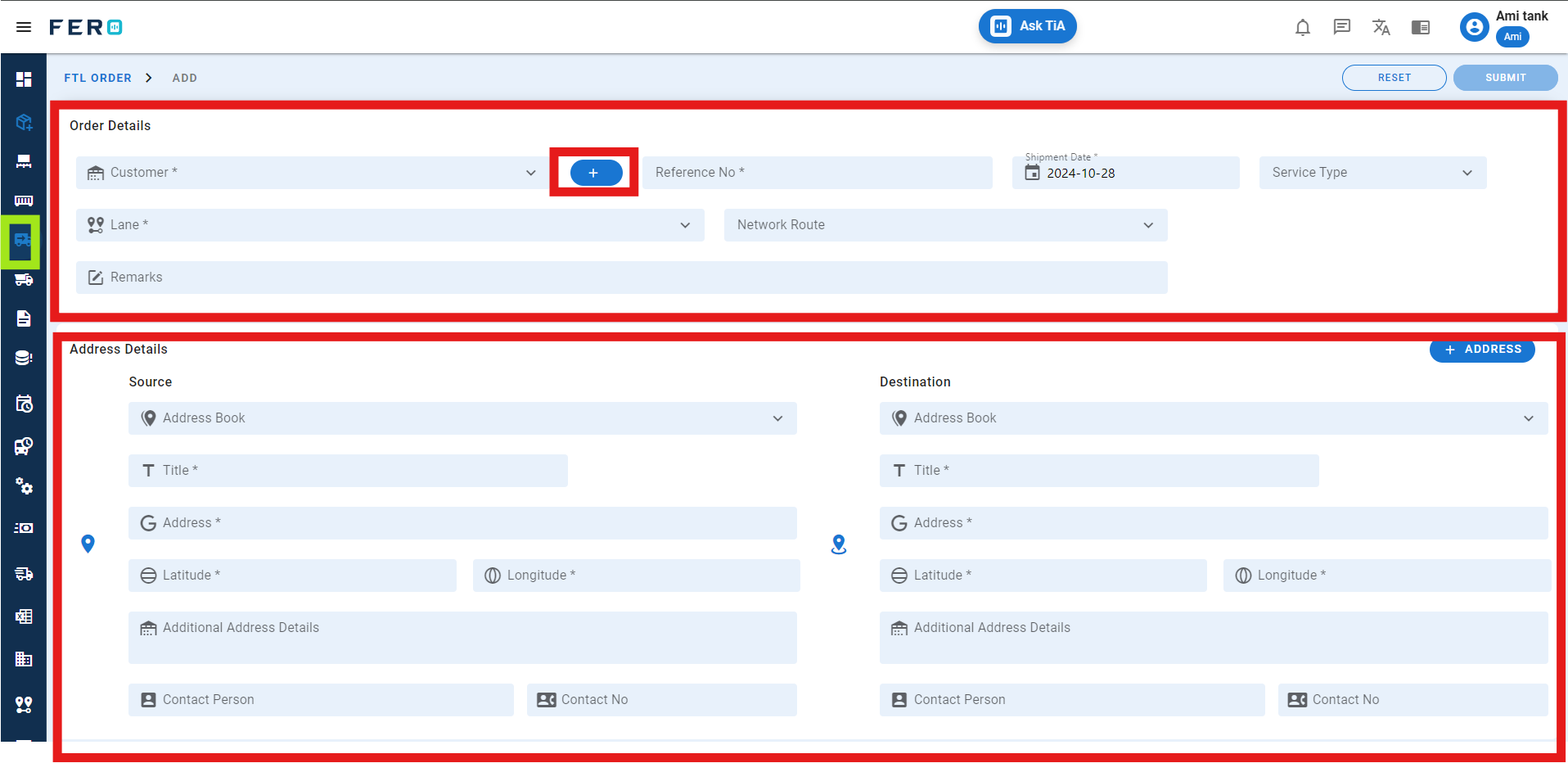
Step 4: Complete the required fields on the "Add Full Truck Load Order" screen:
- Add New Customer: Click on the (+). icon to add the new customer details.
- Existing Customer: Choose the existing customer from the dropdown.
- Reference Number: Enter any reference number that suits your needs.
- Shipment Date: Select the shipment date.
- Service Type: Choose the service type.
- Lane and Network route: Select the lane and network route from the dropdown.
- Remarks: Add any remarks if needed.
- Options: Select options such as temperature control, hazardous materials, etc., by clicking on the checkboxes.
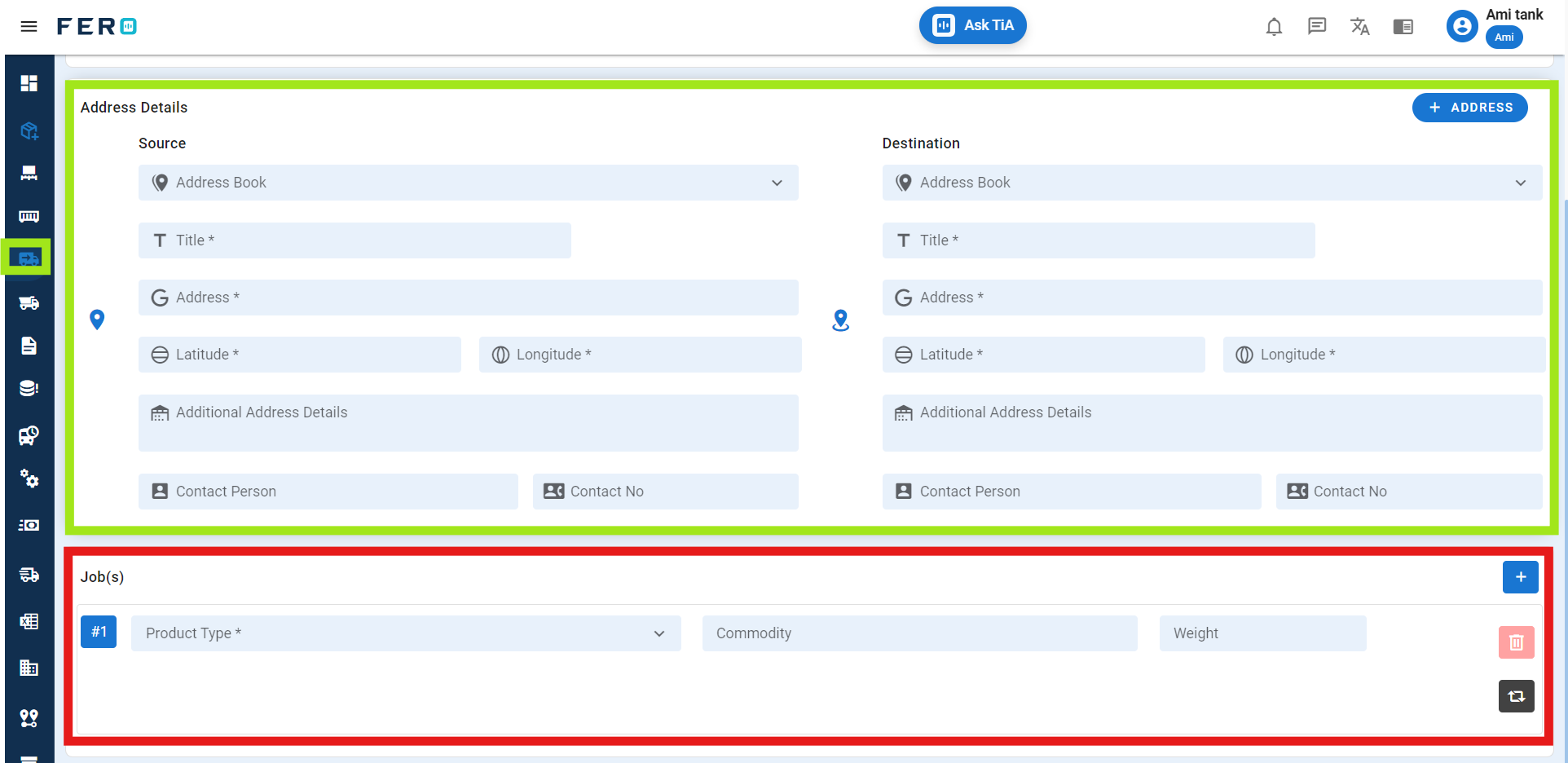
- Pickup and Drop-off Details:
- Provide accurate address details for both locations, including contact information.
- Use the toggle button to access the address book and select existing address details.
- Job Details: Specify the Product type and weight of the commodity.
- Click on the plus icon to add more items.
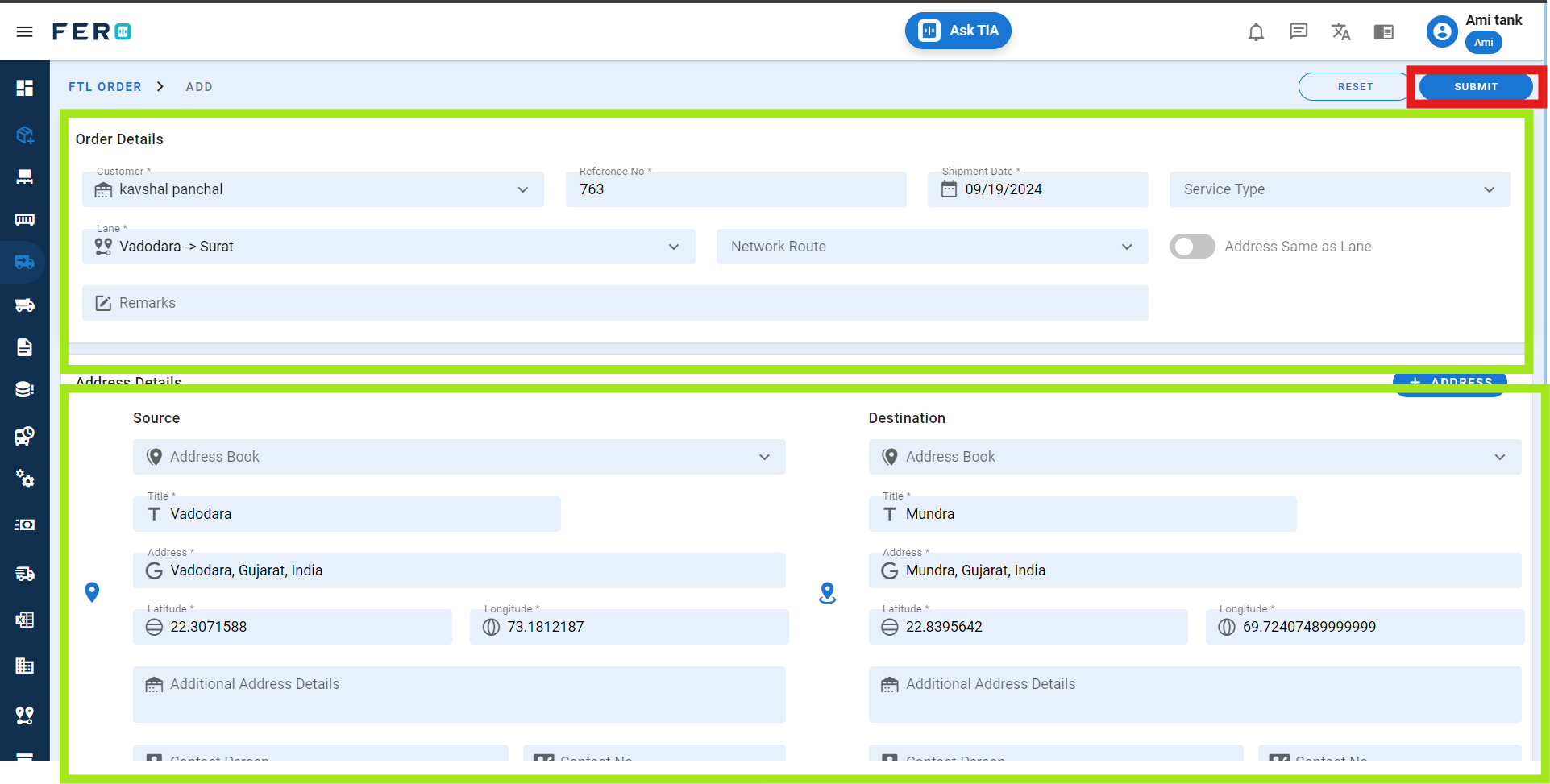
Submit: Click "Submit" to add the Full truck load order.
Note: Fields marked with * are mandatory.
FAQs
Q1. Can I Bulk Upload the FTL orders?
Yes, you can FTL orders. This method is the easiest and fastest way to add various FTL orders. To do this, navigate to the bulk upload option, download the sample file, enter the details into the sample file, and upload the document. All FTL orders will be added within seconds.
Steps to Bulk Upload FTL orders:
Step 1: Navigate to the Bulk Upload option.
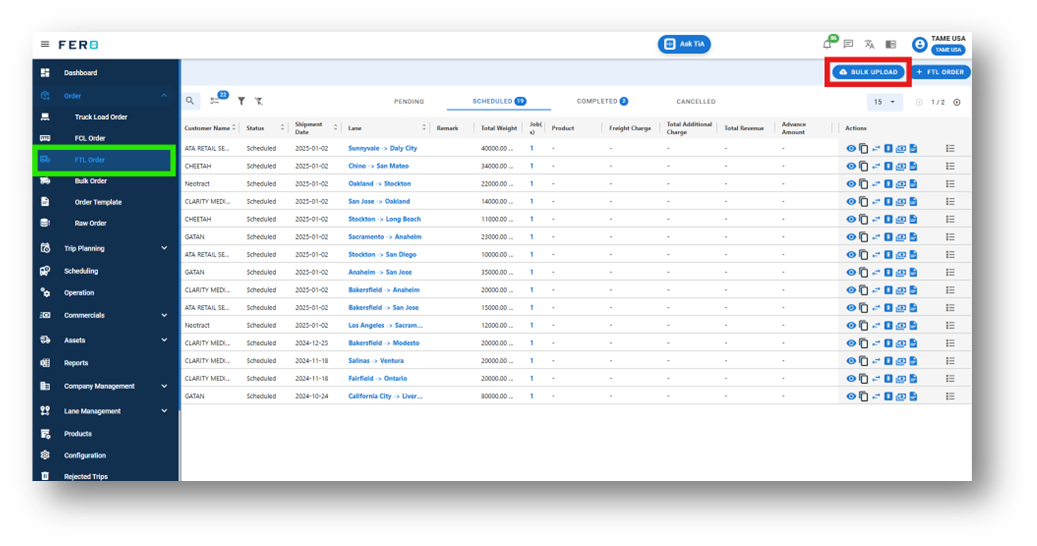
Step 2: Download the sample file and fill in all your FTL orders details according to the format provided in the sample file.
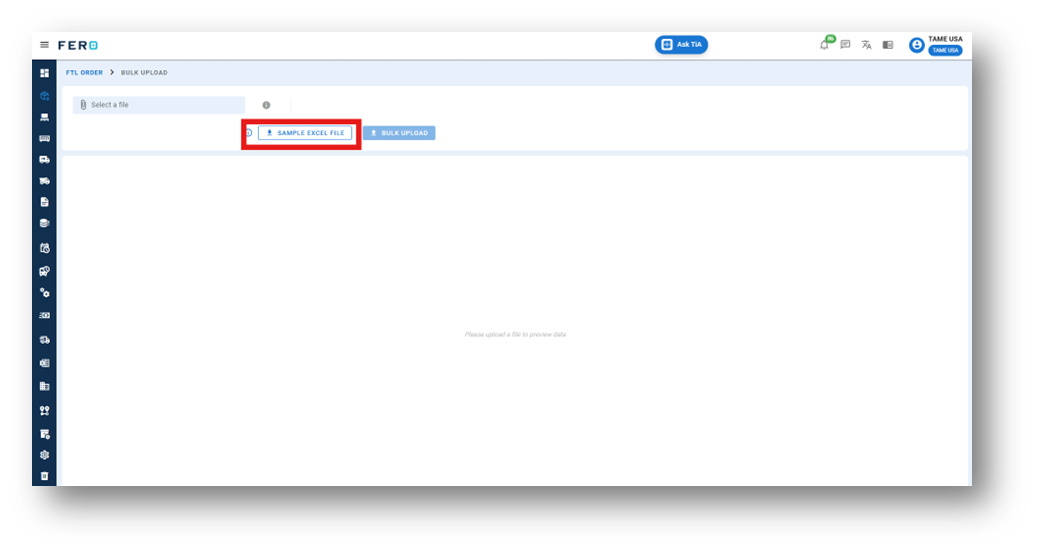
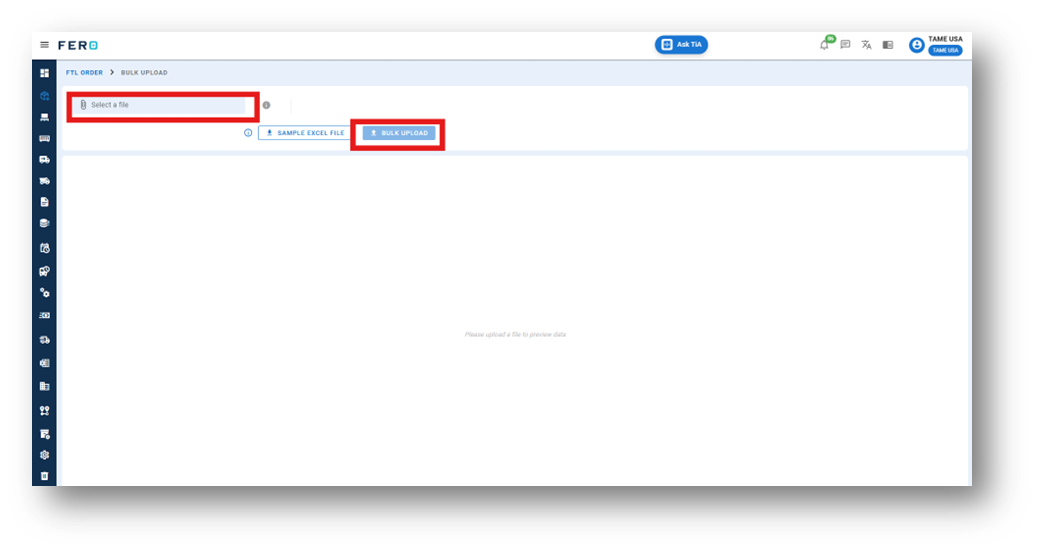
Step 3: Select the completed file from your system and click the "bulk Upload" button.
All the FTL orders will be added to the system within seconds.
Q2. How Can I Cancel a FTL Order if It Has Been Created?
Yes, you can cancel an order after it has been created. To cancel an order,
follow these steps:
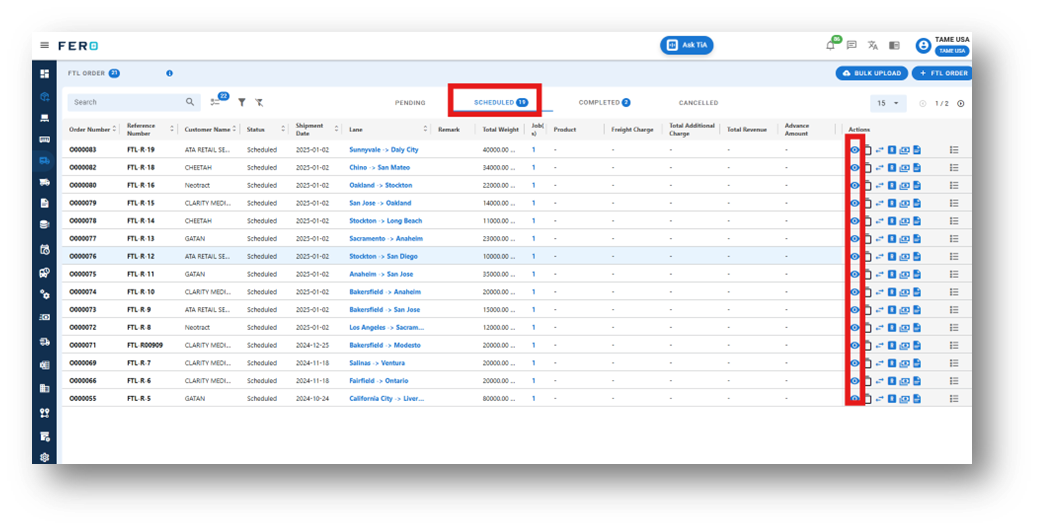
Step 1: Navigate to the scheduled page where all the orders are listed on the FTL Orders homepage.
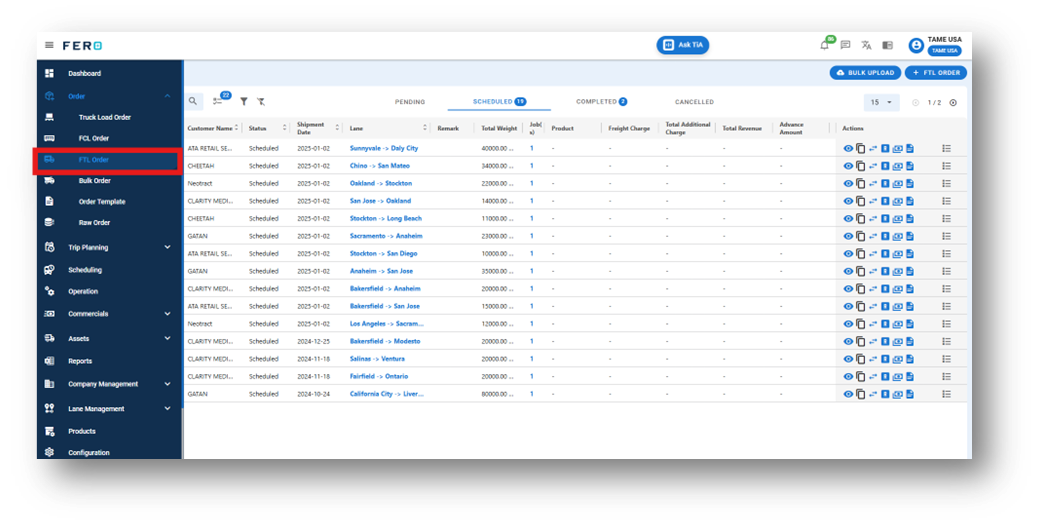
Step 2: Select the order you want to cancel and click on the Eye Icon in the action bar.
Step 3: Navigate to Cancel order click on it to cancel.
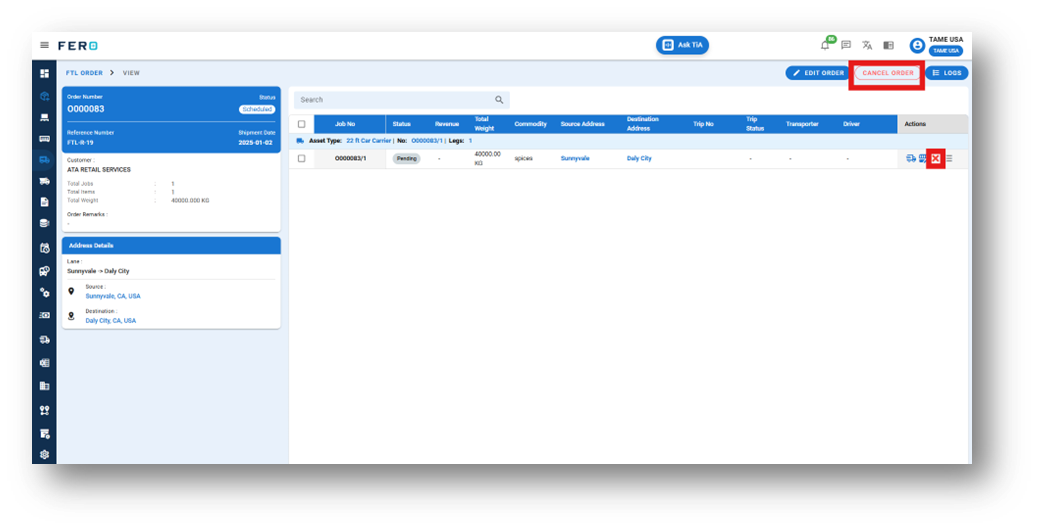
By following these steps, you can easily cancel any order that has been created.
Q3. Can I create Multiple jobs in one FTL Order
yes, You can create multiple jobs in single FTL order
Steps to Create multiple jobs in single FTL order:
Step 1: Choose the FTL Order option from the drop-down list to access the FTL order homepage.
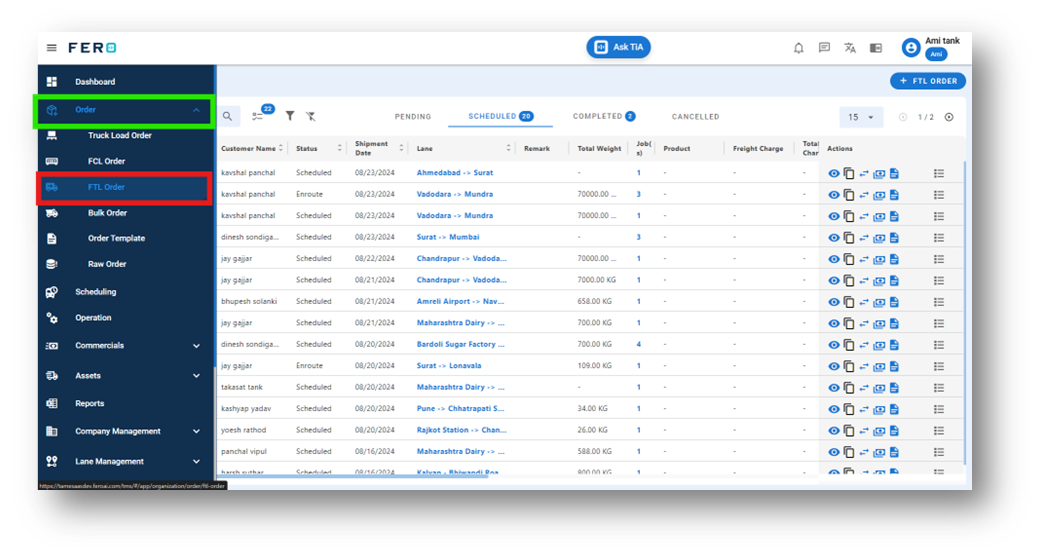
Step 2: Select the "Add FTL Order" option to create FTL order creation process.
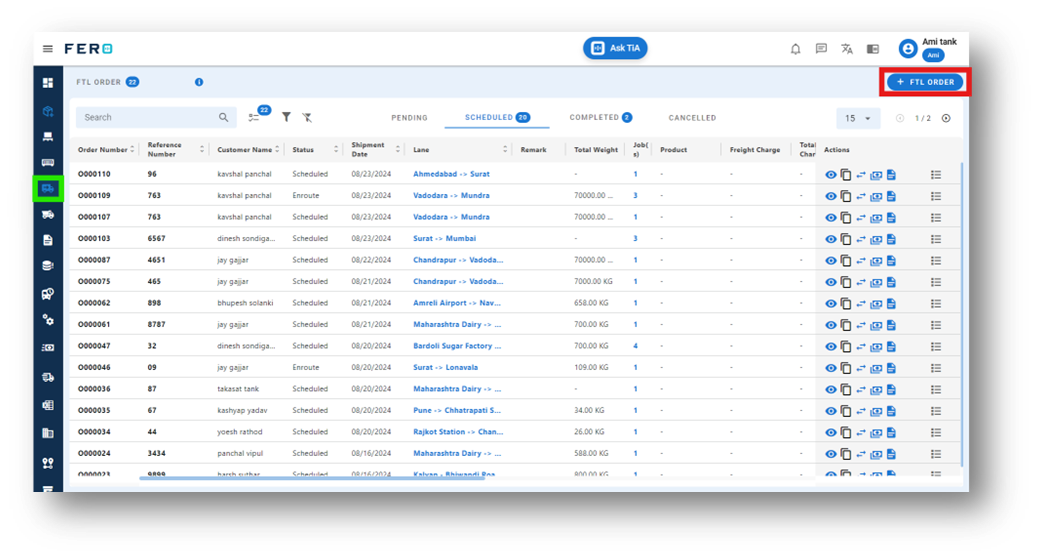
Step 3: Complete the Required Fields on the "Add FTL Order" Screen:
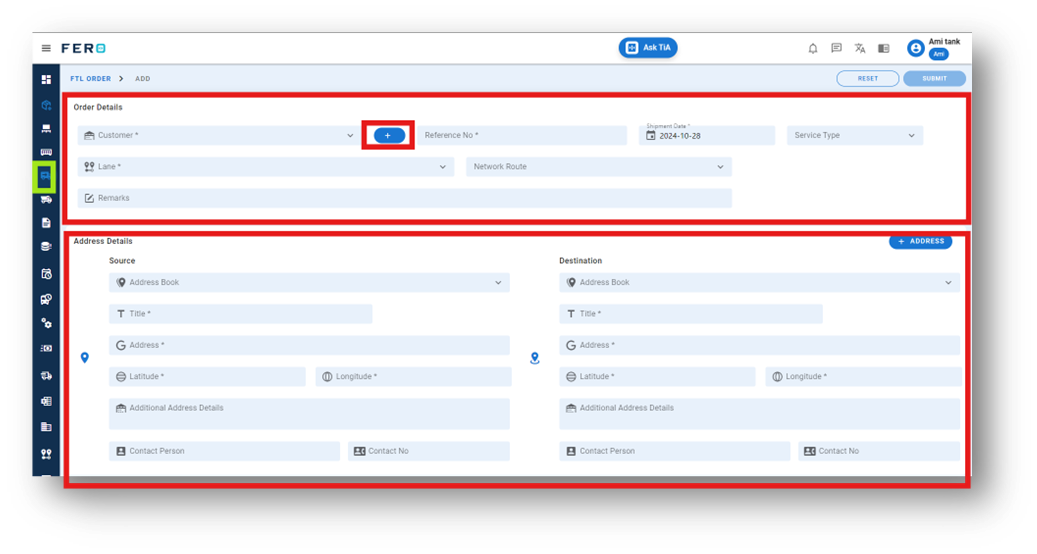
Step 4: Add More Jobs: Click on the plus icon to add more job or copy the same job.
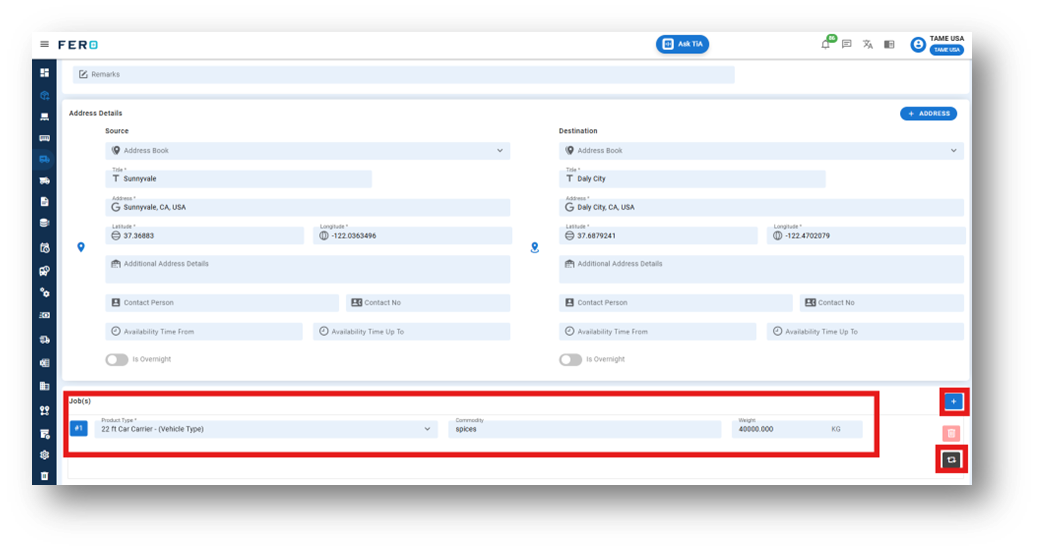
Q3. Can I Assignee Bulk Asset(Vehicle and Driver) Allocation for FTL Jobs.
yes, You can Bulk Assignee Assets to the FTL jobs
Steps to Bulk assignee assets for FTL jobs.
Step 1: Select FTL Order: Go to the FTL order homepage and select the desired FTL order.
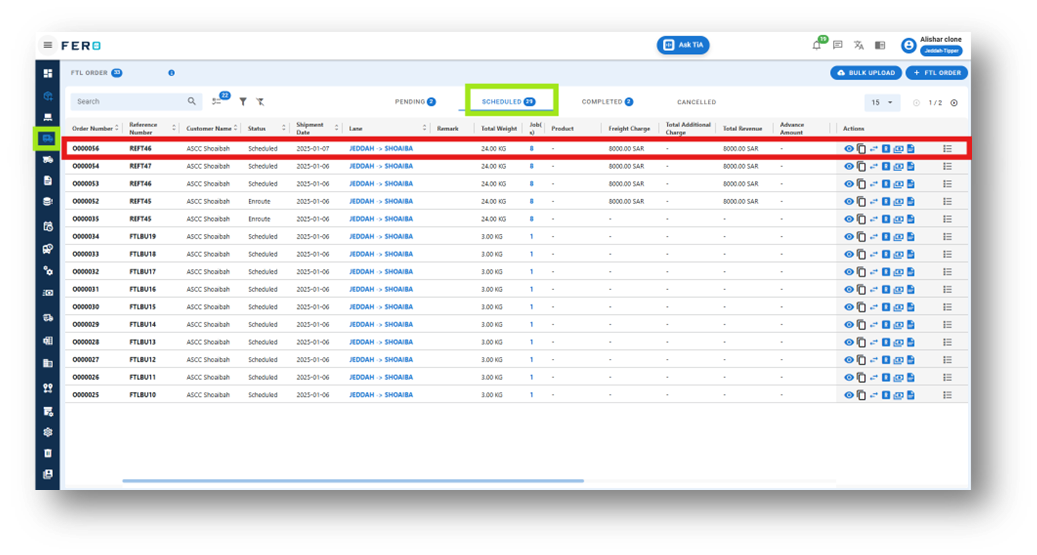
Step 2: View Details: Click the eye icon to open the selected FTL order.
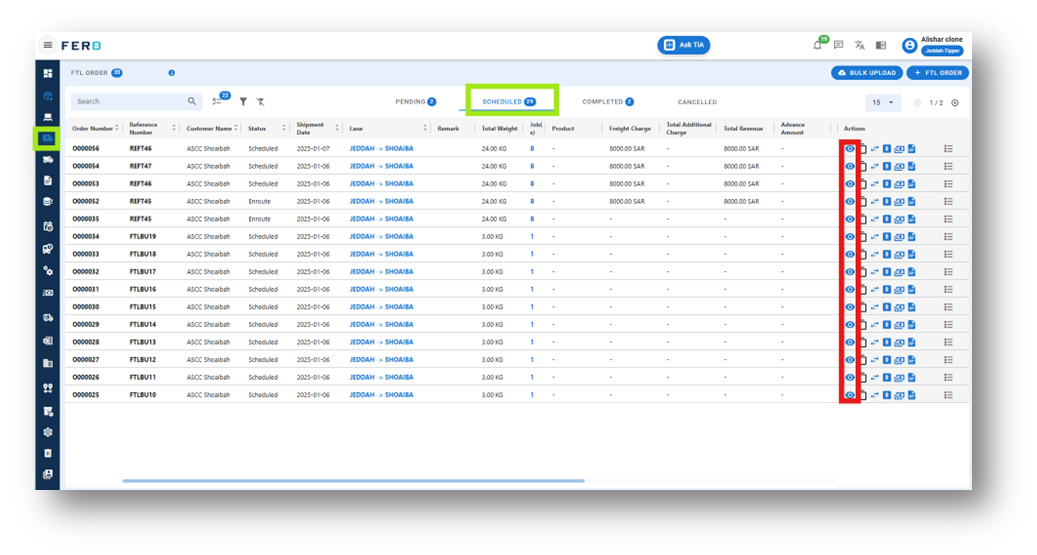
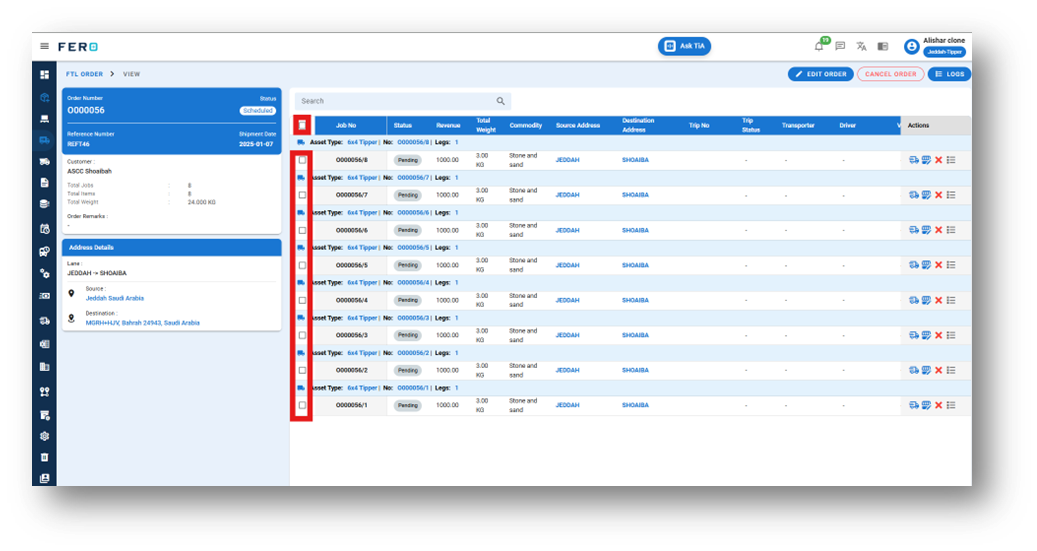
Step 3: Select FTL Jobs: Check the boxes for the FTL jobs you want to assign assets (Vehicle and Driver) to.
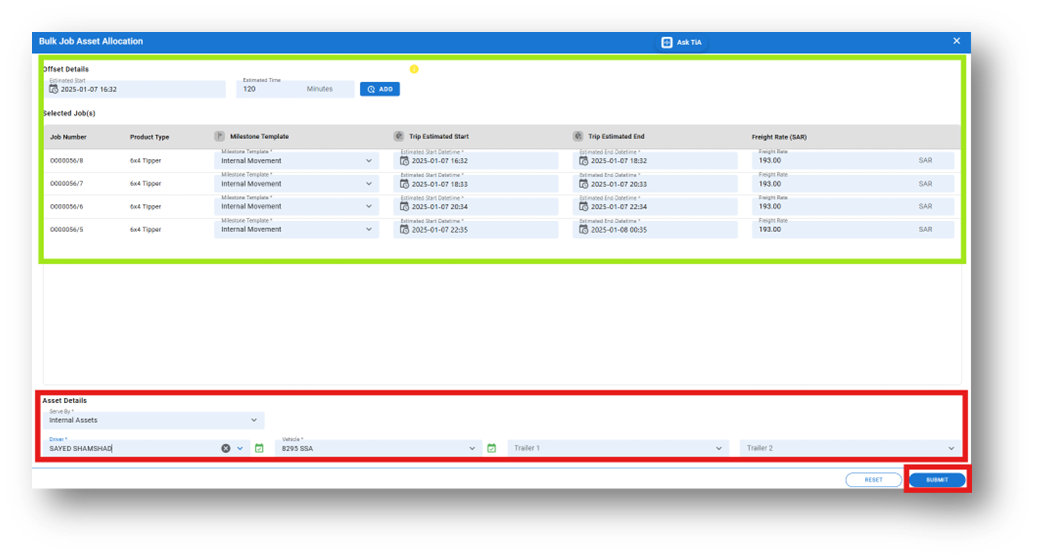
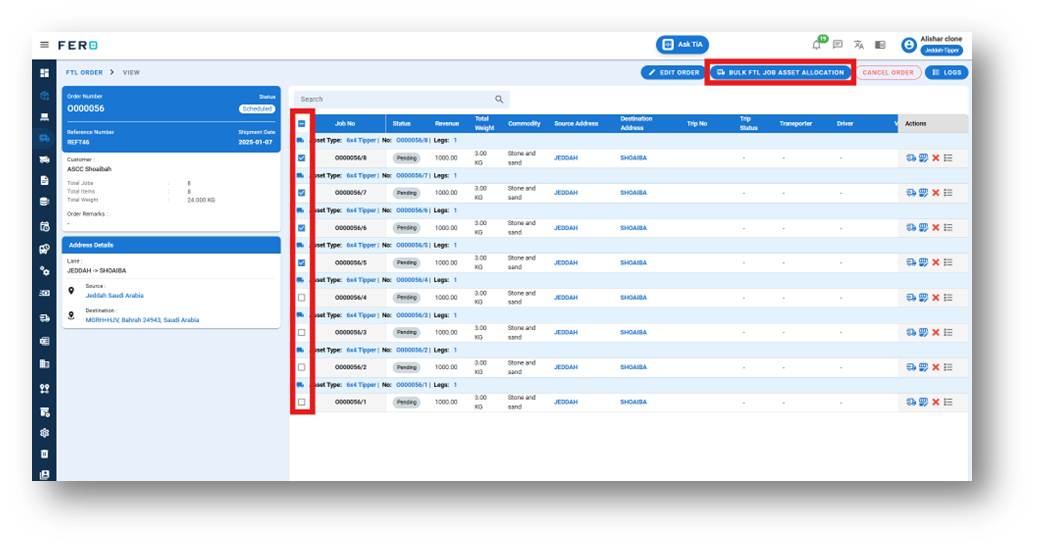
Step 4: Click Bulk Job Asset Allocation: Click Bulk Job Asset Allocation, and the asset allocation page will appear.
Step 5: Enter Trip Details: Add estimated start date, time, and trip duration for all jobs. You can also manually input this for individual jobs.
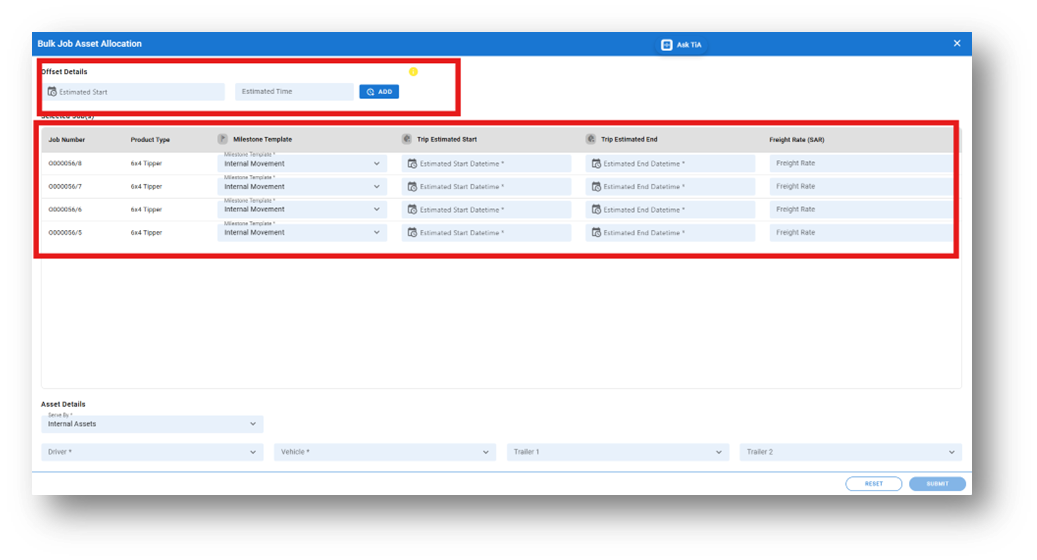
Step 6: Assign Assets: Choose the driver, vehicle, and trailer, then click Submit.