
TAME driver app
Tame Driver App Overview
The latest version of our Driver App introduces enhanced features to empower drivers with greater flexibility and efficiency. Key improvements include:
- Easy OTP: Drivers can quickly access the app with a secure OTP sent to their WhatsApp number or Email.
- Passcode Login: Drivers will have a unique passcode number which allows them to login anytime without needing an OTP.
- Odometer Detail Entry: Simplified odometer tracking with the ability to capture and enter odometer images at the start and end of the journey, ensuring accuracy.
- Odometer Capturing Optional: Odometer detail capturing is an optional field; you can choose to skip entering odometer details.
- Milestone Journey Tracking: Easily follow predefined achievement points throughout the journey.
- Proof of delivery: Capture proof of delivery for future reference.
Key Benefits
- Efficient Access: Quick login process via OTP.
- Accurate Odometer Tracking: Capture odometer images for precise odometer records.
- Clear Journey Monitoring: Easily track journey milestones for better navigation.
- Reliable Proof of Delivery: Upload images and documents for seamless delivery confirmation.
How to Use
Refer to the attached video link for a clear understanding of the updated features of the Driver Application:
Steps to use the Tame Driver App
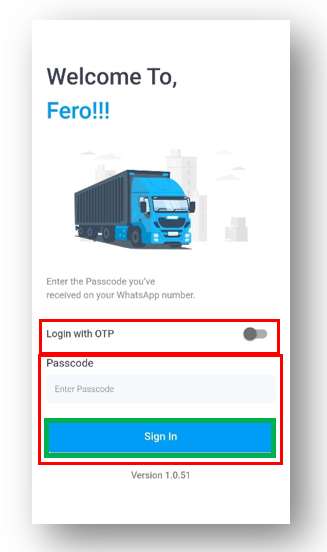
Step 1: Login
- The driver will automatically receive an OTP on their registered phone number via WhatsApp and email. Enter the received OTP to log in to the app.
- Alternatively, the driver can log in using a passcode.
Step 2: View Order Details
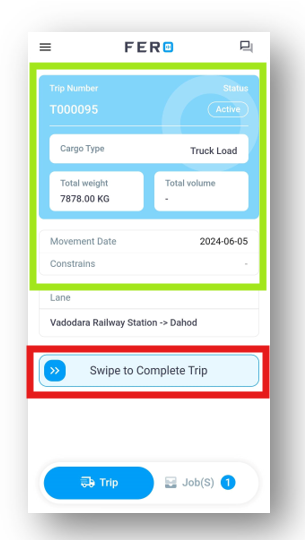
- Access Order Information: After logging in, the driver can view details about the order, including pickup and drop-off locations and other important item-related information.
- Start the Job: The driver needs to swipe the toggle button to start the job.
Step 3: Odometer Reading and Image Capturing
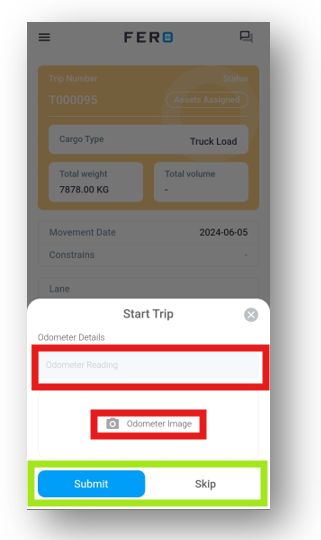
- Upload Odometer Reading: Once the driver starts the job, a pop-up screen will appear prompting the driver to enter the vehicle's odometer reading.
- Capture Odometer Image: The driver also needs to upload an image of the odometer reading for accuracy.
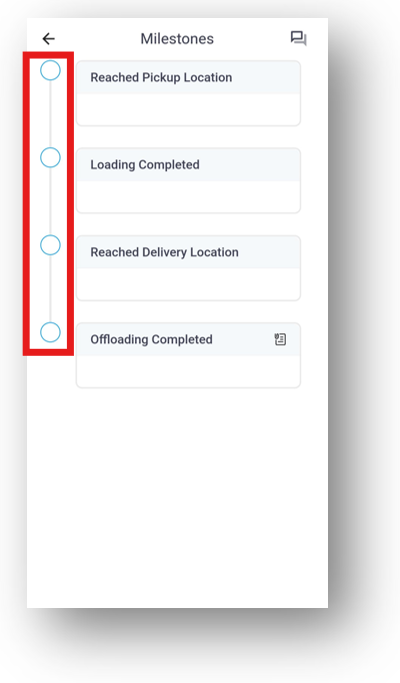
Step 4: Update Milestones
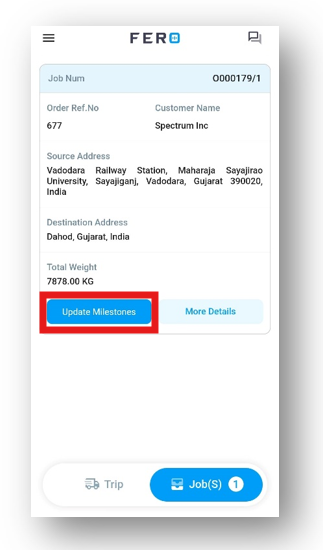
- Once you submit the odometer reading, the app will open the jobs page where you can view all the order information.
Click on "Update Milestone" to open the milestone page.
Step 5: Complete Milestones
- After clicking "Update Milestone," a list will appear based on your movements and activities.
Check the checkbox fields to complete the milestones.
Step 6: Capturing Proof of Delivery (POD)
- Capture proof of delivery (POD) when prompted by the system at the milestone.
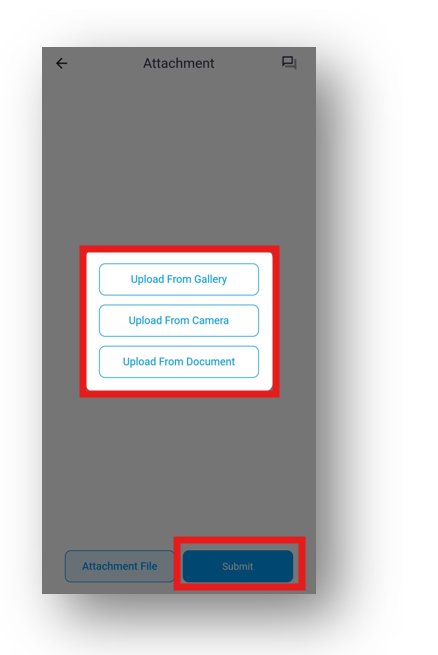
Click on "Attachment."
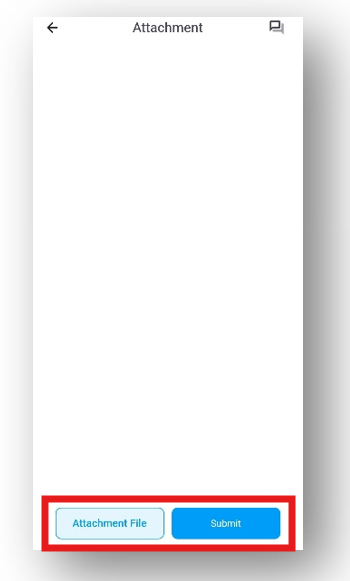
- Choose either "Upload from Gallery," "Upload from Camera," or "Upload from Document" based on your source then click submit.
Follow the system instructions to complete the capture of POD
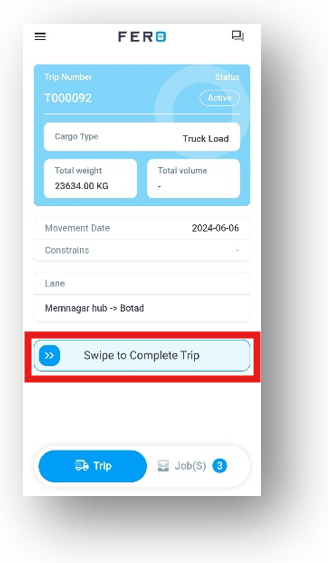
Step 7: Completing the Job
- Swipe to complete the trip after uploading or capturing the POD.
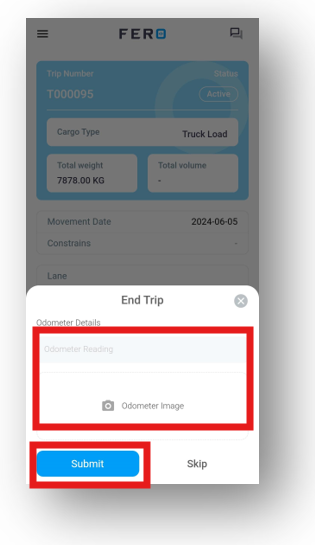
Step 8: Odometer Reading and Submission
After completing the trip:
- A pop-up will appear to capture the odometer reading.
- Upload the odometer reading and capture an image of the odometer.
- Click on "Submit" to finalize the process.
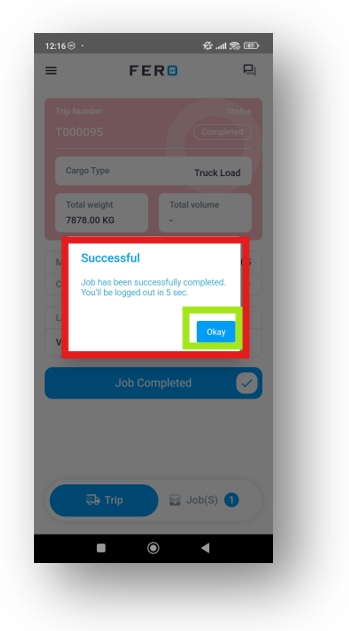
Step 9: Press "Okay" on the confirmation pop-up indicating successful job completion.
FAQs
Q1. How can I identify trips where an expected scenario might occur, such as the customer being unavailable at the drop-off location?
Yes, drivers can handle this scenario through the app. Here's how:
Step 1:- Start the Job: The driver begins the job as usual.
Step 2:- Mark as "Attempted": If the customer is unavailable at drop-off, the driver clicks the "Attempted" button and Define the reason.
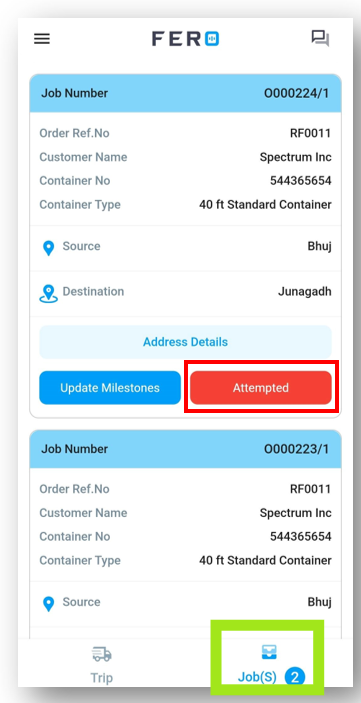
Step 3:- Complete the Remaining Jobs: Once the entire job is completed, any order marked as "Attempted" will automatically be moved to a pending state in the platform scheduling page.
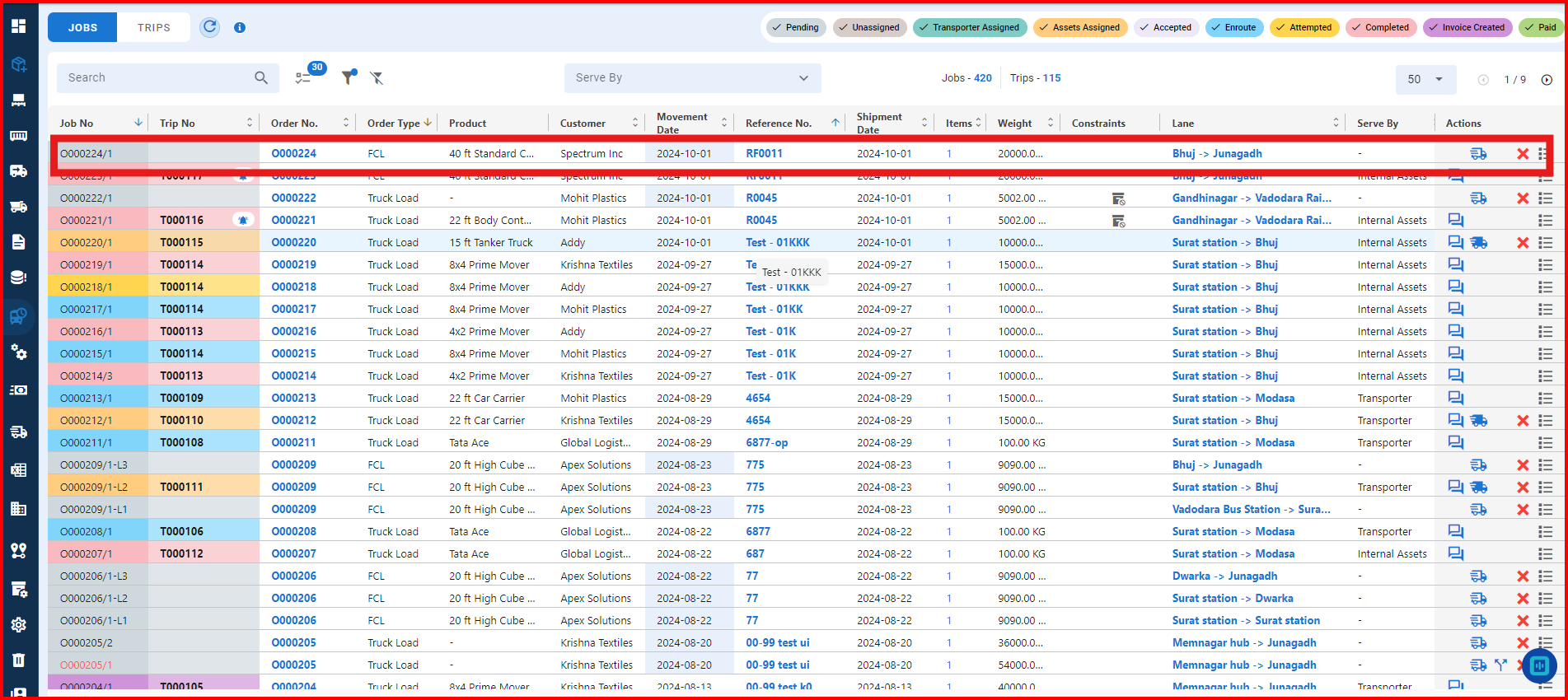
Admin Action: The admin can then reassign the pending order for another date.
This process ensures that any issue, like customer unavailability, is logged properly and can be rescheduled.
Understanding Order Completion Use Cases and Scenarios in the TAME Driver Mobile Application
Use case 1:- Truck Load Order Process Flow
Use case 2:- Bulk Order Workflow
Use case 3:- Truck Load Order for Two Customers at the Same Address
Use case 4:- Truck Load Order for Two Customers with Different Pickup and Drop Locations
Use case 5:- Truck Load Order Attempted Workflow
Use case 6:- Order Completion Using Passcode Login
Use case 7:- How to Add Trip Events and Delay Time
Use case 8:- How to Add Expense Categories and Charges
Use case 9:- Full Truck Load (FTL) Order Process
Use case 10:- Full Container Load (FCL) Workflow: Source to Destination