Getting Started with Reports and Analytics
Dashboard Overview
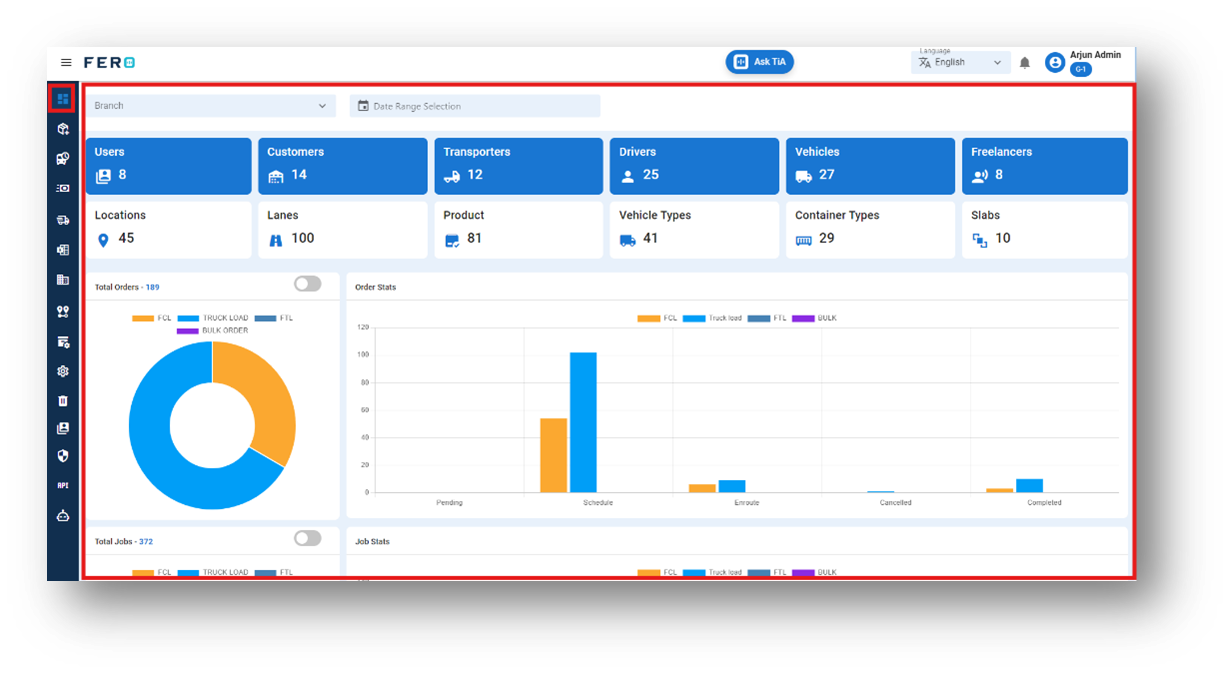
The Dashboard offers a comprehensive visual representation of all critical information related to your operations. It includes:
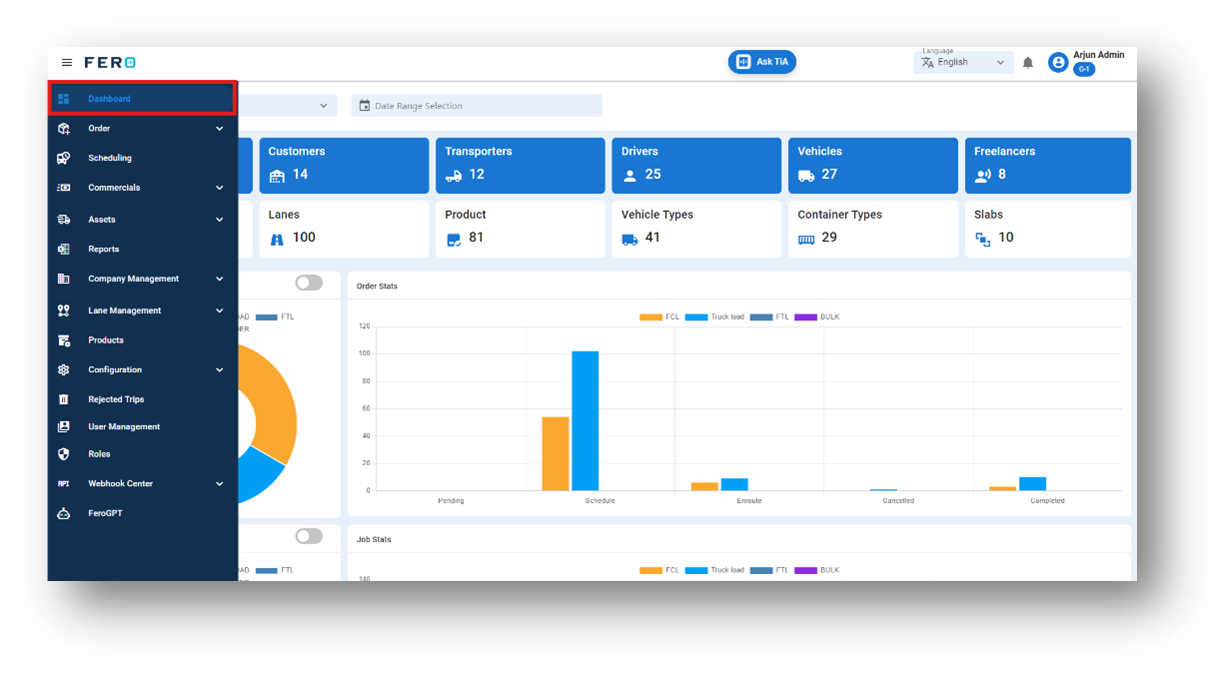
- Users and Roles: Overview of all users, their roles, and permissions.
- Customers and Transporters: Detailed data on customers and transporters.
- Drivers and Freelancers: Information on drivers and freelancers, including their assignments.
- Vehicles and Vehicle Types: Data on all vehicles, categorized by type.
- Locations and Lanes: Visual mapping of locations and shipping lanes.
- Products and Container Types: Information on products, container types, and their specifications.
- Slabs: Defined weight slabs for pricing.
- Orders: Total number of orders and their statuses.
- Jobs: Total jobs, job statuses, and details.
- Trips: Total trips, trip statuses, and journey details.
The dashboard is equipped with advanced functionalities for real-time tracking, analysis, and management, all presented in an intuitive chart format for ease of understanding and efficient decision-making.
Reports Overview
The Reports module provides comprehensive insights into various aspects of your business operations. It includes detailed reports on:
- Orders: Analyze order data to monitor volume, status, and fulfilment rates.
- Trips: Track trip details, including duration, routes, and completion status.
- Drivers: Evaluate driver performance, assignment history, and compliance.
- Vehicles: Assess vehicle usage, maintenance schedules, and efficiency.
- Transporters and Freelancers: Review performance metrics and contractual compliance.
These reports are designed to help you effectively track and analyze business performance. You can download them in various formats to facilitate data-driven decision-making and strategic planning. The Reports module ensures you have all the necessary information to optimize operations and enhance productivity.
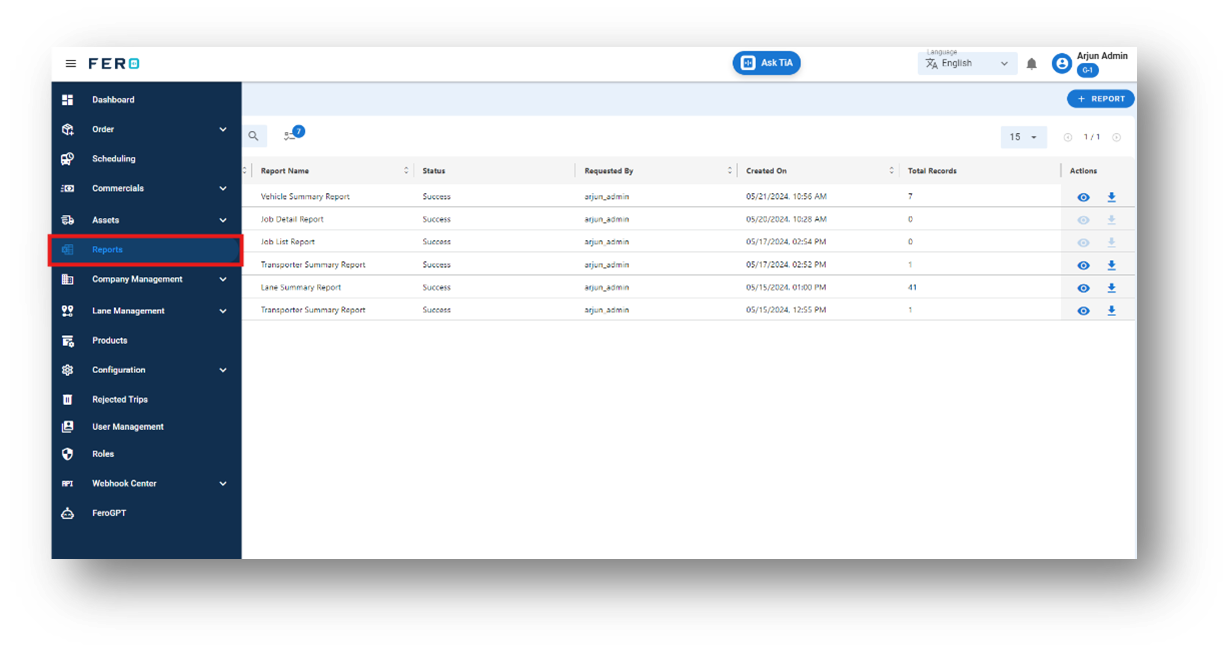
How to view or download various REPORTS?
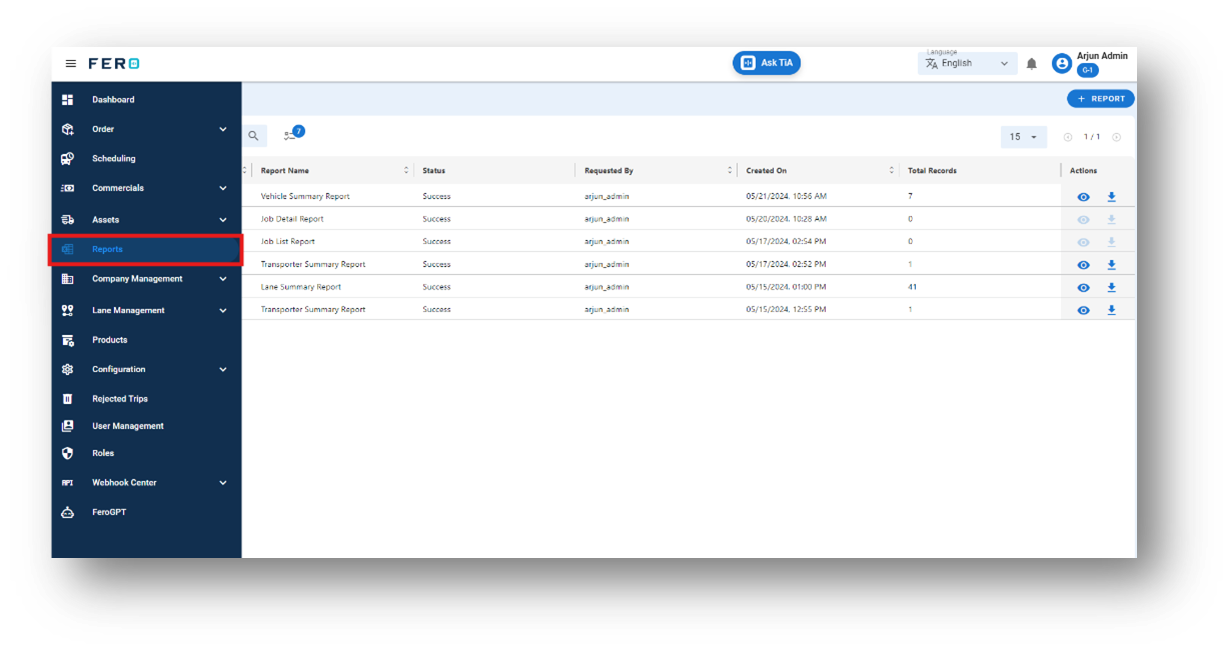
Step 1: Navigate to the reports section and click on it to reveal reports homepage.
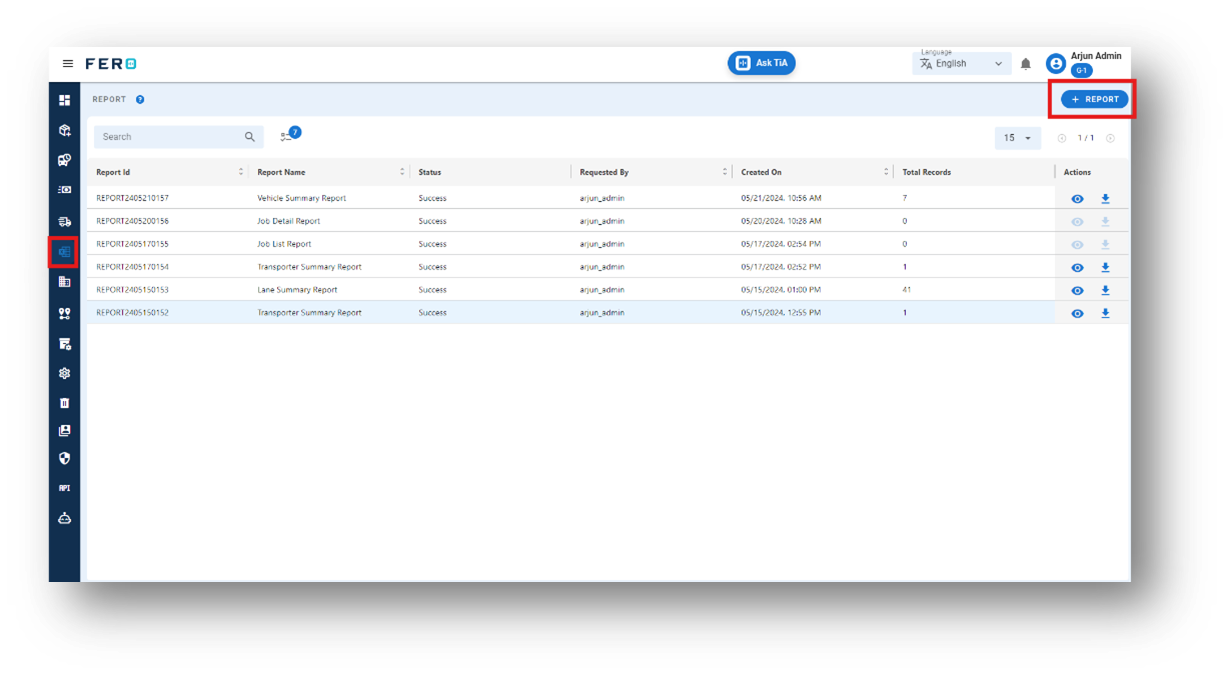
Step 2: Select the "Add reports" option to create the reports or download reports.
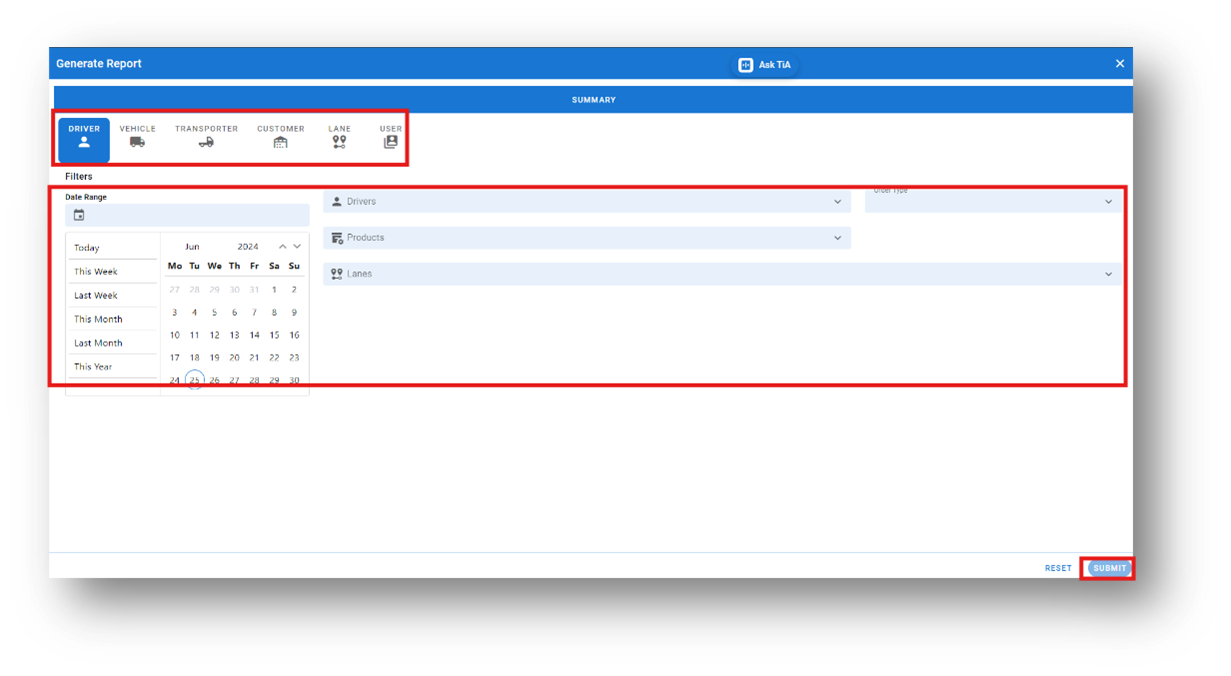
Step 3: Complete the required fields on the "Add reports" screen
- Select the type of report you want to download or view (e.g., driver, vehicle, transporter, customer, lane, user).
- Choose the date range from the calendar.
- Fill out additional field information, such as:
- Order type from the dropdown list.
- Products from the dropdown list.
- Lanes from the dropdown list.
Click "Submit" to generate and view the report.
Hint: Leverage these reports for detailed analysis of operational activities, aiding in decision-making and the creation of bar graphs and other visual reports.
FeroGPT Overview
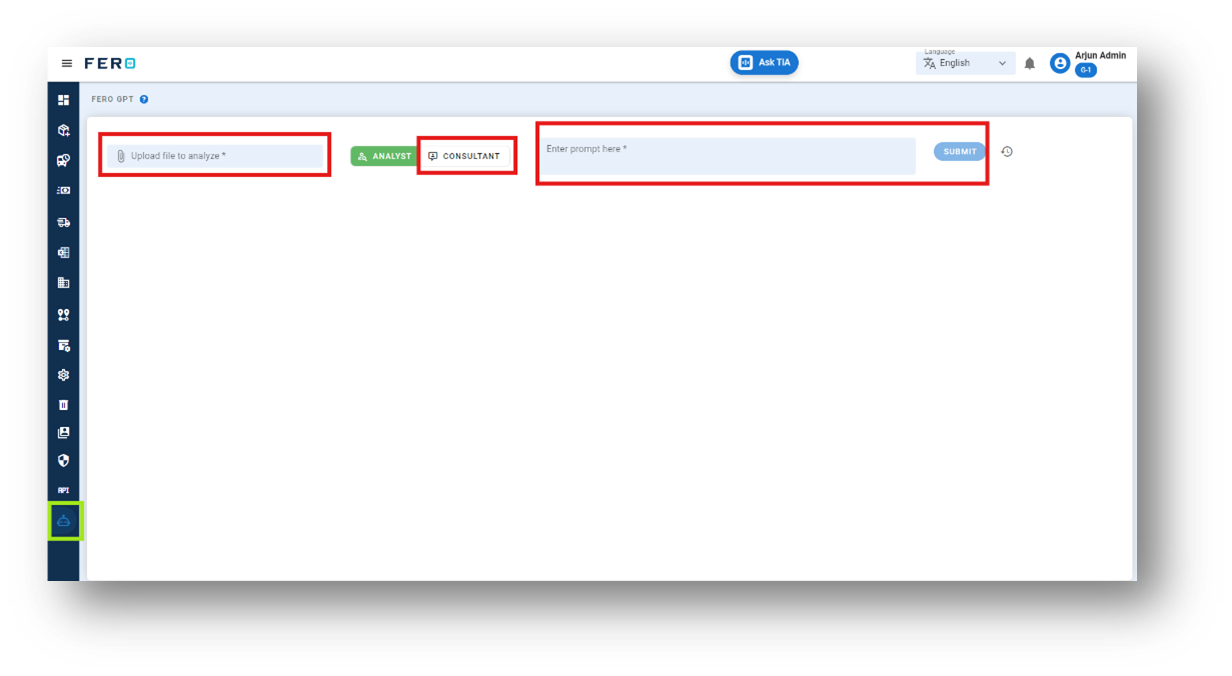
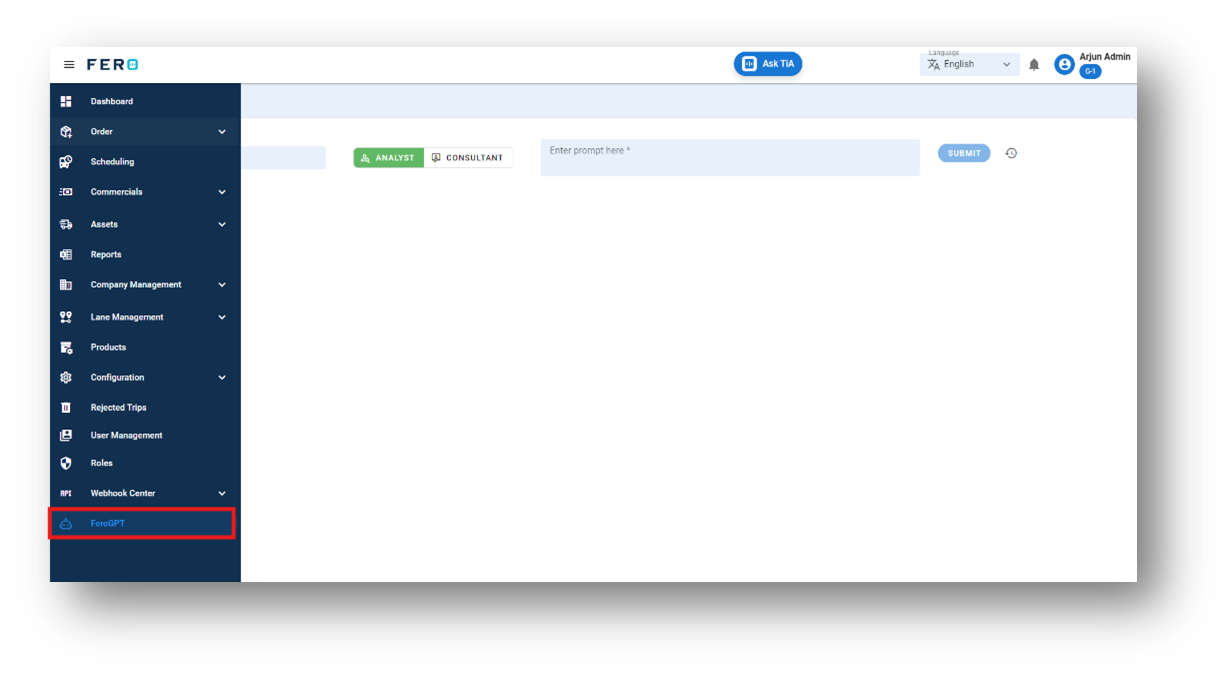
FeroGPT is an advanced AI-powered feature designed to analyze and provide insights into your business and operational activities across various departments. This highly useful tool can generate reports on your operations, read and interpret your downloaded reports, and offer structured solutions based on your prompts. It accelerates decision-making processes and leverages the latest technology to support business growth and efficiency.
FeroGPT offers two main functions:
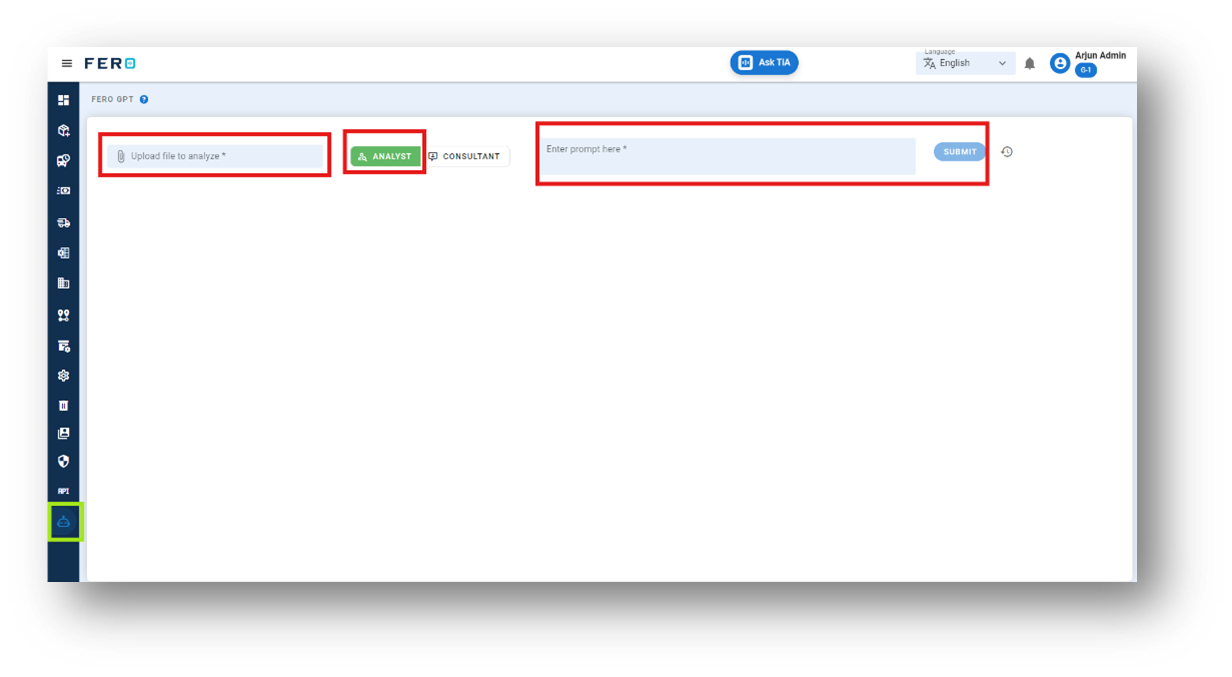
- Analyst: Analysis various reports and provides answers to your prompts based on the analyses data.
- Consultant: Delivers real-time data and information on operational activities based on your prompts.
Analyses Overview
The Analyses feature enables in-depth examination of various reports, providing insightful answers to your queries based on analyses data.
Steps to Utilize the Analyses Module:
- Select the Analyses Module: Navigate to the Analyses section in the platform.
- Upload Your File: Upload the downloaded report file you wish to analyze.
- Enter Your Query: Input your specific prompt or question regarding the data in the uploaded file.
- Submit: Click 'Submit' to receive detailed results and insights based on your prompt.
This streamlined process ensures you receive accurate and actionable information, enhancing decision-making efficiency.
Consultant Overview
The Consultant feature delivers real-time data and insights on operational activities based on your prompts. It can analyze uploaded reports or provide insights without them.
Steps to Utilize the Consultant Module:
- Select the Consultant Module: Navigate to the Consultant section in the platform.
- Upload Your File (Optional): Upload the relevant report file you wish to analyse or skip this step if you do not have a report.
- Enter Your Query: Input your specific prompt or question related to the operational data.
- Submit: Click 'Submit' to receive real-time data and actionable insights based on your prompt.
This feature ensures you have immediate access to critical information, aiding in efficient and informed decision-making.