Overview of Lane Management
Lane management Overview
Lane Management refers to the practice of focusing business operations on specific shipping routes to increase efficiency. As a transporter or freight forwarder, managing lanes allows for optimized routing and cost-effective transportation of goods.
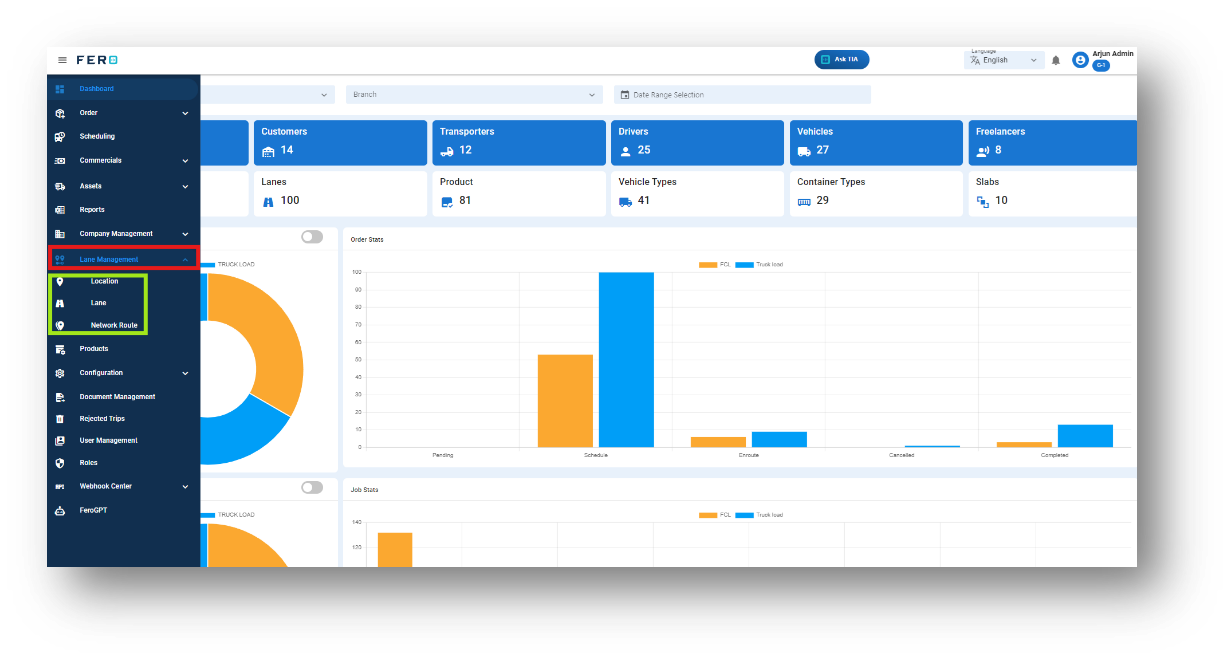
In the Lane Management module, there are three key components:
- Location: Defines the starting and ending points for shipping routes.
- Lane: Specifies the exact routes used for transporting goods between locations.
- Network Route: Combines multiple lanes to form a comprehensive network for shipping operations.
By effectively managing these components, businesses can streamline their logistics and improve overall operational efficiency.
Lane Management Video Tutorial
Location overview:
Location refers to the specific delivery or pickup address where goods or orders are to be transported. Properly managing locations ensures accurate and timely deliveries, enhancing the efficiency of your logistics operations.
How do I setup the location module?
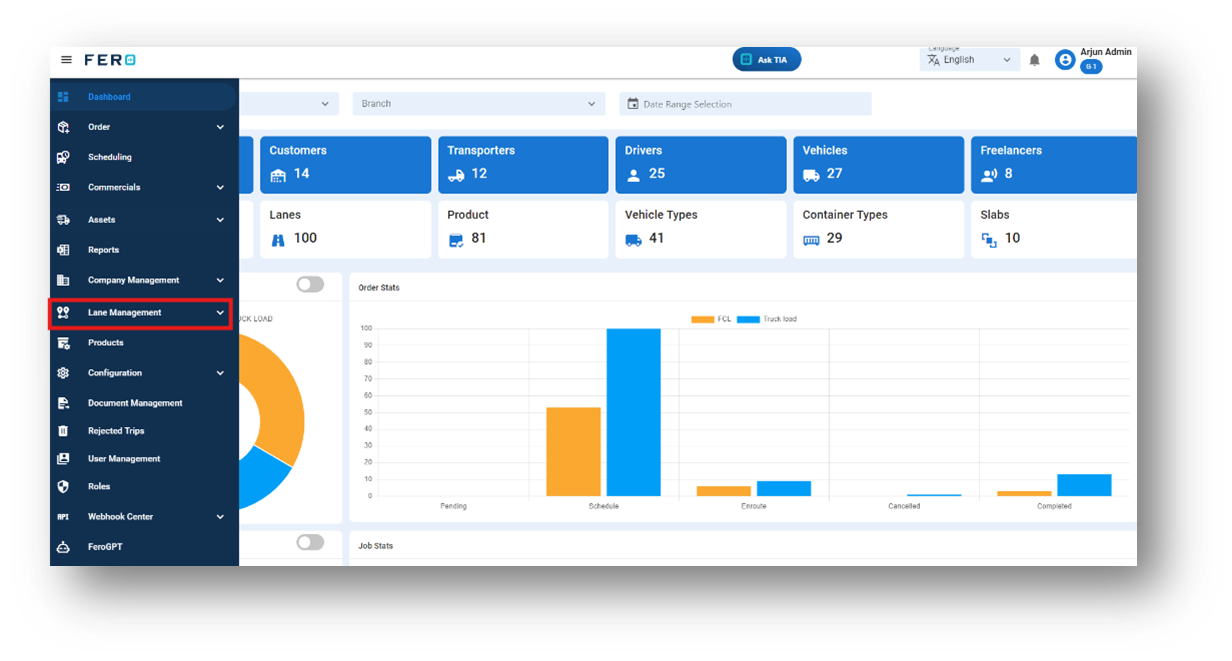
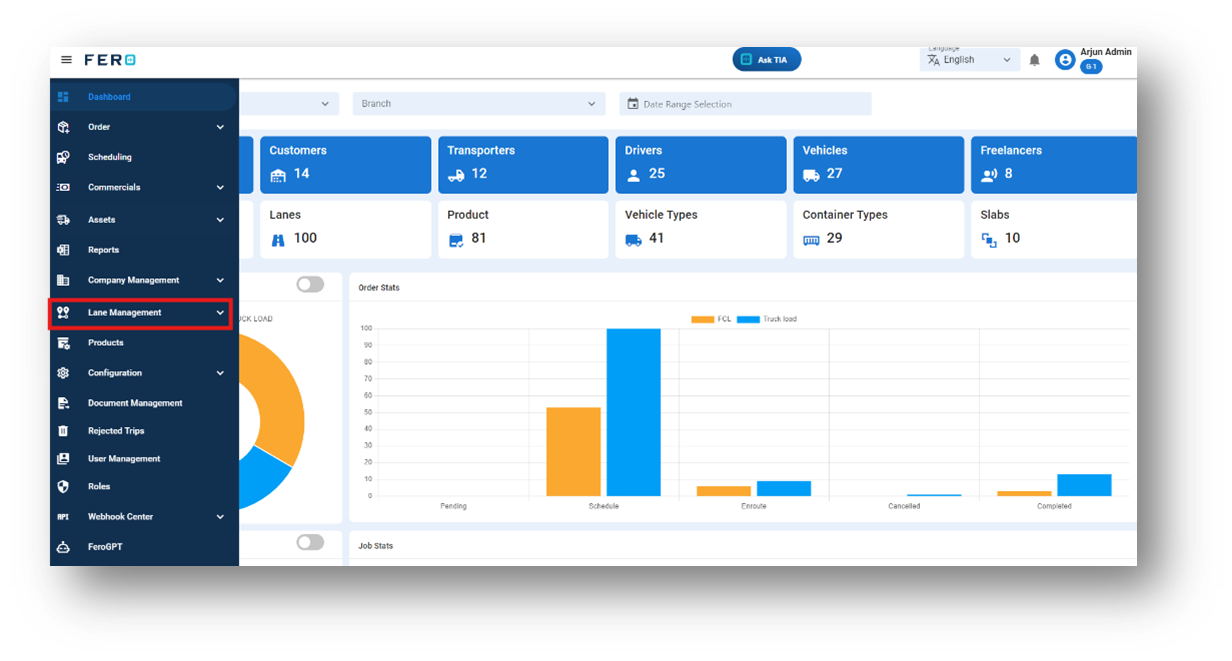
Step 1: Navigate to the Lane Management section and click on it to reveal the drop-down list.
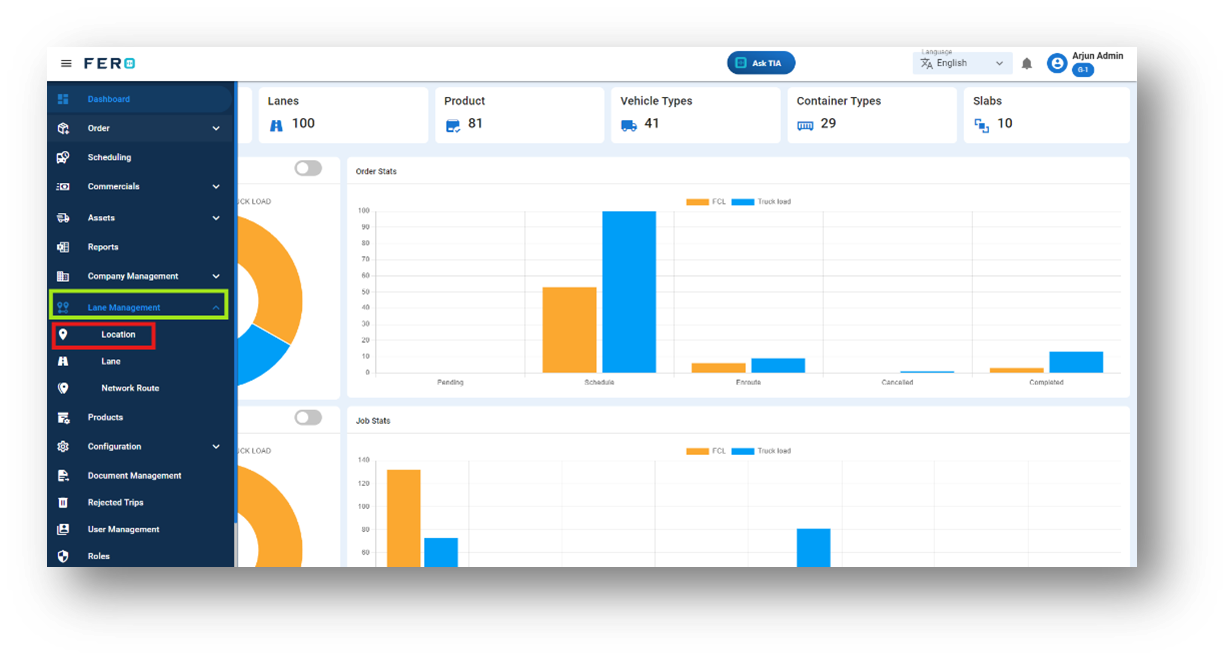
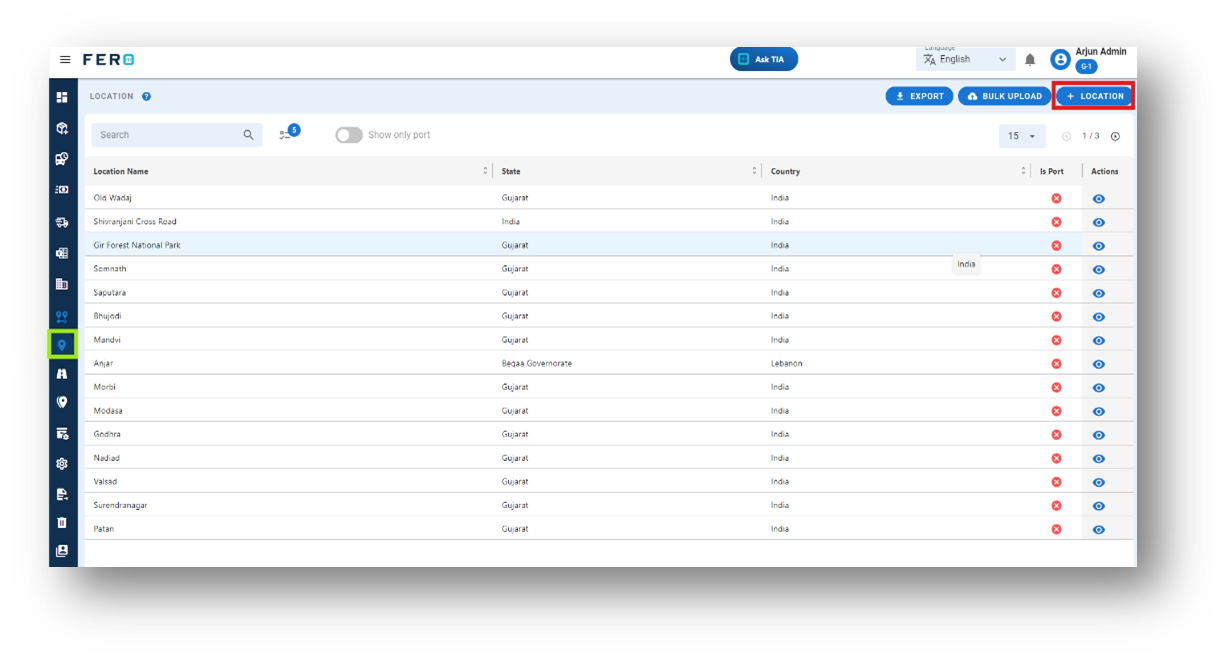
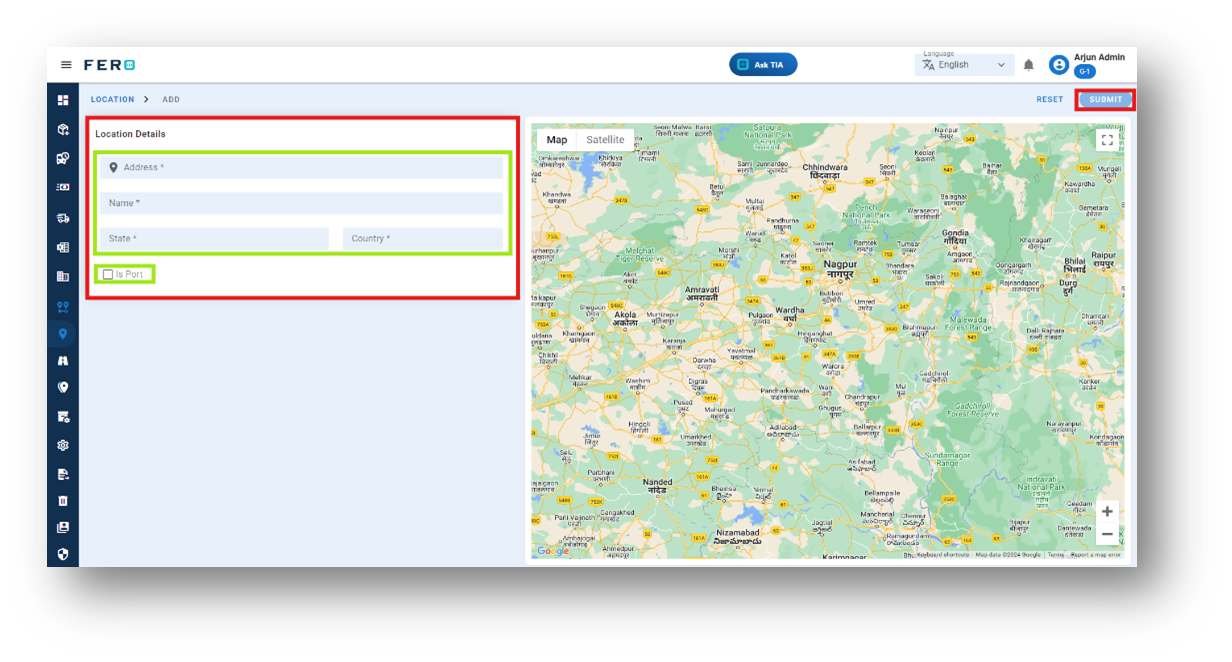
Step 4: Complete the required fields on the "Add Location" screen:
- Location Address: Enter the Address of the Location.
- Location Name: Provide the Location Name.
- Port Check box: click on the check box if the location is a port.
After filling out these fields, click "Submit" to add the Location.
FAQs
Q1. Can I Bulk Upload the Location?
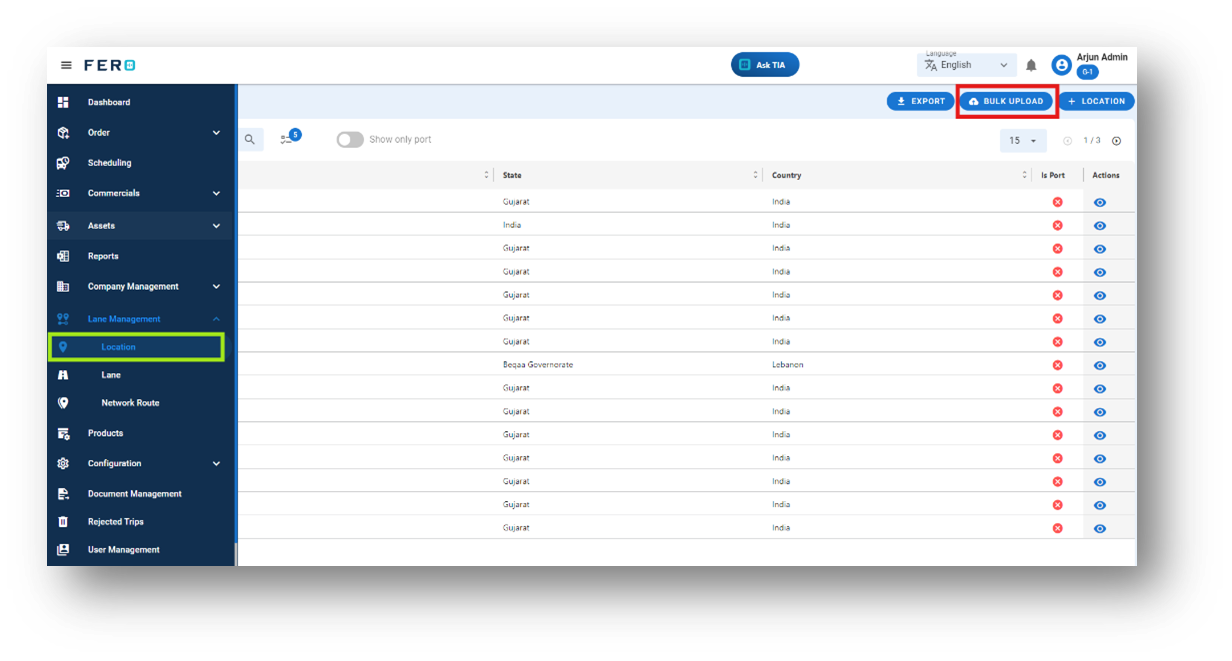
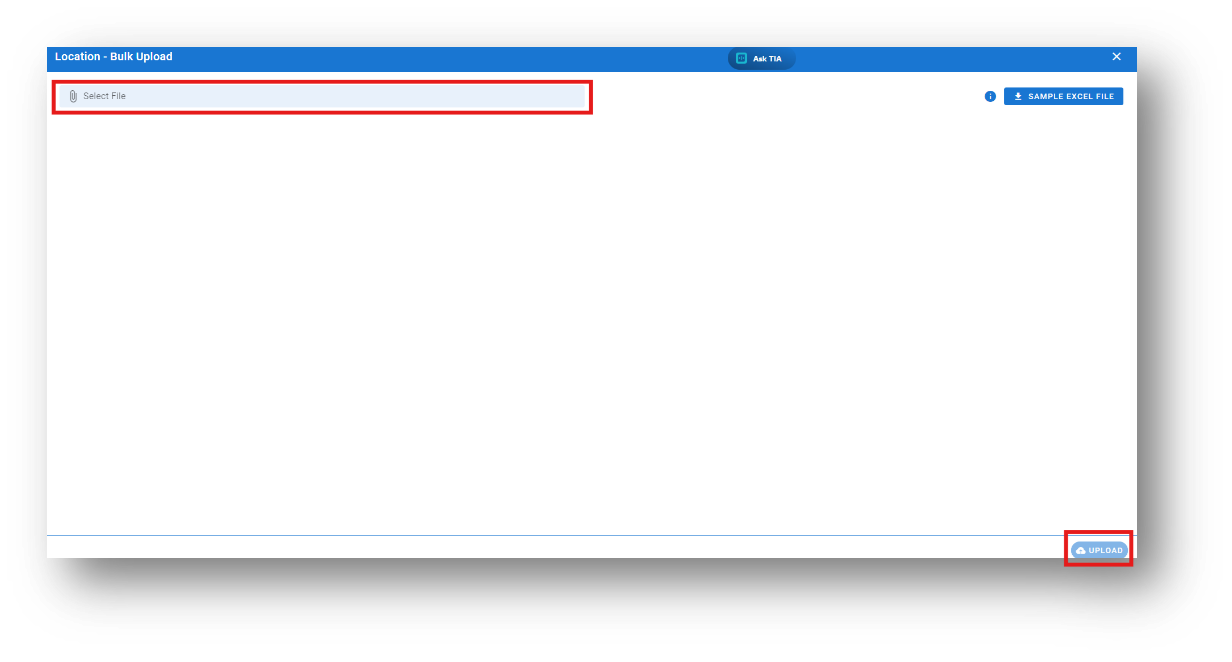
Yes, you can bulk upload Location. This method is the easiest and fastest way to add various Location. To do this, navigate to the bulk upload option, download the sample file, enter the details into the sample file, and upload the document. All the Location will be added within seconds.
Steps to Bulk Upload location:
Step 1: Navigate to the Bulk Upload option.
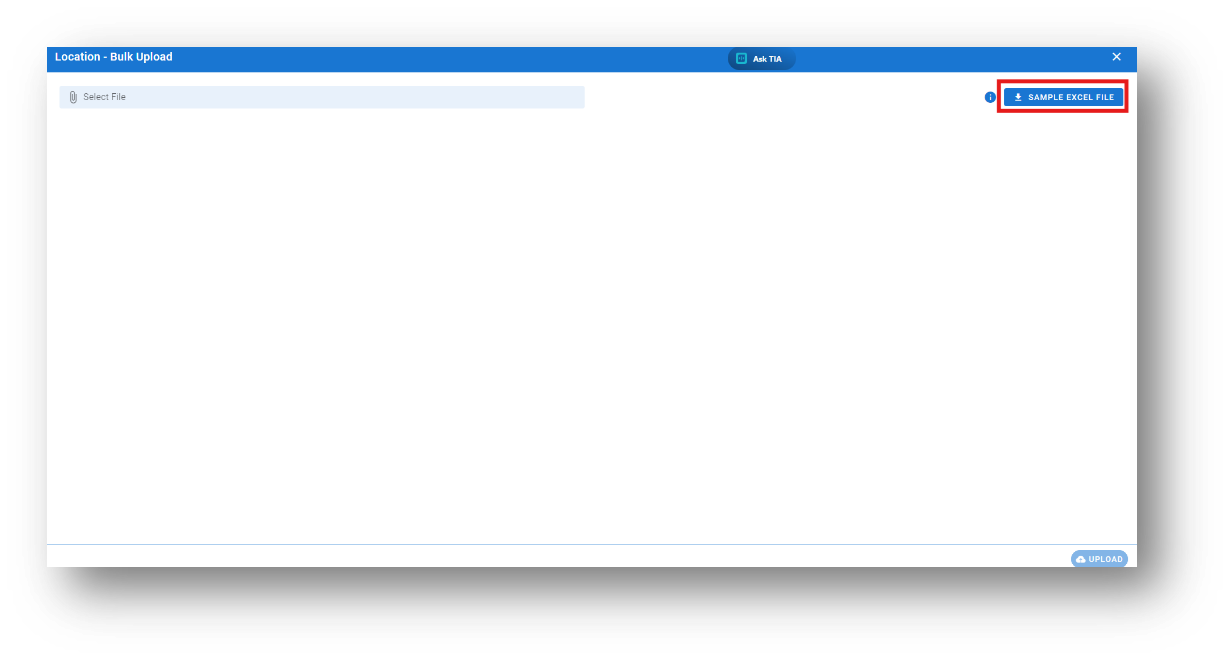
All the Location will be added to the system within seconds.
 Lane overview:
Lanes designate specific routes used for delivering items from source to destination locations, typically optimizing efficiency and timeliness.
How do I setup the location module?
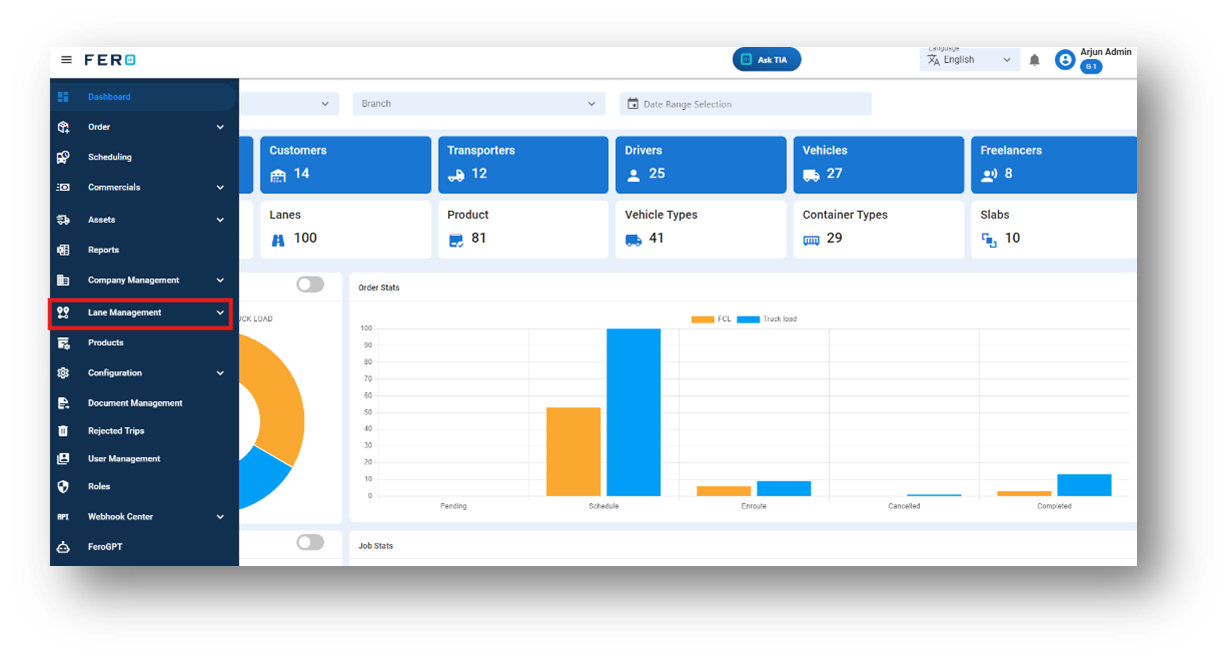
Step 1: Navigate to the Lane Management section and click on it to reveal the drop-down list.
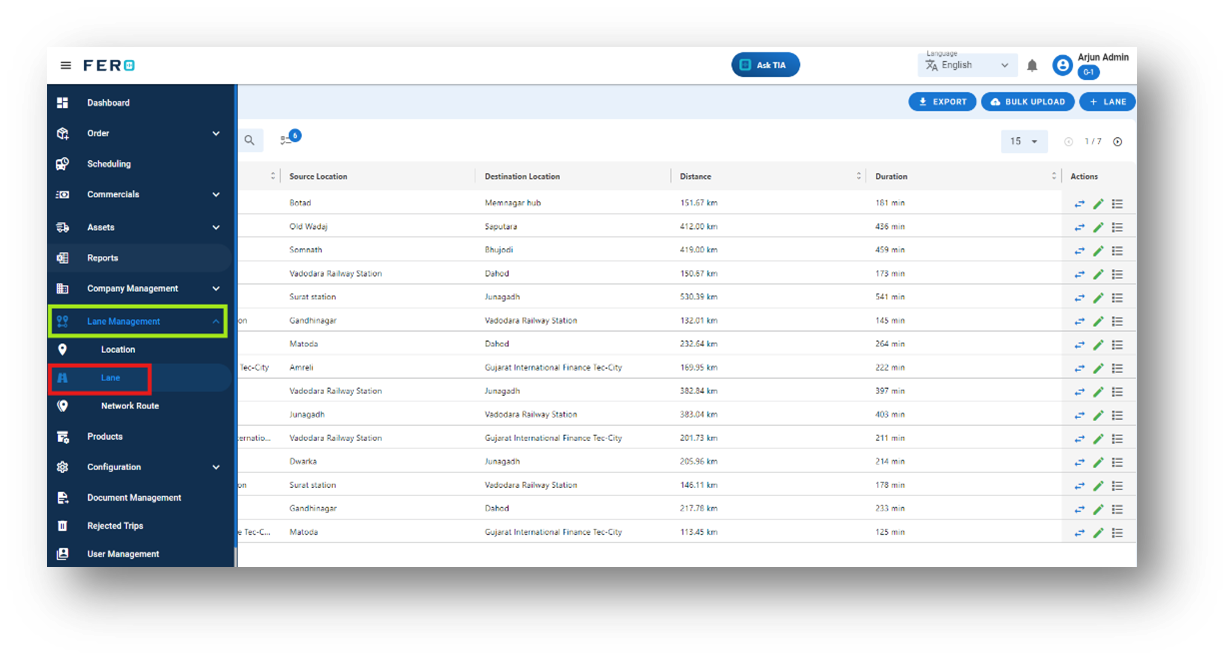
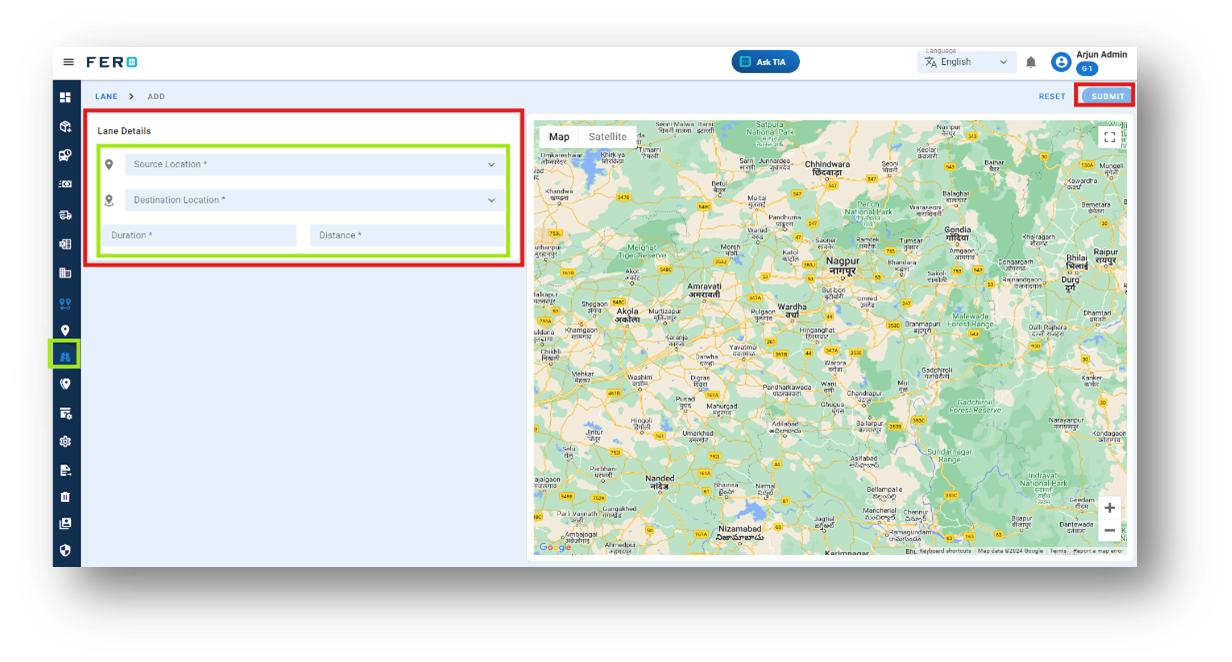
Step 3: Select the "Add Lane " option to initiate the Lane creation process.
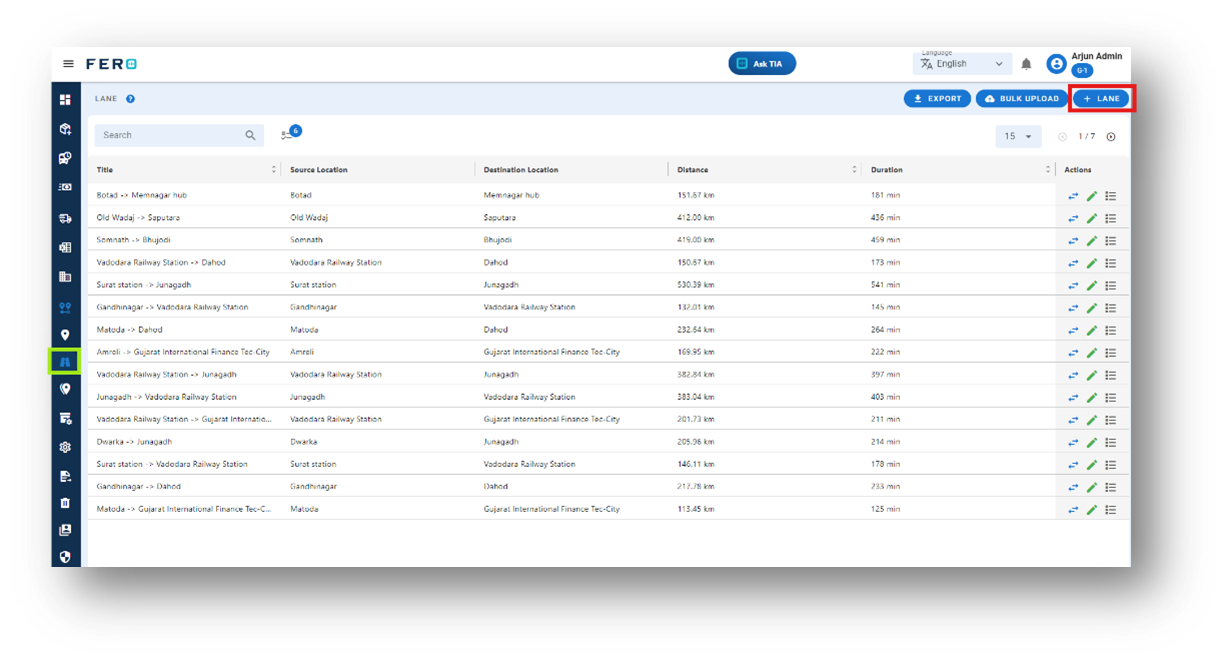
- Source Location: select the source location from the dropdown list.
- Destination Location: select the source location from the dropdown list.
- Duration and Distance: they will be automatically added; you can edit the option
After filling out these fields, click "Submit" to add the Lane.
FAQs
Q1. Can I Bulk Upload the Location?
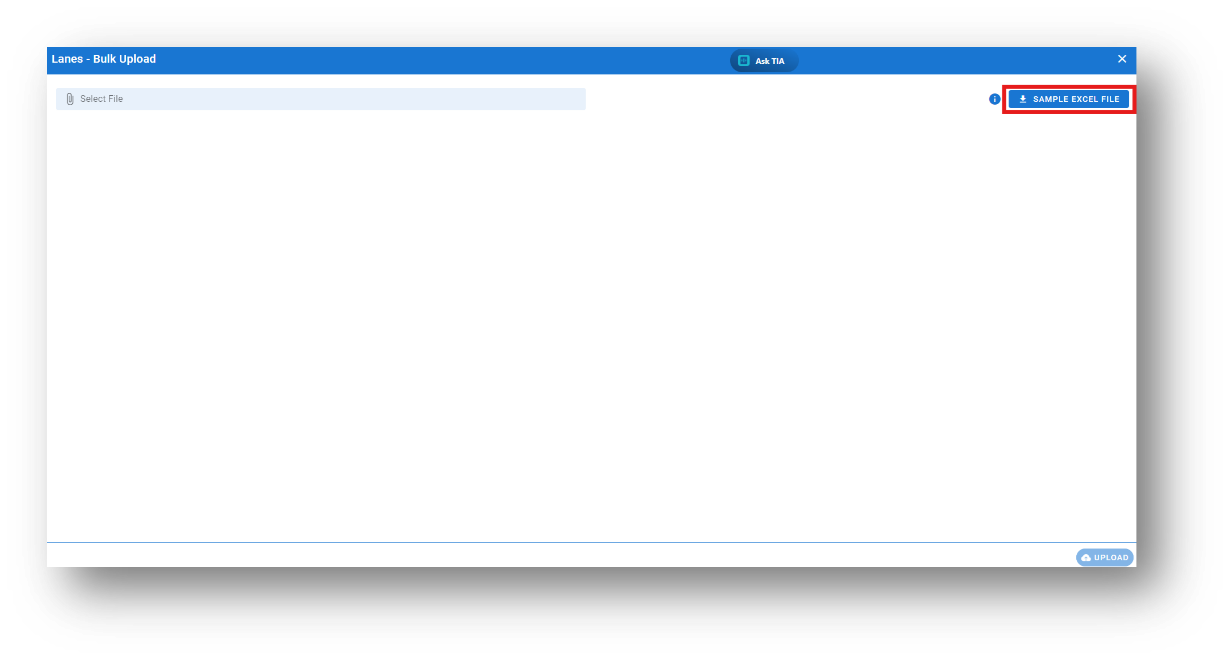
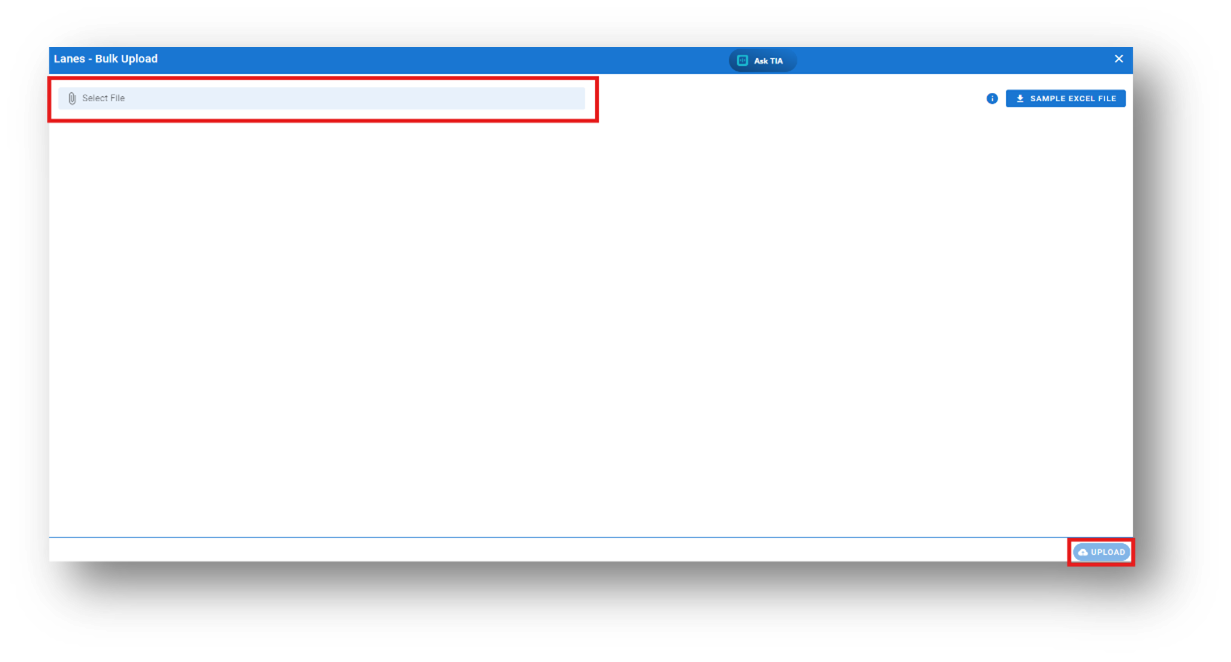
Yes, you can bulk upload Location. This method is the easiest and fastest way to add various Location. To do this, navigate to the bulk upload option, download the sample file, enter the details into the sample file, and upload the document. All the Location will be added within seconds.
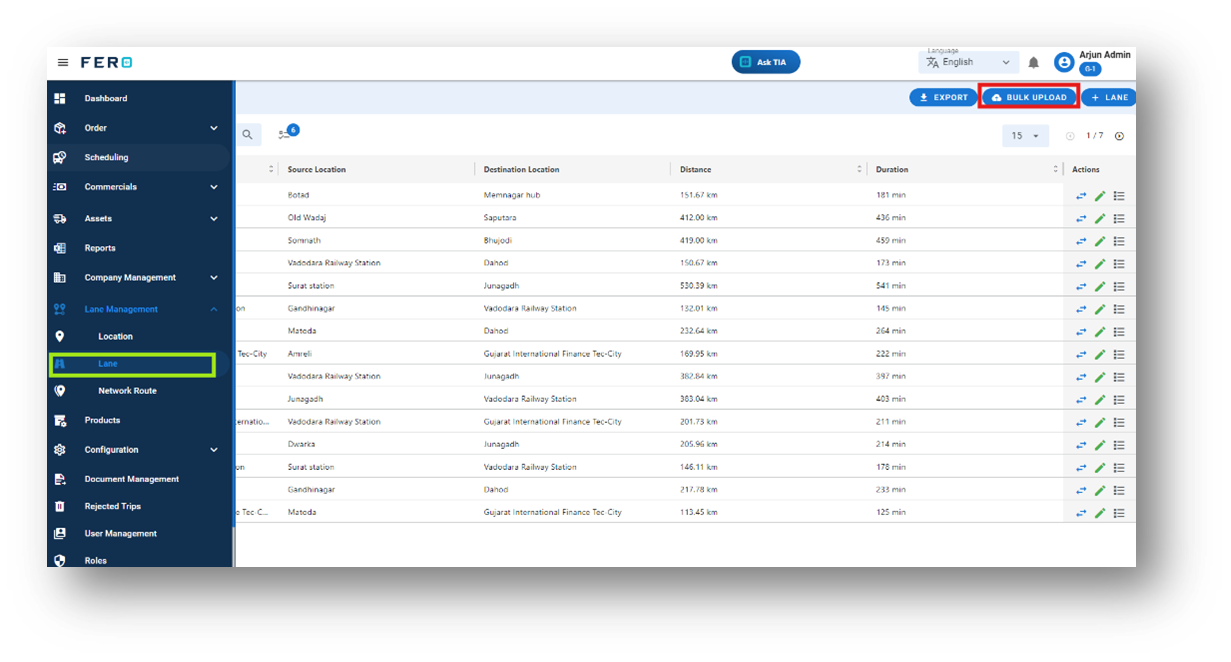
Steps to Bulk Upload Lane:
Step 1: Navigate to the Bulk Upload option.
All the Lane will be added to the system within seconds.
Network route overview:
A Network Route refers to the addition of multi-leg routes for Truck Load Orders and Container Load Orders. It involves defining the stop locations for the journey, ensuring efficient planning and execution of transportation operations. You can specify up to two stop locations within a single network route. This helps in optimizing the route for better resource management and timely deliveries.
By using network routes, you can enhance operational efficiency and ensure that goods are transported through well-planned and strategically defined stops.
How do I setup the location module?
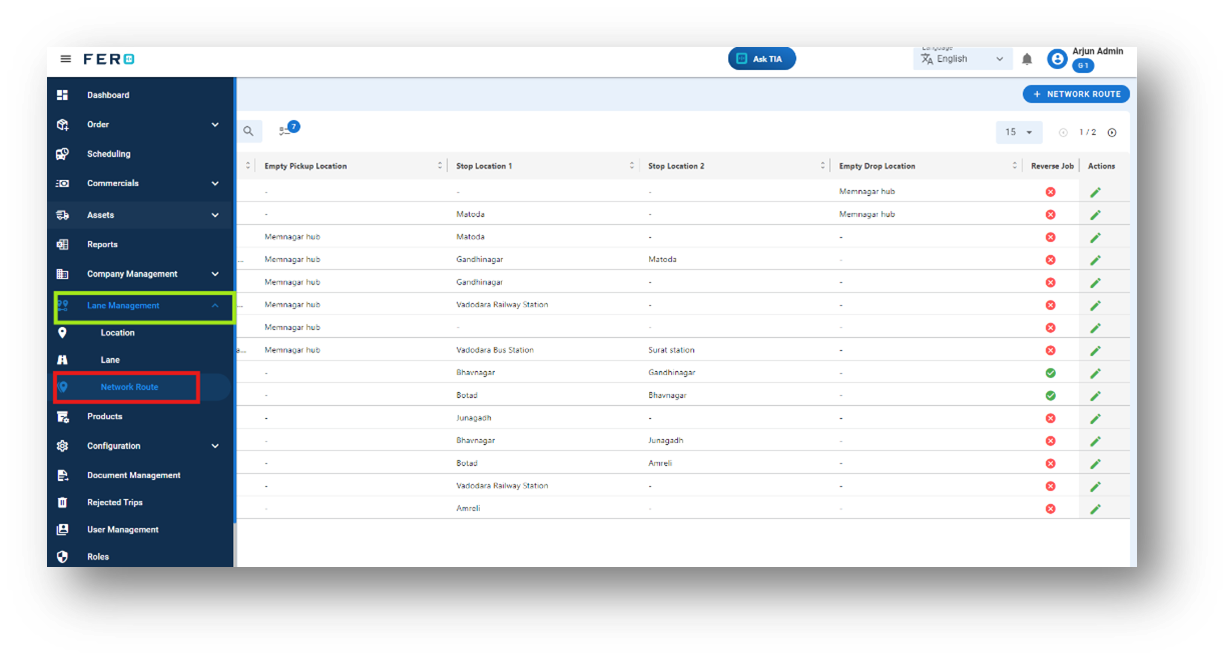
Step 1: Navigate to the Lane Management section and click on it to reveal the drop-down list.
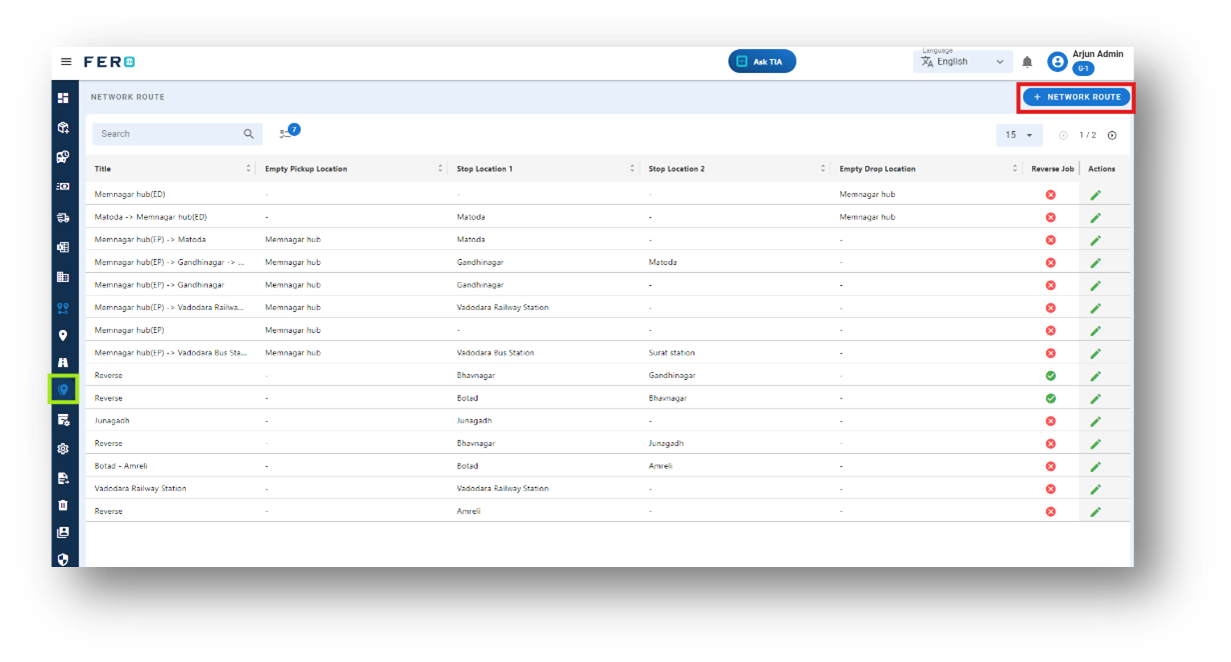
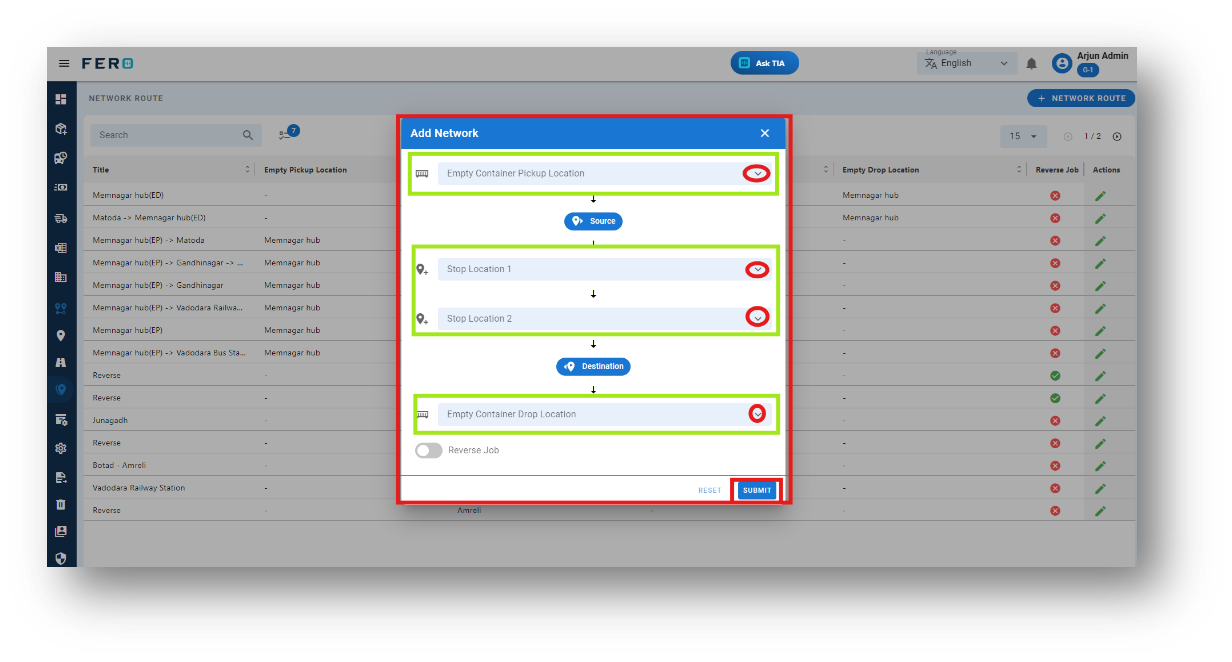
- Define stop locations: select the stop location from the dropdown list.
- Define Empty container pickup location: If it's an FCL order and an empty container needs to be picked up, select the pickup location from the dropdown menu.
- Define empty container drop location: Define Empty Container Drop Location: If it's an FCL order and an empty container needs to be dropped off, select the drop location from the dropdown menu.
After filling out these fields, click "Submit" to add the network route.